Data Geo Localization — User Guide
Data Geo Localization turns the addresses you already keep on your customers into real map positions, and shows them on a Google map that opens straight from the Customer Card. When you open the map on a customer, you also see every other customer within the distance you choose.
Use it to:
- plan a visit day around one customer, seeing at a glance who else is in the area;
- group deliveries by zone instead of by the order they were entered;
- stop copying addresses into a map website one by one;
- check that an address is where you think it is, before the van leaves.
The field and button names below are those shown when the English language is active.
1. Set it up once
Page: Company Information → Aptagram section
Action: fill in the two fields:
- Google API Key — the key of your own Google account, with the Maps JavaScript API and the Geocoding API enabled. The field is masked, so the key is not readable on screen once it is saved.
- Google Maps Max Km Radius — how far around the selected customer you want to look, in kilometres. For example 30 shows only customers within 30 km.
The two fields sit in their own Aptagram group, at the bottom of the page.
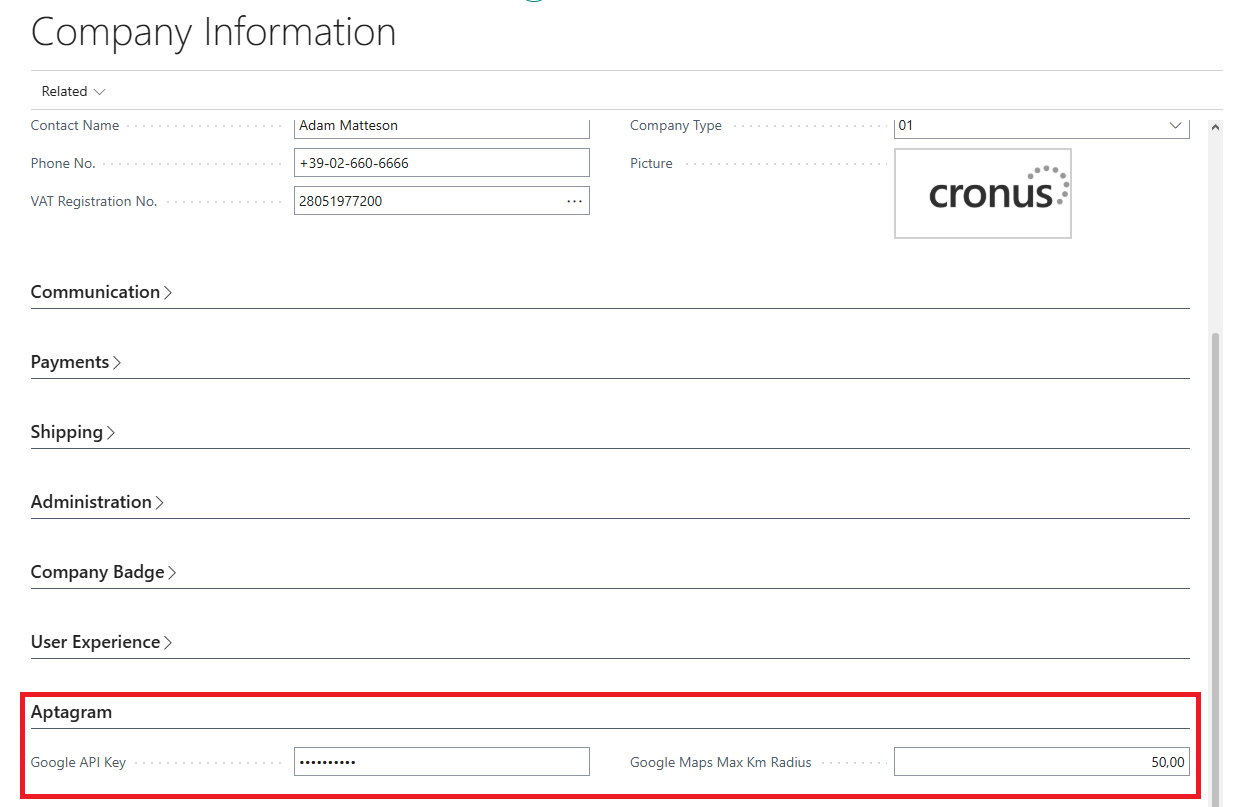
Here the radius is set to 50,00, and the key is saved and therefore masked.
What happens: the app can now look up positions and draw the map. Without a key nothing works: opening the map answers Google API key missing, please add it in the company information page.
The key is yours, not Aptagram's: usage and cost of the map and lookups are billed by Google to that key, so keep the usual restrictions on it in the Google console.
1.1 Choosing the radius
The radius is the straight-line distance from the customer you opened the map on — as the crow flies, not the distance driven. A road route is always longer, so a value slightly larger than the distance you have in mind gives the more useful picture.
Leaving Google Maps Max Km Radius at 0 turns the limit off: the map then shows every customer that has a position, wherever it is. That is fine for a handful of customers and unreadable for a few thousand — set a real radius as soon as the map starts to feel crowded.
2. Open the map on a customer
Page: Customer Card → Customers Map action (also available in the promoted actions at the top of the card)
Action: open the customer you are interested in and choose Customers Map.
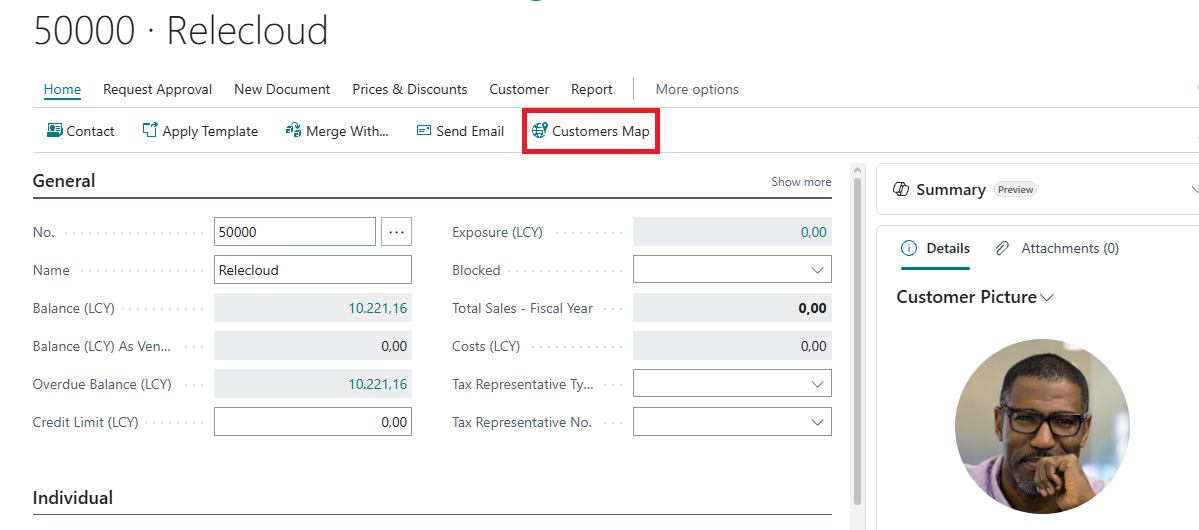
What happens: the map opens centred on that customer:
- the customer you came from is the red marker;
- every other customer within the radius is a blue marker;
- clicking any marker opens a small window with the customer name and its full address.
Below, the map was opened on customer Relecloud: it is the red marker, and the other customers around it are blue. Two markers have been clicked, so their name and address are shown.
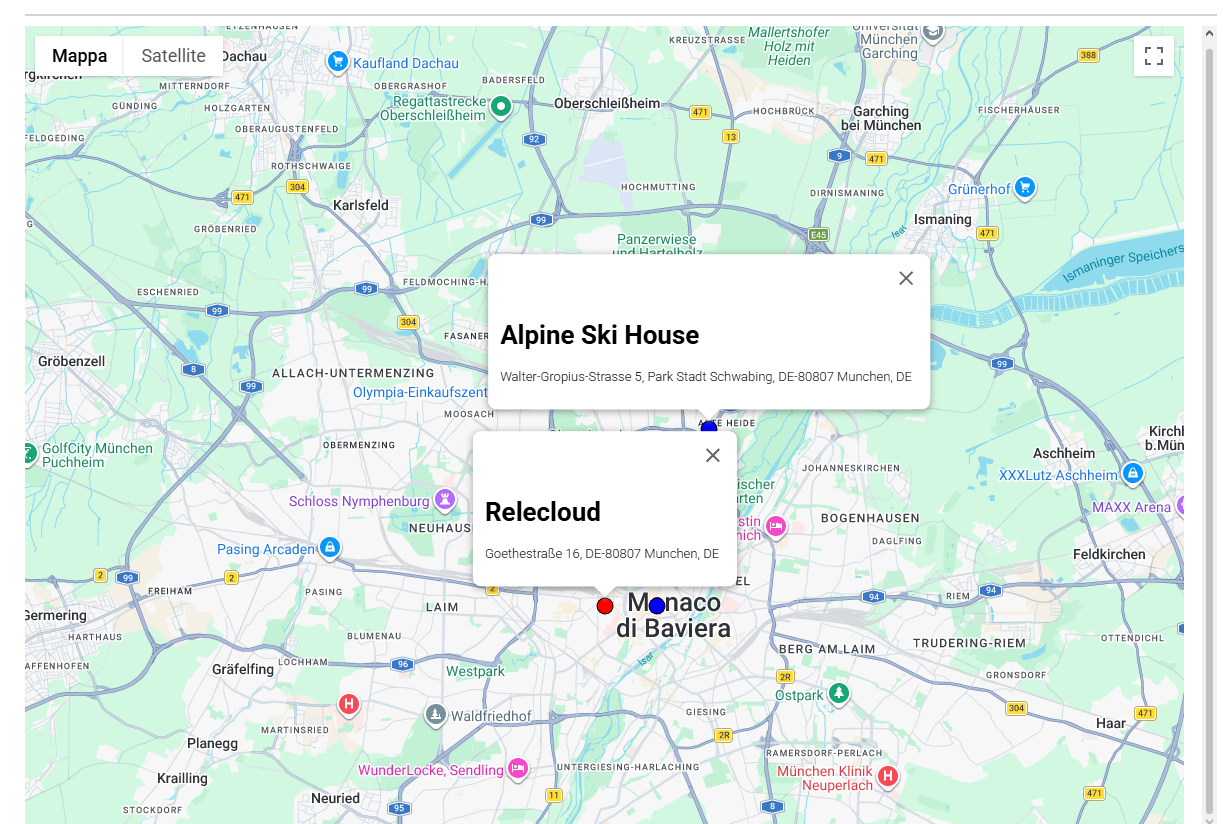
The map is a normal Google map: you can zoom, pan and switch to satellite view as you would in a browser.
3. Where the positions come from
You never type coordinates by hand. The first time a customer's position is needed, the app sends its address to Google and stores the Latitude and Longitude it gets back on the customer, so the lookup is done only once.
The address sent to Google is built from four fields of the customer: Address, City, County and Post Code. City is the one that must be filled in — a customer with an empty City is never positioned, and opening the map on it answers Sorry but we were unable to find the position of customer ….
3.1 When an address changes
Page: Customer Card
Action: change the Address, City, County or Post Code of a customer and save.
What happens: the stored position is cleared straight away, and it is looked up again the next time the customer appears on a map. You do not have to remember to refresh anything; the map simply follows the address.
Changing any other field — the name, the phone number, the payment terms — leaves the position untouched, because it does not change where the customer is.
4. Good to know
- The first map may take a few seconds. Opening the map positions not only the customer you came from but every other customer it has to consider, and each one that has no position yet is looked up at that moment. Once the coordinates are stored, later openings are fast.
- The distance is a straight line. Nearby means "within so many kilometres in a straight line", not "so many kilometres of driving". Two customers on opposite banks of a river can be neighbours on the map and half an hour apart by road.
- Only customers are mapped. Vendors, contacts, ship-to addresses and shipment addresses on documents are not shown.
- A customer without a position is simply absent. It is not flagged on the map and no error is raised for it — only the customer you opened the map on tells you when it cannot be positioned. If someone is missing from the map, check their City and Post Code first.
- Nothing is sent to Google except the address. Customer numbers, balances and any other data stay in Business Central; the lookup asks only "where is this address".
- Latitude and Longitude are kept on the customer but are not shown on the Customer Card by default. If you want to see them, add them yourself with Personalize → + Field.