IX Connector — User Guide
IX Connector is the link between Business Central and the IX service. It hands your electronic invoices to IX, which transmits them to the SDI, and it brings back everything that comes the other way: delivery receipts, rejections, and the invoices your suppliers send you.
Use it to:
- send posted invoices and credit memos without leaving Business Central;
- see on the document itself whether it was delivered, rejected or is still travelling;
- read the notifications SDI issued for a document, and download the XML that was actually sent;
- receive supplier invoices as XML, ready for the Electronic Invoice app to turn into purchase documents.
The connector does not build the XML: the Electronic Invoice app does that, and hands the file over. Set both up together — see section 2.
The field and button names below are those shown when the English language is active.
1. Set it up once
Page: Company Information → PTGIX section, at the bottom of the page
Action: fill in the credentials your IX contract gives you:
- IX Username and IX Password — the user IX issued for your company.
- IX Client ID and IX Client Secret — filled in for you when the app is installed. Change them only if IX asks you to.
- IX Aoo and IX Uo — the area and unit your invoices belong to on the IX side. You can type them, or let the connector read them from the service (see section 1.2).
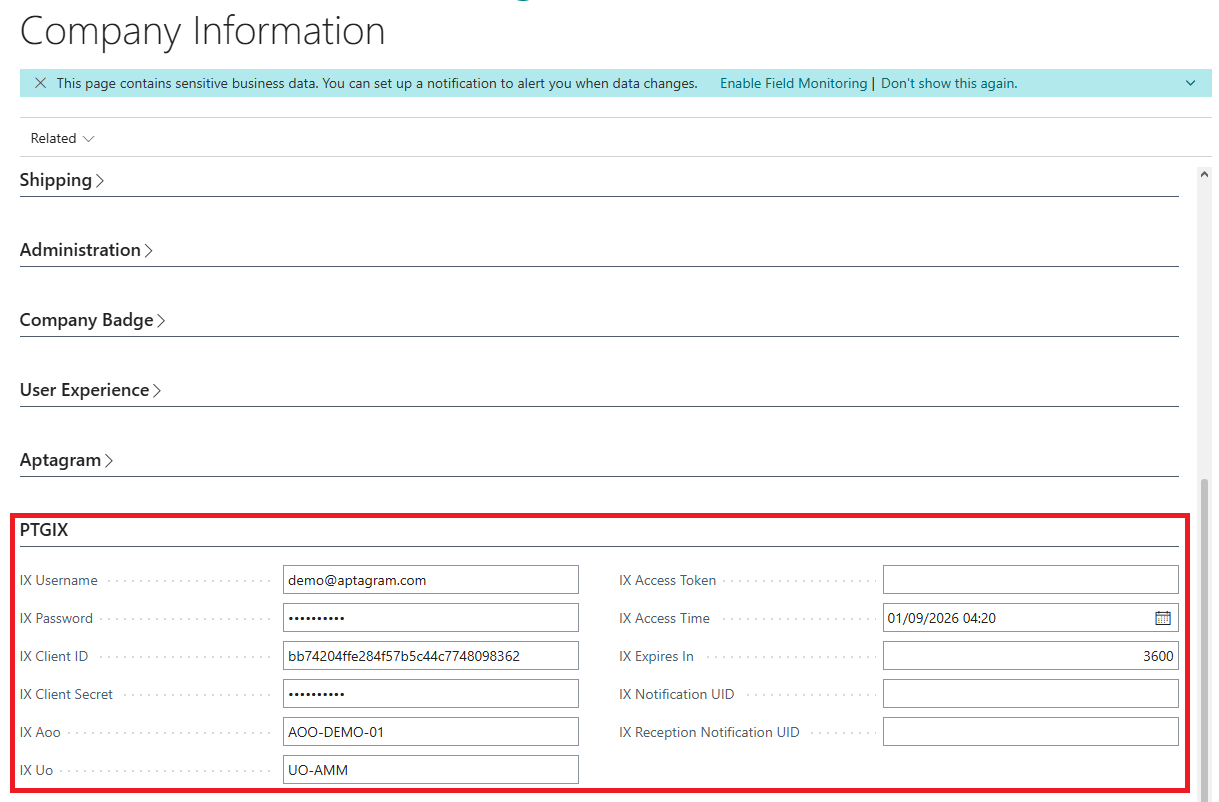
The remaining fields — IX Access Token, IX Access Time, IX Expires In, IX Notification UID, IX Reception Notification UID — are filled in and kept up to date by the connector itself. Leave them alone; they are shown so that support can read them when something goes wrong.
1.1 Check that the credentials work
Page: Company Information → PTGTestIXConnector action
Action: run it and confirm the address it shows you.
What happens: the connector signs in to IX with the credentials you entered. No message means it worked; anything wrong with username, password or client data comes back as an error naming what the service refused.
1.2 Fill in Aoo and Uo from the service
Page: Company Information → Compute Aoo-Ou action
Action: run it and pick your area and unit from the list the service returns.
What happens: the connector reads the areas and units your user has access to. If IX Aoo or IX Uo already holds a different value, you are asked before it is replaced, so a working setup is never overwritten by accident.
2. Connect it to the Electronic Invoice app
The connector is the transmission half of Italian e-invoicing. The Electronic Invoice app builds the FatturaPA file and calls the connector to move it — see the Electronic Invoice user guide.
Page: Electronic Document Format
On the format you use for FatturaPA, point three fields at the connector — their names all begin with PTG IX:
- Delivery Codeunit ID → PTG IX Connector Management, which uploads the file to IX. This is what Send to SDI runs.
- Download Codeunit ID → PTG IX Update Out Notification, which reads the notifications of the invoices you sent.
- Import Codeunit ID → PTG IX Connector Import, which hands the supplier invoices received from IX to the import process.
Without these three, the Electronic Invoice app still builds and downloads files, but nothing leaves or enters Business Central.
3. Send an invoice
Page: Posted Sales Invoice (or posted credit memo)
Action: use Send to SDI, as described in the Electronic Invoice guide.
What happens: the connector signs in, uploads the XML to IX, and records the send in the IX Outgoing Files page. The file starts as Pending: IX has taken it, and the answer from SDI is still to come. The same status is written onto the posted document, in the IX Status field.
A document cannot be sent twice: if a file for it is already Pending, Delivered or Received, sending answers Invoice already sent for the current document. and nothing leaves.
4. Follow a document's status
Page: Posted Sales Invoices, Posted Sales Invoice, and the same pair for purchase invoices and for sales and purchase credit memos
Each of them carries an IX Status field, in the list and on the document. Drill down on it to open the IX file behind that document, with its history.
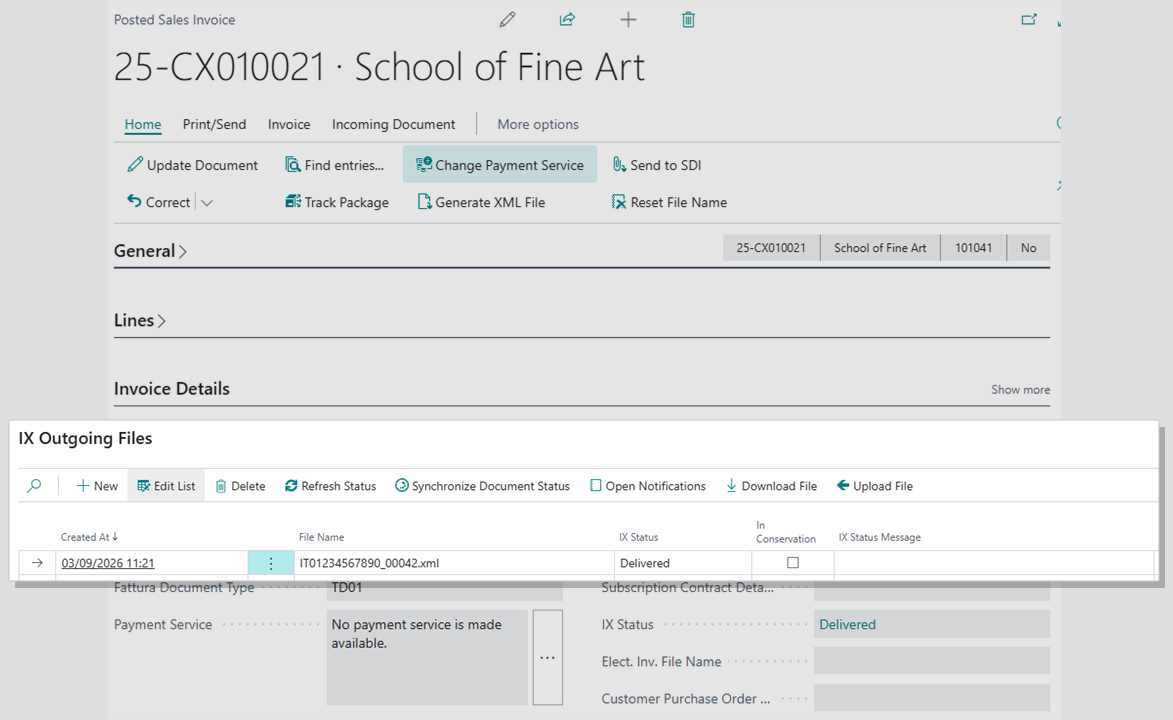
The invoice above reads Delivered, and the drill-down shows the file that carries that status — the XML name IX knows it by, and the moment it was created.
The statuses mean this:
| Status | On a document you sent | On a supplier invoice |
|---|---|---|
| (blank) | The file has been created but not yet accepted by IX | — |
| Pending | Uploaded to IX, waiting for SDI | — |
| Delivered | Transmitted to SDI, or preserved (see In Conservation) | The invoice has been imported into Business Central |
| Received | SDI issued a delivery receipt, or the customer's outcome arrived | Taken over by IX and ready to import |
| Rejected | SDI rejected the invoice (scarto) | The outcome was refused |
| Error | Validation, template or signature error, failed delivery, or deadline passed | Deadline passed |
Rejected and Error are shown in red wherever they appear, so a bad send stands out in a list of a hundred good ones.
5. The IX Outgoing Files page
Page: search for IX Outgoing Files with Tell Me (the magnifying glass)
One row per file sent, newest first: when it was created, its file name, its status, whether it is In Conservation, the message the service returned, and the identifier IX gave the invoice.
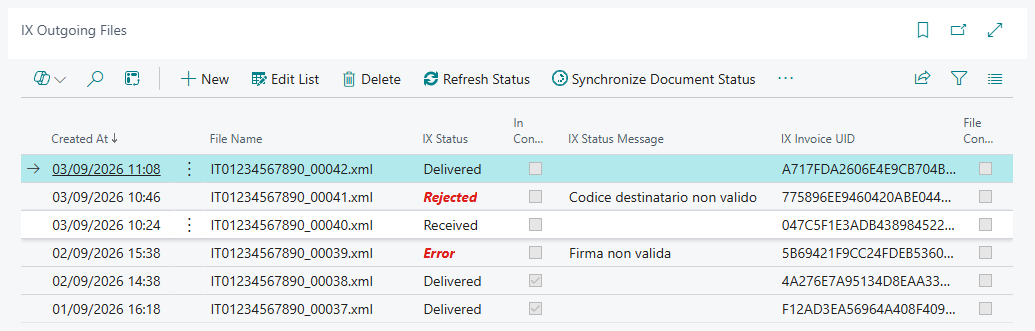
Rejected and Error stand out in red, and IX Status Message says why — here an invalid recipient code and an invalid signature. The two oldest rows are ticked In Conservation.
The actions across the top:
- Refresh Status — asks IX for everything that has happened since the last time you asked, and updates the rows and the posted documents behind them. This is the button that turns Pending into Delivered, Received or Rejected.
- Synchronize Document Status — copies the status of the selected file onto its posted document. Useful when the document and the file have drifted apart.
- Open Notifications — the notifications SDI issued for that invoice: type, date and time, and any validation error. Each one can be downloaded.
- Download File — the XML exactly as it was sent.
- Upload File — sends a file you choose from your computer for that document. Use it when the XML had to be corrected outside Business Central.
Open Notifications is where a rejection explains itself:
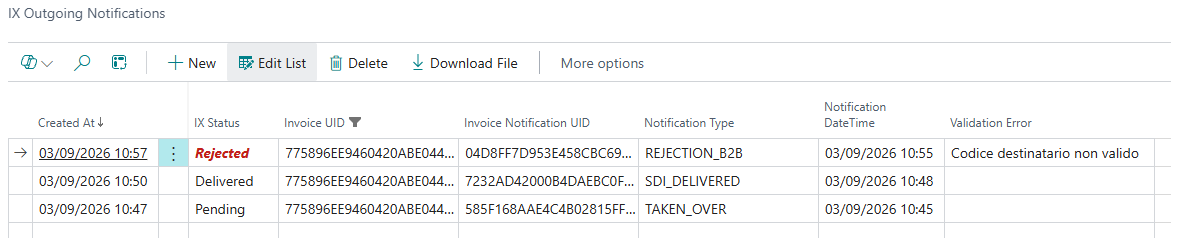
Read the notifications of a rejected invoice from the bottom up — taken over, delivered, then rejected — with Validation Error naming what SDI objected to.
6. Receive supplier invoices
Page: search for IX Incoming Files with Tell Me
Action: use Refresh Status.
What happens: the connector asks IX what has arrived, downloads the XML of each new invoice, and adds a row with the supplier name, the amount, the document number and date, and the reception date. The row's status becomes Received: the file is in Business Central and ready to be used.
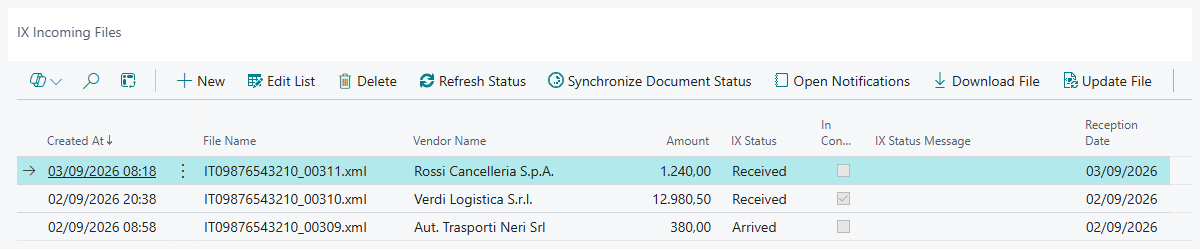
The two Received rows above are waiting to be imported; each carries the supplier it came from and the amount, so you can tell what has landed before opening anything.
From there, the Electronic Invoice app takes over: Import From Service picks up every file that is Received and turns it into a purchase document. Once a file has been imported its status changes to Delivered, so it is not offered again.
The other actions work like their outgoing counterparts: Open Notifications, Download File, and Update File — which replaces the XML content of a row with a file from your computer, keeping the original file name, for the rare case where a supplier's file has to be fixed before it can be imported.
7. Run it automatically
Nobody should have to remember to press Refresh Status.
Page: Job Queue Entries
Action: create two entries of type Codeunit:
- PTG IX Update Out Notification — the notifications of what you sent;
- PTG IX Update Trasmission — the invoices your suppliers have sent you.
What happens: the same work the two Refresh Status buttons do, on the schedule you set. Every few hours is generally enough; SDI does not answer in seconds.
Good to know
- Test and production are chosen for you. In a sandbox the connector talks to the IX test service; in a production environment it talks to the live one. There is nothing to switch, and no risk of sending a real invoice from a test company.
- The sign-in token is managed by the app. It is stored on Company Information and renewed shortly before it expires, so normal work never asks you to log in.
- A file name can only be used once. Sending a file whose name is already in the outgoing list is refused — the name is how a document is recognised on the IX side.
- Statuses are only as fresh as the last refresh. Between two runs, a document can already have been delivered or rejected without Business Central knowing it yet.
- In Conservation is separate from the status. It is ticked when IX confirms the document went to digital preservation, and it does not replace the delivery status.
- Deleting a file deletes its notifications. Removing a row from IX Outgoing Files or IX Incoming Files also removes the notification history attached to it, and the XML with it.
- A few statuses are never used today. Cancelled, Arrived and Validated exist in the list but are not set by the connector; ignore them.