LIPE Communication — User Guide
LIPE Communication builds Italy's periodic VAT settlement communication — the Comunicazione Liquidazioni Periodiche IVA (LIPE) — inside Business Central, straight from the VAT entries and the periodic VAT settlement you have already posted. You calculate each declaration with one action, review every VP box on the card, release it to lock the figures, then export a submission-ready XML for the Agenzia delle Entrate and print the official form for your records.
Use it to:
- build a monthly or quarterly VAT communication directly from posted VAT entries — no re-keying;
- calculate active and passive operations, VAT due, VAT deducted, and the amount to pay or on credit in one step;
- carry previous-period and previous-year debt, credit, tax credits and the advance payment forward from the posted periodic settlement;
- keep specific VAT identifiers or posting-group combinations out of any box with configurable exclusions;
- export a compliant XML named for your fiscal code and communication id, and print the declaration in the official VP-framework layout.
The field and button names below are those shown when the English language is active.
1. Before you start
The app does not re-post anything and does not read your source documents. It works entirely from data that is already in Business Central, so two things must be in place for the period you are declaring:
- Posted VAT entries. Every sales and purchase document for the period must be posted. Active operations, passive operations, VAT due and VAT deducted are summed from the VAT Entry table by posting date.
- A closed periodic VAT settlement. Run Calc. and Post VAT Settlement in final mode for the period so the VAT Periodic Settlement entry exists and its VAT Period Closed flag is on. Previous debt, previous-period and previous-year credit, tax credits, the amount to pay or on credit and the advance payment are all read from that entry. If it is missing or still open, Calculate Totals stops with an error.
No setup page needs to be filled before the first communication. The Software Producer Id is pre-filled on the very first entry you create and carried forward from then on.
2. Open the LIPE Communications list
Page: search for LIPE Communications with Tell Me (the magnifying glass).
One line per period. The columns mirror the boxes of the printed form; the ones to watch first are:
- Tax Year and Month — the period. Quarter and the Starting Date / Ending Date are worked out from them and cannot be typed.
- Status — Open while you are still working on the entry, Released once it is locked (see section 7).
- Exported — ticked automatically the first time the entry is written to an XML file.
The list below holds the three monthly communications of the second quarter of 2025:
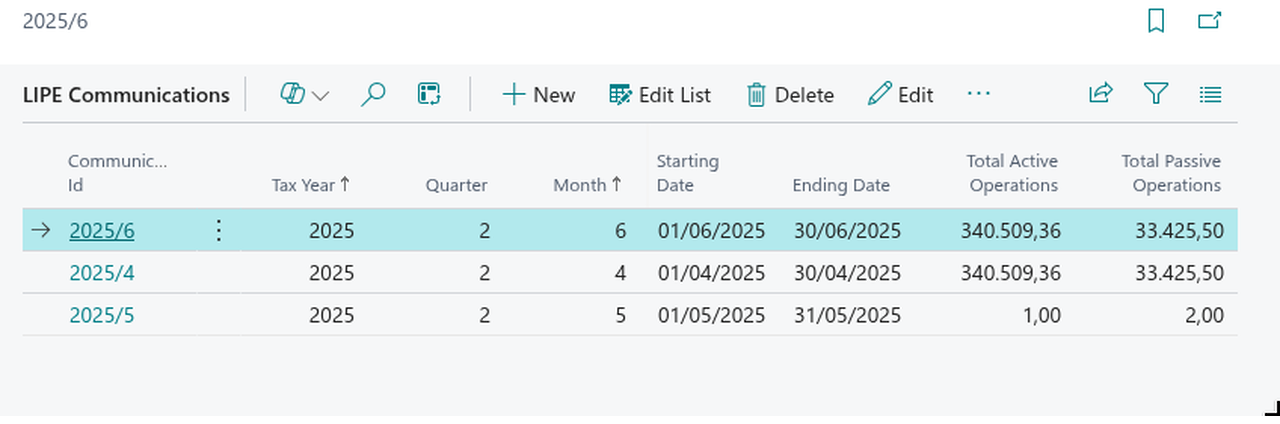
Starting Date and Ending Date are filled in from Tax Year and Month, and Total Active Operations and Total Passive Operations show the result of the last Calculate Totals run on each line.
Calculate Totals, Release / Open, Export as XML, Print Declaration, Exclusions and Inherit Header Data are available both here and on the card.
3. Create a communication for a period
Action: choose New.
When at least one communication already exists, the new one is pre-filled from the last:
- Period Type, and the header and frontespizio fields, are copied as they were.
- Month is moved forward — by 1 for a monthly filer, 3 for a quarterly filer, 12 for a yearly one — rolling the Tax Year over at the end of the year.
- Communication Id is advanced only when the new month opens a quarter (January, April, July, October). Monthly communications that fall in the same quarter keep the same Communication Id, so the three months of a quarter can later be exported as one file (see section 8).
Check and adjust:
- Period Type — Monthly, Quarterly or Yearly.
- Tax Year — the calendar year. Italian VAT is always on a solar-year basis.
- Month — for a quarterly filer this is the first month of the quarter (1, 4, 7, 10).
What happens: Starting Date, Ending Date and Quarter are recalculated as soon as you change Period Type, Tax Year or Month.
3.1 Fill the header and frontespizio
In the General group:
- Header — Submission Code, Declarant Fiscal Code, Role Code, Communication Id.
- Frontespizio — Company Fiscal Code, Tax Year, VAT Number, Declarant Role Code, Declaration Signature, Software Producer Id.
Action: to copy these from the previous communication instead of typing them again, use Inherit Header Data and confirm. It pulls the submission code, declarant data, company fiscal code, VAT number, role code, declaration signature and software producer id from the entry before this one, and leaves the accounting figures untouched.
4. Calculate the declaration
Page: LIPE Declaration (the card) or the LIPE Communications list.
Action: choose Calculate Totals and confirm the period in the dialog. The entry must be Open.
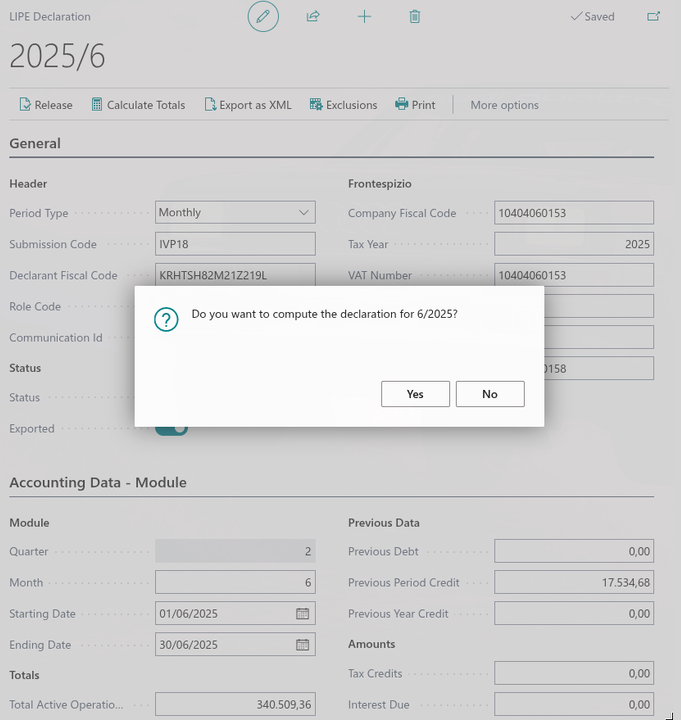
The dialog names the period it is about to compute — check that it is the one you meant before choosing Yes.
What happens: every calculated box is cleared and rebuilt. From the VAT entries posted between Starting Date and Ending Date:
- Total Active Operations — taxable base of the sales entries, net of VAT.
- Total Passive Operations — taxable base of the purchase entries, including the non-deductible base.
- VAT Due — VAT on the sales entries.
- VAT Deducted — VAT on the purchase entries.
- VAT Payable — VAT Due minus VAT Deducted when positive; otherwise 0 and the difference goes to VAT Credit.
From the posted periodic VAT settlement for the period:
- Previous Debt and Previous Period Credit — the prior-period output and input VAT (for the first period of the year, the prior-year figures).
- Previous Year Credit — the prior-year input VAT.
- Tax Credits — the credit VAT compensation.
- Amount To Pay / Amount In Credit — the VAT settlement result, shown as a payable or a credit.
- Advanced Amount — the VAT advance recorded on the settlement.
Entries whose VAT categories are covered by an exclusion are left out of the matching box. Interest Due for quarterly settlements is not calculated — enter it by hand.
5. Advance payment and exceptional-event boxes
These fields are not calculated; set them when they apply, while the entry is Open.
Page: LIPE Declaration → Amounts
- Prepayment Method — the VP10 method: 1 historical, 2 forecast, 3 analytical/effective, or 4 particular subjects. Leave blank when no advance is due.
- Advanced Amount — the VAT advance; carried in from the periodic settlement by Calculate Totals but editable.
Page: LIPE Declaration → Exceptions
- Subcontracting, Exceptional Events, Exceptional Operations — the corresponding boxes of the VP framework. Each ticked box is written to the XML and printed on the form.
6. Keep VAT categories out of a box
Use exclusions when a VAT category must not contribute to a specific box of the communication — for example a transaction type that is posted with VAT entries but does not belong in Total Active Operations (VP2).
Page: LIPE Exclusions — reachable with Tell Me or the Exclusions button on the list and the card.
Each line identifies the VAT categories to exclude, either by:
- VAT Identifier on its own, or
- VAT Business Posting Group and/or VAT Product Posting Group.
You cannot combine a VAT Identifier with a posting group on the same line — the app blocks the line if you try.
Then tick the boxes the line should be excluded from:
- Total Active Operations (VP2)
- Total Passive Operations (VP3)
- VAT Due
- VAT Deducted
The three lines below exclude, in order, a VAT Product Posting Group from Total Active Operations; a business and product posting group combination from Total Passive Operations and VAT Deducted; and a single VAT Identifier from VAT Due.
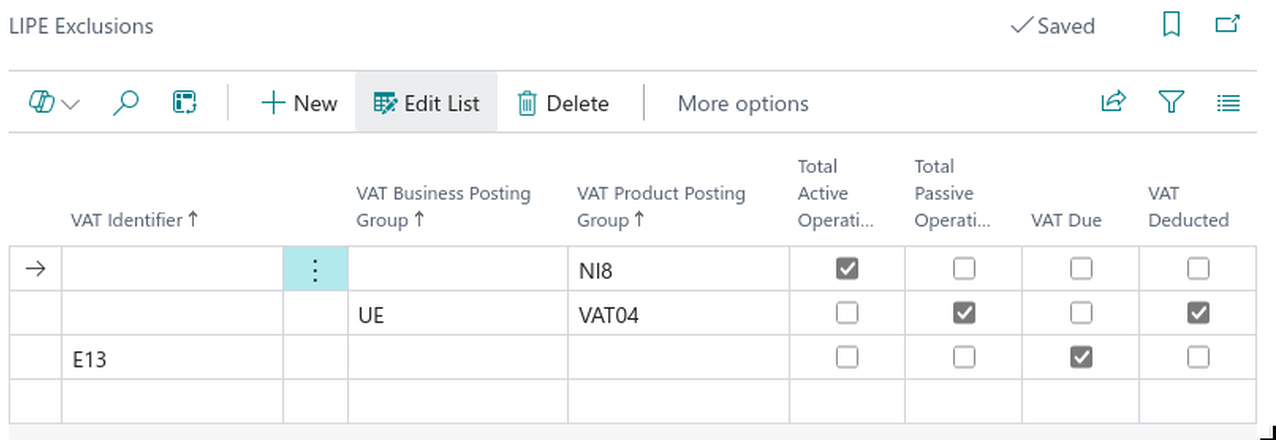
What happens: the next time you run Calculate Totals, any VAT entry matching an exclusion line is skipped for each ticked box. Existing communications are not recalculated automatically — reopen and recalculate the ones that need it.
7. Review and release
The calculated boxes sit together on the card under Accounting Data - Module: the period and the totals on the left, the figures carried in from the periodic settlement on the right.
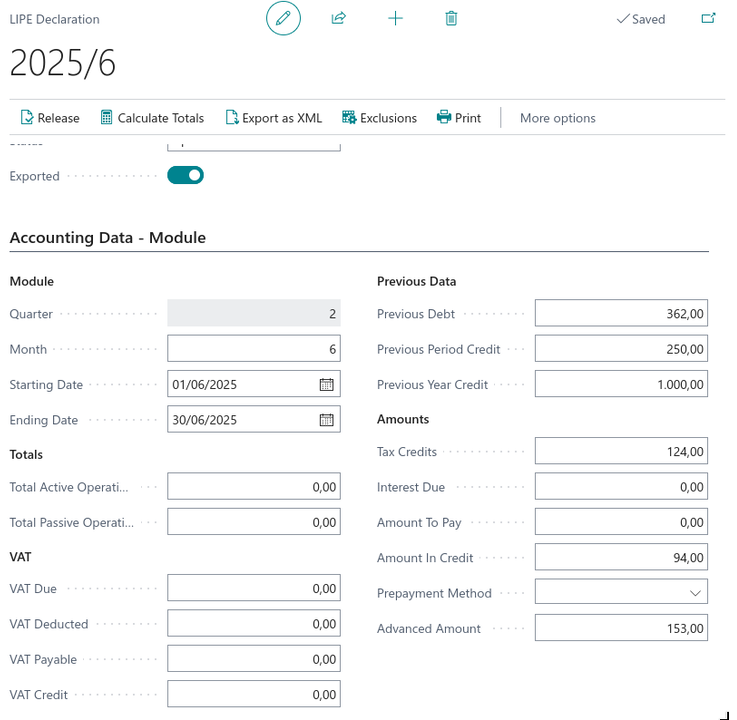
Read Amount To Pay and Amount In Credit last — they are what you will actually pay or carry forward.
Action: with the figures checked, choose Release. Status becomes Released and every field on the entry turns read-only.
Action: to correct a released communication, choose Open. It returns to Open and can be edited and recalculated again.
Releasing is not required in order to export or print, but it is the way to mark a communication as final and protect it from an accidental recalculation.
8. Export the XML
Action: select one or more communications in the list and choose Export as XML, then confirm.
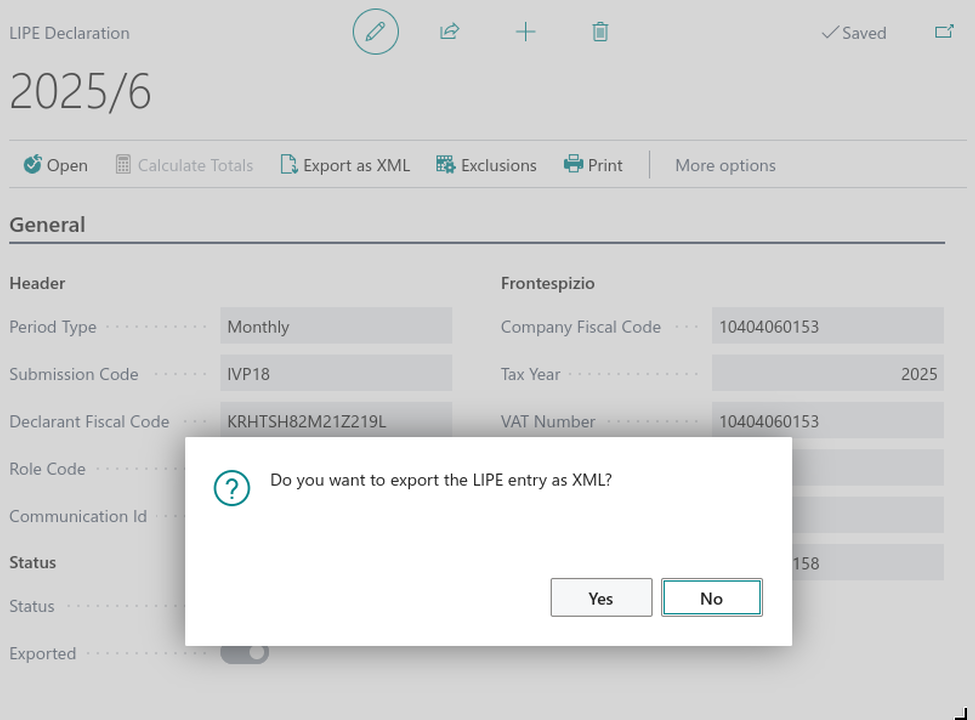
Export as XML stays available on a released communication — as the toolbar above shows, releasing only greys out Calculate Totals.
What happens: a single XML file is produced in the Agenzia delle Entrate ivp format and downloaded by your browser. Its name is IT<company fiscal code>_LI_<communication id>.xml. Each selected communication becomes a numbered Modulo inside the file, so to file a quarter as one submission with a module per month, select that quarter's three monthly communications together before exporting. Every exported entry has its Exported flag set; re-exporting is allowed and sets it again.
Upload the file to the Agenzia delle Entrate through the usual telematic channel.
9. Print the declaration
Action: choose Print Declaration on the list, or Print on the card.
What happens: the communication is printed in the official COMUNICAZIONE LIQUIDAZIONI PERIODICHE IVA / QUADRO VP layout. On the request page you can set the Printing Type (Test or Final) and, when the extended options are shown, the description of goods, the signing company official, whether it is a supplementary return, and the tax authority receipt and document numbers.
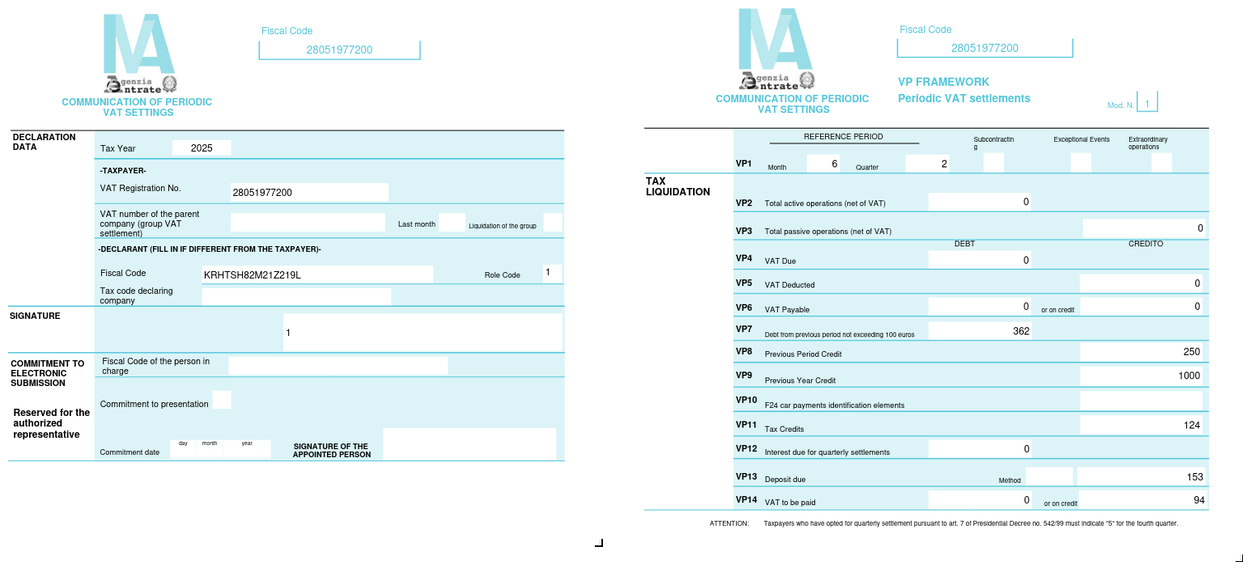
The first page carries the declaration and declarant data; the second holds the VP framework, where boxes VP2 to VP14 match one-to-one the fields you reviewed on the card.
Good to know
- Calculate Totals overwrites. It resets every calculated box before rebuilding it, so re-running it is safe — but any manual change you made to a calculated field is lost. Set the manual fields (section 5) after the last recalculation.
- The periodic VAT settlement must be closed. If the VAT Periodic Settlement entry for the period is missing or its VAT Period Closed flag is off, Calculate Totals stops with an error. Run Calc. and Post VAT Settlement in final mode first.
- Quarterly filers. Month holds the first month of the quarter; the app reads the settlement of the quarter's last month. On the printed form, filers who opted for quarterly settlement under art. 7 of D.P.R. 542/99 must show "5" for the fourth quarter.
- Communication Id groups the modules of one filing. It only advances at the start of a quarter, so monthly communications in the same quarter share it on purpose — that is what lets them export into one file.
- Amounts are taxable bases and VAT amounts, never percentages, and use the decimal comma (
1.234,56). - Exported is informational. It records that a file was produced; it does not lock the entry and does not stop you exporting again. Use Release to lock a communication.
- Interest Due is manual. The app does not compute the interest on quarterly settlements — type it into Interest Due before releasing.
- Software Producer Id is pre-filled on the first communication ever created and carried forward; change it only if instructed.
- The Italian client shows the standard Business Central VAT captions (Liquidazione IVA periodica, IVA esigibile, IVA detratta, …); the Print Declaration list button may still read in English, as it has no Italian caption in the app yet.