Costing Management — User Guide
Costing Management values your inventory over periods you define yourself. You choose the dates, you choose where the cost of each receipt is taken from, and the app recomputes the value of your stock with a weighted average you can follow line by line. Quantities always come from the item ledger, so they are never in question, and nothing is posted or revalued in Business Central.
Use it to:
- close the inventory value on the dates that matter to you, not the ones the standard method imposes;
- see what every item contributes to the total, from opening balance to closing value;
- correct unit costs you do not trust by importing them from Excel, and start clean from a baseline period;
- hand finance the valuation as an Excel file or a printed report.
The field and button names below are those shown when the English language is active.
1. Set it up once
Page: Costing Setup (APT) — search for it with Tell Me
Action: fill in the two groups.
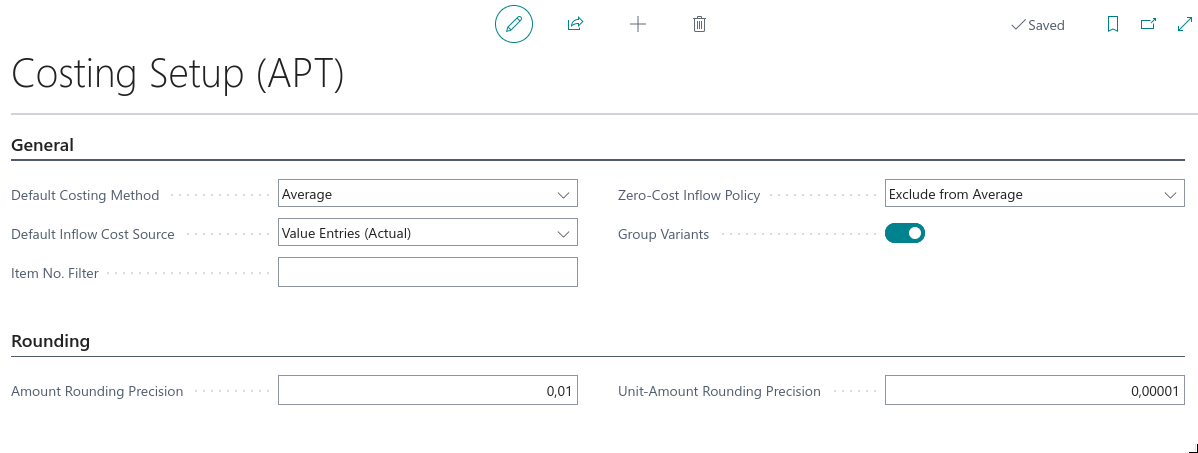
In General you decide how a new period behaves:
- Default Costing Method — the method proposed on every new period. Average is the method the app computes: one weighted average per period, applied to everything that leaves the stock.
- Default Inflow Cost Source — where the cost of a receipt is read from: Value Entries (Actual), Value Entries (Actual + Expected) when you also want what has been received but not invoiced yet, or Item Unit Cost to ignore the ledger and use the cost on the item card.
- Item No. Filter — leave it blank to value everything, or restrict the whole app to a range of items.
- Zero-Cost Inflow Policy — what to do with a receipt that brought quantity but no cost. See section 5.
- Group Variants — when on, one value is computed per item; when off, each variant is valued on its own line.
In Rounding, Amount Rounding Precision applies to values and Unit-Amount Rounding Precision to unit costs. Above they are set to 0,01 and 0,00001.
What happens: every period you create from now on starts with these settings, and you can still change them on the single period.
2. Create your periods
Page: Inventory Periods (APT) → New
Action: give the period a Code, a Description, a Starting Date and an Ending Date, then check the Costing Method and the Inflow Cost Source it inherited from the setup.
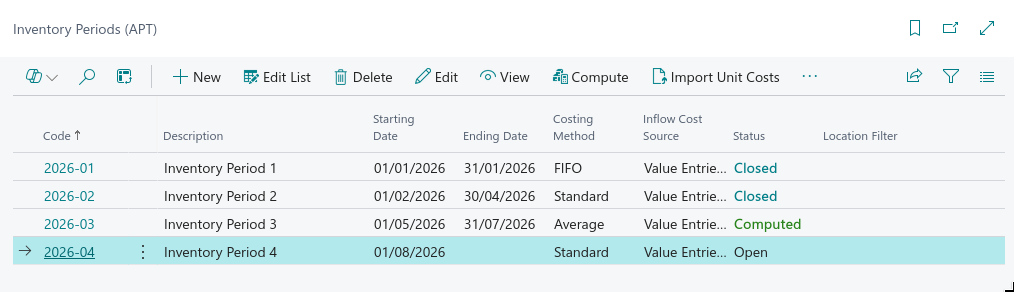
The list shows where each period stands:
| Status | Meaning |
|---|---|
| Open | you can still change its dates and settings; it has no result yet |
| Computed | the value has been computed and can be read, recomputed or corrected |
| Closed | the result is frozen |
Two fields decide what a period looks at: Location Filter limits which locations are counted, and Inventory Posting Group Filter limits which items are. Leave them blank to take everything.
Periods form a chain: the closing value of one becomes the opening value of the next. Previous Period says which one to chain to; leave it blank and the app takes the period with the latest earlier starting date.
2.1 The baseline period
If the cost history in Business Central is not trustworthy, start with a baseline period: leave its Starting Date blank, which means from the beginning, and set the Ending Date to the day before your first real period. Its quantities are then your actual stock at that date, and the unit costs you import into it become the clean opening value everything after it is built on (section 4).
3. Compute the value
Page: Inventory Period → Compute
Action: open the period and choose Compute, then confirm.
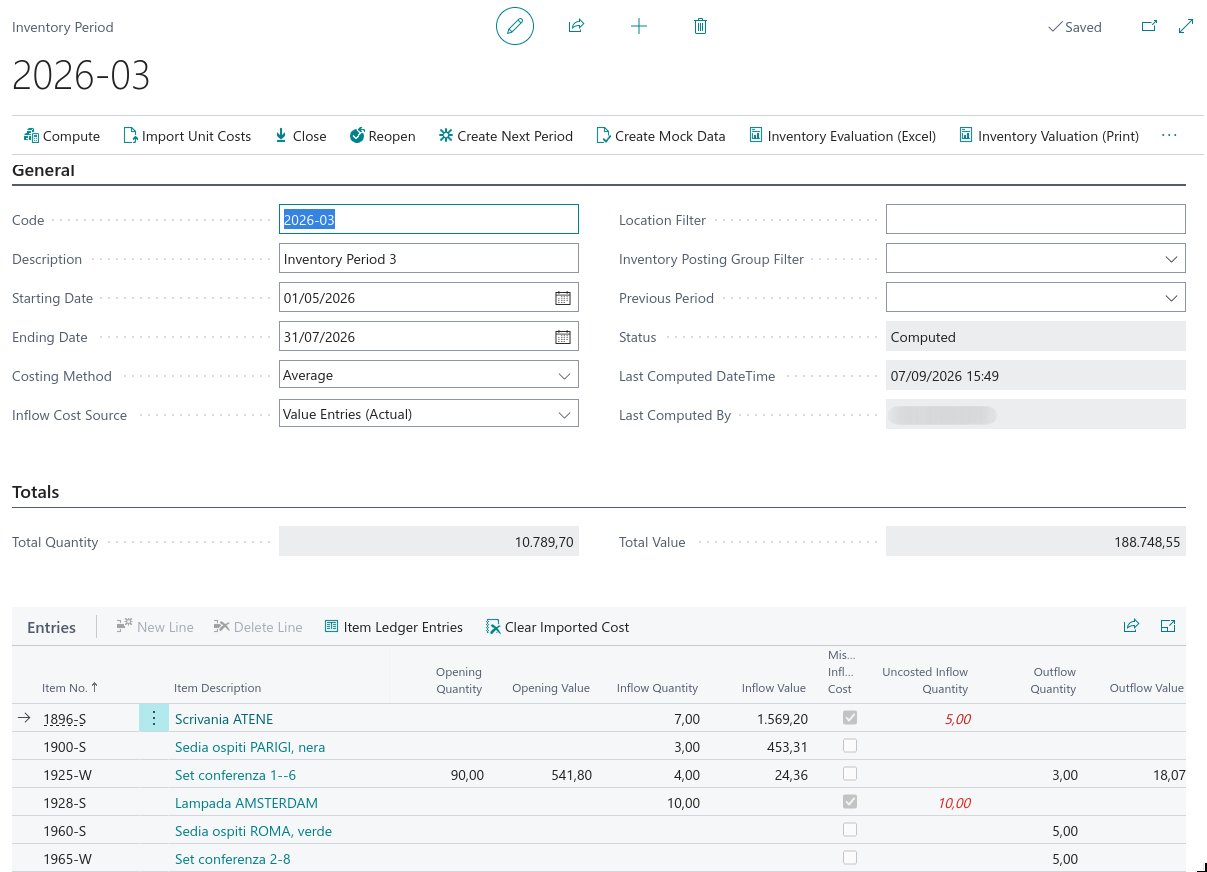
What happens: the app reads the item ledger for the period, values the receipts with the chosen Inflow Cost Source, computes one average unit cost per item and applies it to everything issued. The period goes to Computed, and Last Computed DateTime and Last Computed By record who ran it. Total Quantity and Total Value in the Totals group are the closing figures of the whole period.
3.1 Reading a line
Each line of Entries is one item (and one variant, if you did not group them):
- Opening Quantity and Opening Value — what was carried in from the previous period;
- Inflow Quantity and Inflow Value — what was received during the period;
- Outflow Quantity and Outflow Value — what left, valued at the period unit cost;
- Closing Quantity and Closing Value — what remains, and what it is worth;
- Unit Cost — the weighted average of the period, or the cost you imported;
- Revaluation Adjustment — the difference between the closing value and the plain arithmetic of the movements, which is what a correction injected into the period.
Item Ledger Entries on the lines opens the movements a line was built from, so any figure can be traced back to the ledger.
4. Correct the costs you do not trust
Page: Inventory Period → Import Unit Costs
Action: prepare an Excel file with three columns — Item No., Variant Code, Unit Cost — with a header on the first row and one item per row from the second. Leave the variant blank when the item has none, or write * to apply the same cost to every variant of that item. Then choose Import Unit Costs and pick the file.
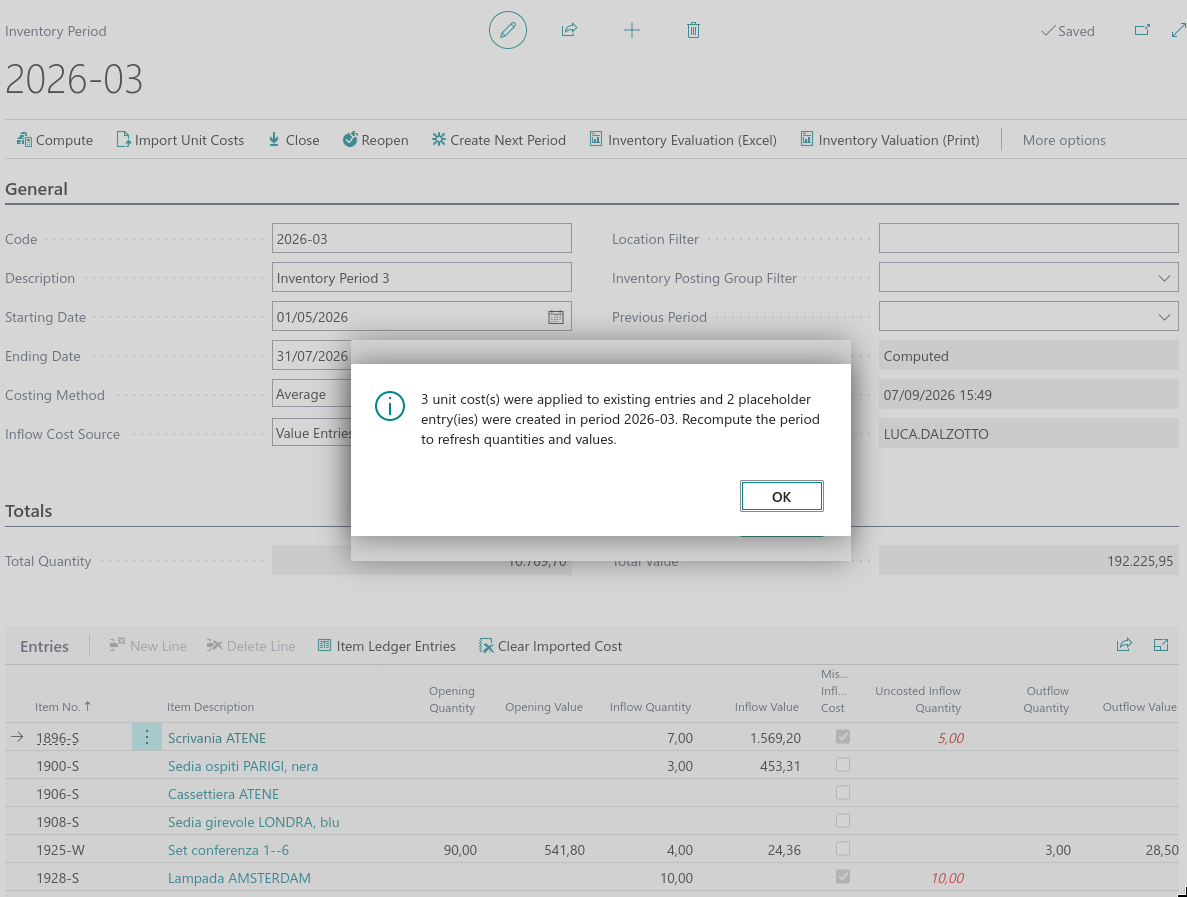
What happens: the app tells you what it did — how many costs were applied to lines that already existed, and how many lines were created for items the period did not hold yet. Those new lines take their quantities at the next Compute, which is why the message asks you to recompute.
An imported cost is marked with Unit Cost Imported on the line and it survives a recompute: the quantities are refreshed from the ledger, your cost stays. That is what makes a baseline period work — you correct once, and every later period inherits the clean value.
To go back to the computed average on a line, select it and choose Clear Imported Cost, then compute the period again.
5. Check the lines the app flags
Some lines deserve a second look before you trust the total. The app marks them instead of hiding them in the sum.
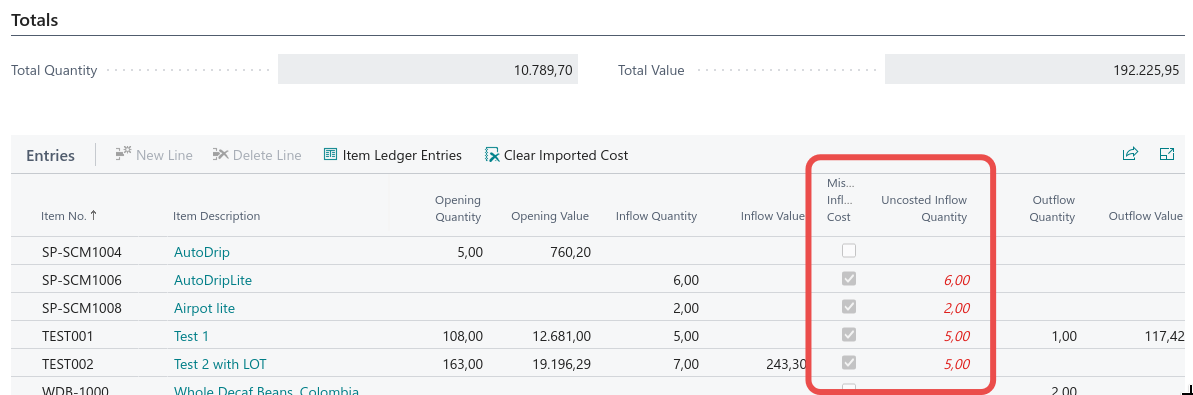
- Missing Inflow Cost and Uncosted Inflow Quantity — a receipt brought stock in but no cost with it. The quantity is real; the value is missing.
- Is Negative — there was not enough stock to cover what left, so no meaningful average could be computed for that line.
What the app does with an uncosted receipt is decided once, by Zero-Cost Inflow Policy in the setup:
| Policy | What happens |
|---|---|
| Flag Only (keep zero) | the quantity stays in the average with a zero value, which lowers the unit cost. The flag tells you to correct it |
| Exclude from Average | the uncosted quantity is left out of the average, so the cost is computed only on what really has a value. This is the safe default |
| Item Unit Cost | the uncosted quantity is valued at the cost on the item card |
Whatever the policy, the cleanest fix is to import the right unit cost for that item (section 4).
6. Close the period and report it
Page: Inventory Period → Close
Action: when the figures are right, choose Close.
What happens: the period is frozen — it cannot be recomputed and its lines cannot change. The unit cost of each item is then written to the Unit Cost field of the item card, so the rest of Business Central works with the value you decided. If you need to change something afterwards, Reopen puts the period back to Open.
Create Next Period builds the following period from this one: same method, same scope, starting the day after this one ends, already chained to it.
Two reports take the figures out of the app. Inventory Evaluation (Excel) produces a spreadsheet with one line per item and the total. Inventory Valuation (Print) produces the printed valuation: opening, increases, decreases and closing, grouped by inventory posting group.
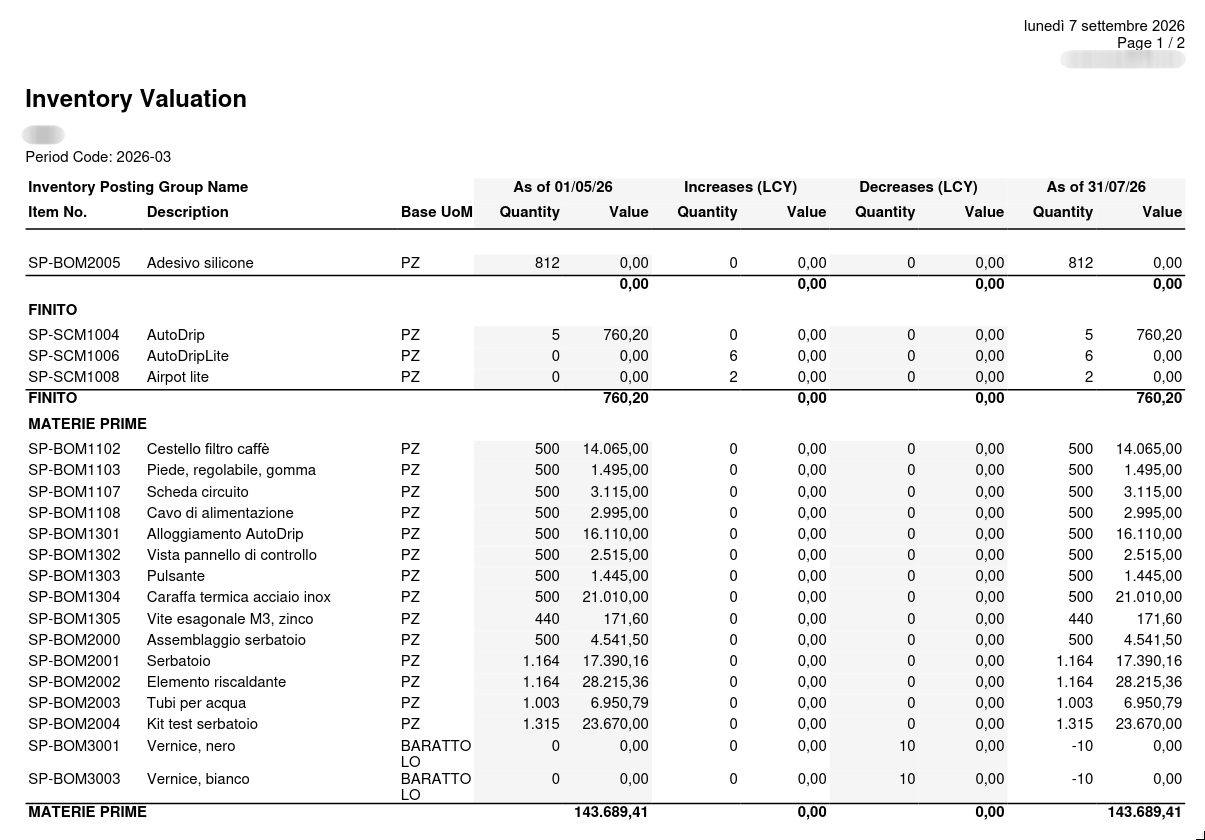
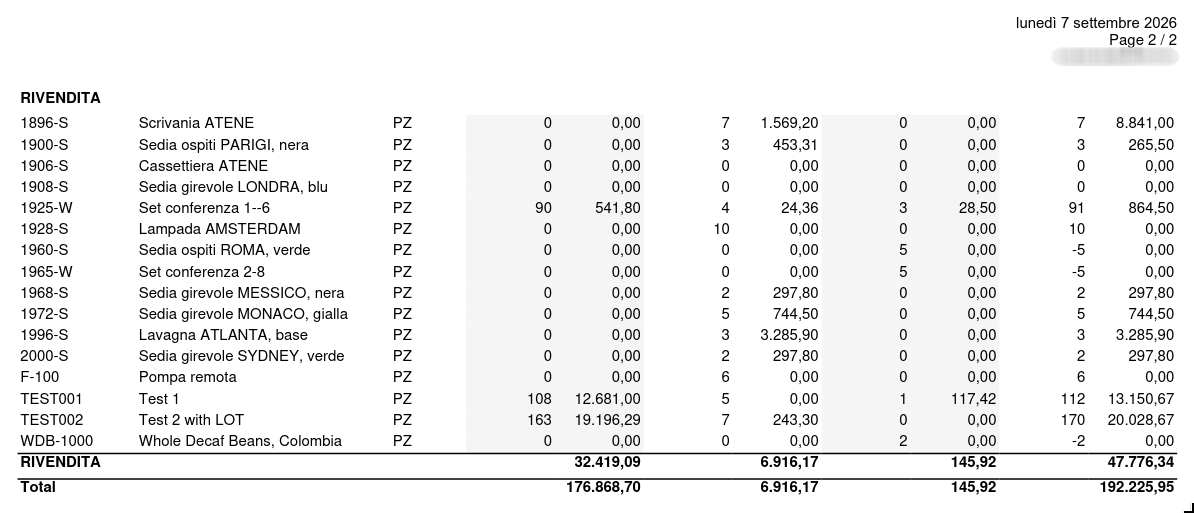
Each group closes with its own subtotal, and the last page carries the grand total of the period.
Good to know
- Nothing is posted. The app never posts, never revalues and never changes your item ledger or value entries. It reads them and stores its own result. The single exception is Close, which writes the period unit cost to the item card.
- Quantities are not opinions. They always come from the item ledger, so a line's quantities match Business Central even when its values do not.
- A period can only be edited while it is Open. Dates, method, filters: change them first, then compute, so a result can never disagree with the settings that produced it.
- Recompute in order. A period cannot be recomputed while a period that depends on it is already computed or closed — reopen that one first. It keeps the chain honest.
- A blank Starting Date means "from the beginning". That is what makes a baseline period show your real stock at the cutoff date rather than the movements of a month.
- Imported costs stay until you clear them. They survive every recompute; Clear Imported Cost is the only way back to the computed average.
- Location filters scope, they do not split. A period can be limited to some locations, but the result lines are per item, not per location.