Fast MRP — User Guide
Fast MRP calculates demand for finished products and raw materials from sales, forecasts and bills of materials, and automatically generates the purchase, production and transfer orders needed to satisfy it. Instead of rebuilding the plan by hand in spreadsheets, you define a planning scenario once and Fast MRP nets sales, forecasts, inventory and open orders across every BOM level, telling you exactly what to buy or produce and when. Every calculation is defined by a demand batch: a set of filters and parameters you can save, copy and rerun.
Use it to:
- know exactly what to buy or produce, item by item and date by date;
- compare scenarios: with or without forecasts, with or without on-hand inventory, over a specific time window;
- never miss a component, thanks to multi-level BOM explosion;
- create purchase and production orders in one click from the selected demand lines, with smart vendor grouping and Make-to-Order handling;
- trace every order back to the demand that created it;
- load your sales forecast straight from Excel.
The field and button names below are those shown when the English language is active.
1. Set up a demand batch
Page: Demand Batch Card
A demand batch is just a set of parameters: creating one does not run any calculation, it only prepares it. You define your planning scenario once — items, locations, dates and forecasts — and rerun it whenever you need.
The card below plans two finished items week by week, from October to December, including their components (MPS+MRP):
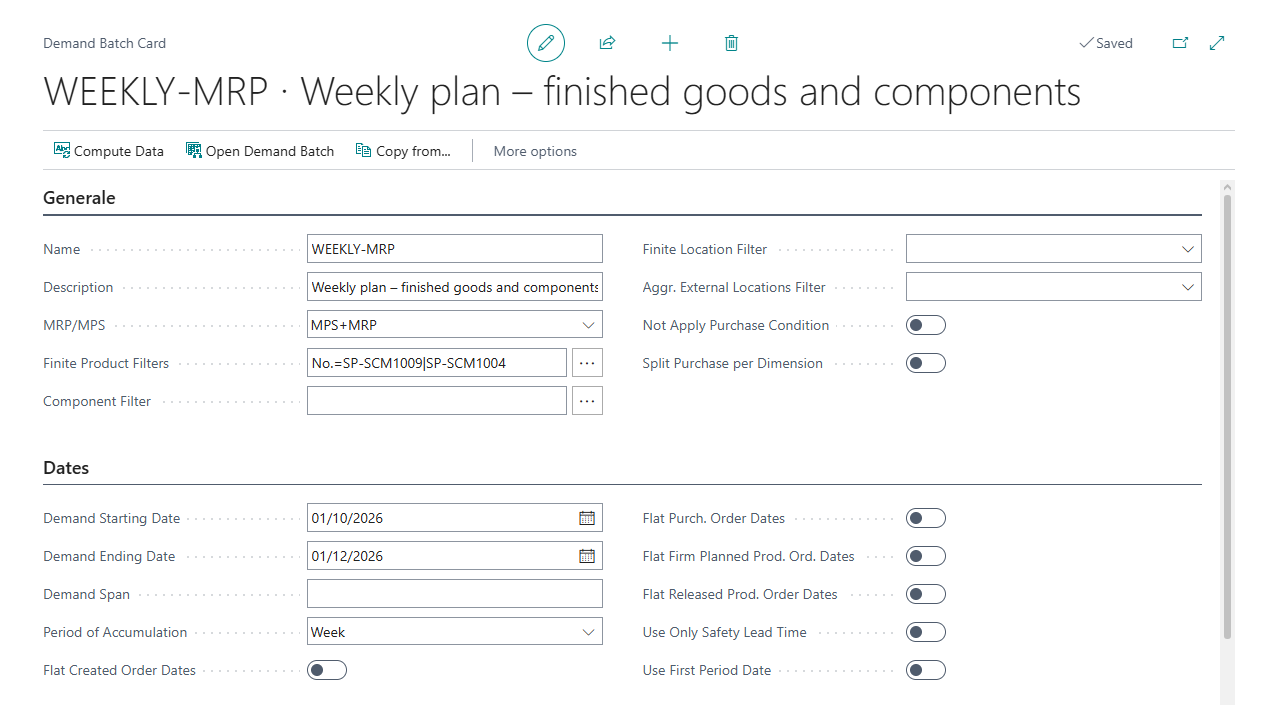
The Compute Data, Open Demand Batch and Copy from... actions at the top are described in section 2.
1.1 Identity and calculation type
- Name / Description — identify the batch; the name must be unique. They do not affect the calculation.
- MRP/MPS — has only two configurations: MPS, which only calculates demand from existing documents and inventory, and MPS+MRP, which adds production order planning based on bills of materials (with multi-level explosion for semi-finished items). In practice MPS+MRP is used almost always.
1.2 What to calculate
- Finite Product Filters — selects the items to consider; the components resulting from exploding their bills of materials are automatically added to the filter. A narrow filter (e.g. a single item) makes the calculation much faster; a broad filter can slow it down considerably because of BOM explosion.
- Component Filter — an additional filter applied to components.
- Finite Location Filter — restricts the locations and inventory considered for finished products.
- Component at Location / Output at Location (hidden fields by default) — set, respectively, the planning location for components and the output location for planned production orders. If Output at Location is blank, Component at Location is used for both.
1.3 Dates and dated calculation
- Demand Starting/Ending Date — the time window of the calculation. Demand Span computes the ending date dynamically by adding a period to the working date, instead of a fixed date.
- Period of Accumulation — decides whether the calculation is dated or not:
- All: every event (sales, purchases, inventory…) is grouped as if it happened on the same day — the simplest and fastest calculation;
- Month / Week: events are grouped by month or week, giving a more detailed dated calculation;
- blank: no grouping at all; each document's exact date is used individually. A correct dated calculation requires Detailed Sales to be on (see section 1.5).
- Flat order dates — a group of flags (overall, purchase only, firm planned production only, released production only) that force the dates of orders created by the calculation to "the beginning of time", instead of the calculated dates.
- Use Only Safety Lead Time — ignores routing times, considering only the item's safety lead time.
1.4 Forecasts
- Forecast Name — the sales/production forecast to consider in the calculation (see section 7 for how to load one).
- Forecast Starting/Ending Date — the forecast's time window; leave blank to consider the whole forecast.
- Forecast Period Accumulation — the same mechanism as Period of Accumulation, applied to the forecast.
1.5 Optimizations
- Detailed Sales — when on, keeps the individual sales lines that generated the demand (required for a correct dated calculation); when off, sales are grouped and the per-line detail is lost. Decide based on data volume: on very large batches it affects both calculation time and the amount of data saved.
- Store MPS — when off, skips saving the MPS analysis detail (except production components), shortening the calculation. Turn it off only when saving that detail is actually slow.
- Item Categories to Store — limits which item categories are saved (and therefore visible in the batch), also reducing calculation time. Leave it blank for the most complete batch.
- Compute Derived Quantities — adds the Qty. Derived from Sales, from Forecast and from Suspended columns to the demand lines, useful for comparing actual sales against forecast on components.
- Compute Total Purchased Qty. — adds the Purchased Period column, useful when the calculation covers a specific time window (otherwise the value would keep growing indefinitely).
1.6 Data limitation
- Avoid Availability — the calculation ignores inventory, purchase orders, production output and existing orders' components: it simulates a start from scratch.
- Only Sales Items — restricts the calculation to items that are actually sellable.
- Include Sales Blanket Orders — considers blanket orders as normal sales orders.
- Skip Sales — calculates without considering sales; useful when you prefer to create production orders manually and run the demand calculation on those, instead of planning them from sales.
1.7 Asymmetric filters — use with caution
Order Type Filter, Country Filter, Customer Filter and the other filters in this group apply mostly to the demand side (sales and transfer-out lines); inventory is always considered in full. They can therefore produce netting that is not always consistent — only use them when you know exactly what you are excluding.
1.8 Automatic creation
- Create Prod. Orders — automatically creates all production orders for demand units with Qty. to Order greater than zero, right after the calculation (skipping the manual selection described in section 4).
- Delete Plan. Prod. Orders / Delete Firm. Prod. Orders — delete orders of the given category before rerunning the calculation, to avoid duplicates on later reruns.
2. Compute and open the batch
Action: press Compute Data (Ctrl+F9) on the batch card.
What happens: the demand calculation runs according to the configured parameters; once finished, the Demand Lines page opens automatically with the result.
To reopen the result later without recalculating, use Open Demand Batch. To create a new batch reusing an existing one's parameters, use Copy from... on the card.
3. Review the demand lines
Page: Demand Lines
Each line represents a demand for an item (and, if expanded, for a specific location): the page tells you exactly what you need to buy or produce, and when you need it.
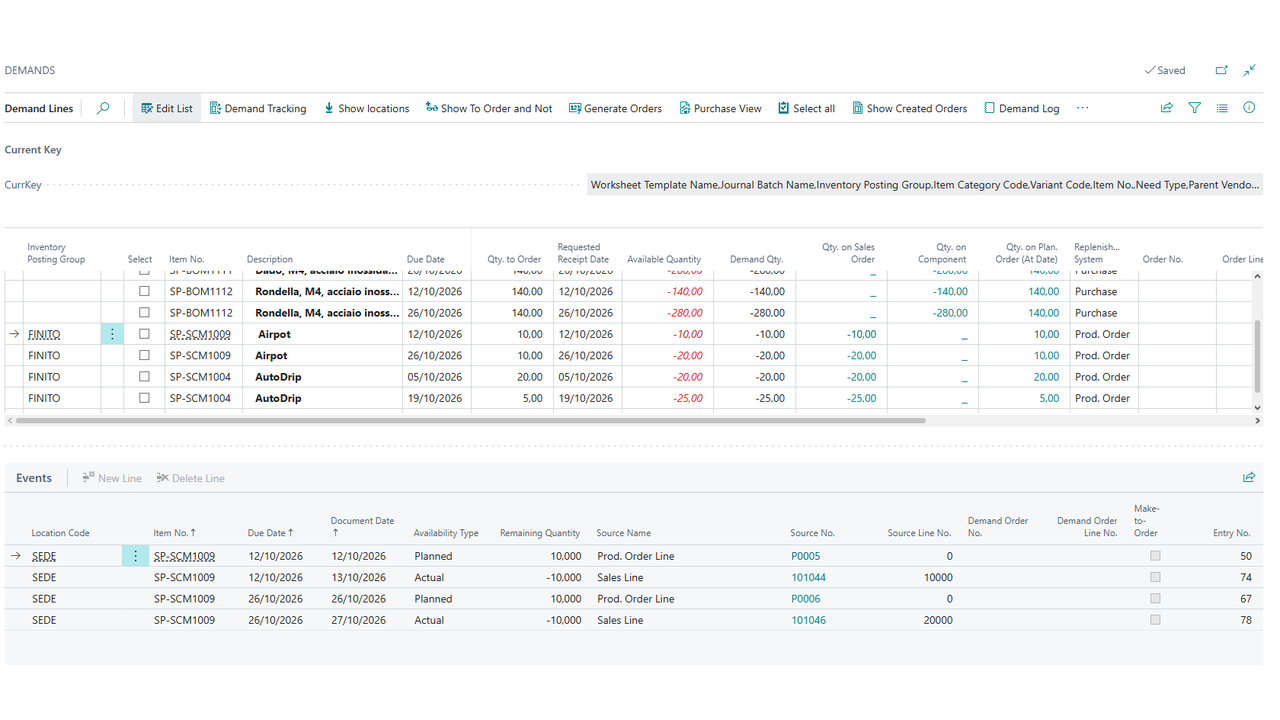
In the example, finished items (Prod. Order) and their components (Purchase) appear on separate lines for each date; negative Available Quantity values, shown in red, are the shortages the calculation covers with Qty. to Order. The Events part at the bottom lists the documents behind the selected line — sales lines, planned production order lines and so on — with their dates and quantities.
Main columns:
| Column | Meaning |
|---|---|
| Item No. / Description | The item in demand. |
| Location Code | The line's location, if the demand has been expanded by location. |
| Qty. to Order | The calculation's main output: how much is still left to order. |
| Requested Receipt Date | When the item needs to be available. |
| Available Quantity | Inventory plus future arrivals and output, minus committed components and sales. |
| Replenishment System | Whether the demand is resolved with a purchase or a production order. |
| Order No. / Order Line No. | Filled in only after Generate Orders (see section 4). |
| Vendor No. | From the item's vendor catalog or item card. |
| Demand Order No. | The associated sales order, for Make-to-Order demand. |
| Need Type | Internal, or external (subcontracted). |
Actions available on the page:
- Show/Hide locations — expands or collapses the per-location detail of the lines.
- Purchase View — filters the view to only lines with a purchase replenishment system.
- Select all / Unselect all — ticks or clears the Select column on every line, useful before generating orders in bulk.
4. Generate orders
Action: select the desired lines (those with Qty. to Order greater than zero) and press Generate Orders (F9).
A window opens with three sections, turning the selected demand into purchase and production orders in one step:
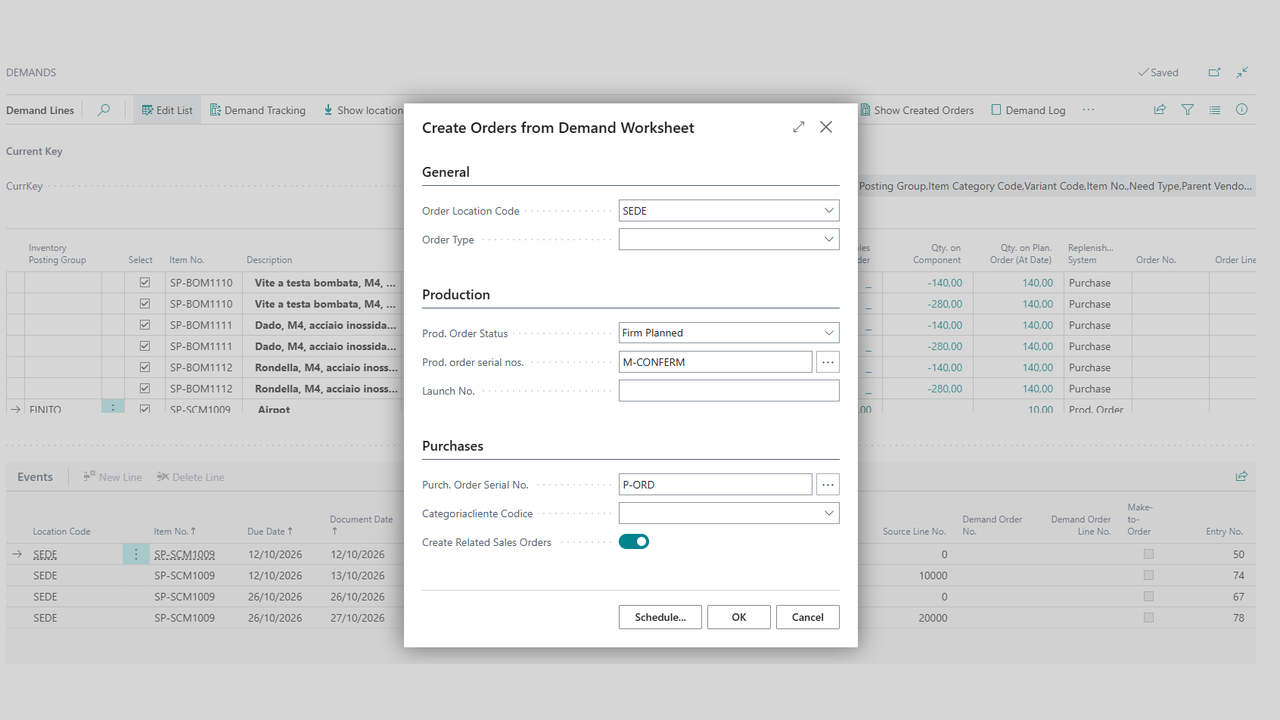
General
- Order Location Code — the location assigned to the generated orders (purchase and production).
- Order Type — the order type assigned to them.
Production
- Prod. Order Status — Planned, Firm Planned or Released.
- Prod. order serial nos. — the numbering series for the new orders.
- Launch No. — set only to append to an existing launch.
Purchases
- Purch. Order Serial No. — the numbering series for the new purchase orders.
- Global Dimension 2 Code.
- Create Related Sales Orders — when on, also creates the sales orders linked to the new purchase orders, for external demand (purchases whose components are resold to the vendor).
What happens: purchase or production orders are created for every selected line with Qty. to Order greater than zero; the Order No. and Order Line No. columns on the demand lines are filled in accordingly.
5. Trace generated orders
Action: on a demand line, press Demand Tracking (Ctrl+Shift+O).
What happens: a page opens showing all orders (actual or planned) associated with the selected item — if the line is specific to one location, only that location's orders; if it is an aggregated line, every order for the item. It lets you trace a demand back to its origin.
After generating orders, Show Created Orders opens the purchase or production order linked to the selected line directly.
6. Resolve calculation errors
Action: press Demand Log (Ctrl+Shift+L).
What happens: a page opens with any errors and status messages produced during the batch's last calculation.
7. Import a forecast from Excel
Page: Demand Forecasts → the forecast's line → Import from Excel
Action: pick the .xlsx file and its sheet.
Required format: the sheet's first row must contain, as the column header, the exact field name the column maps to — column order is free, the header name is what matters. Recognized headers:
| Column header | Required | Content |
|---|---|---|
| Production Forecast Name | Only if a forecast isn't already selected on the import page | Code of the forecast the rows are added to. |
| Item No. | Yes | The forecast line's item. |
| Forecast Date | Yes | The date the quantity refers to. |
| Location Code | No | The forecast's location. |
| Forecast Quantity | Yes | The forecasted quantity. |
Rows with a blank Item No. are discarded.
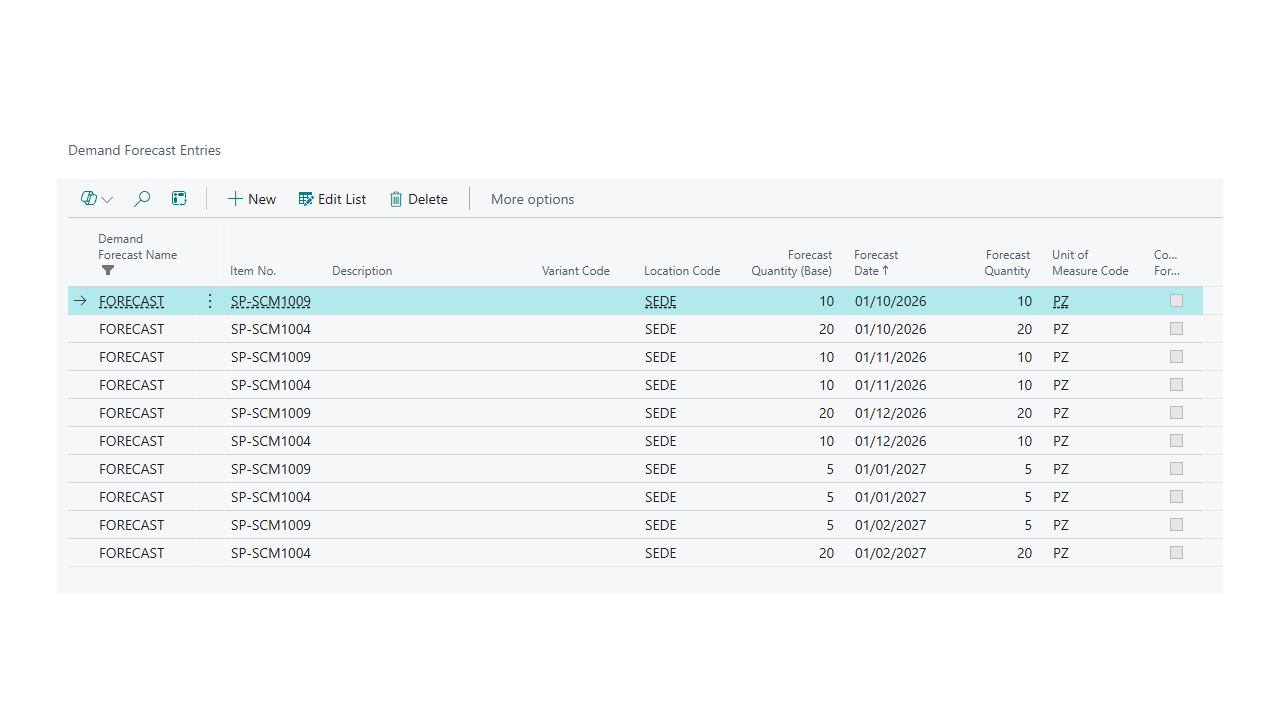
What happens: the imported rows appear in Demand Forecast Entries, one per item, location and date, and you can plan on them right away by setting the forecast's name in Forecast Name on the batch card.
Good to know
- A dated calculation needs Detailed Sales. If you set Period of Accumulation to anything other than blank/All without turning on Detailed Sales, the result will not be as granular as you expect.
- Asymmetric filters always need caution: they only affect demand, never inventory, and can produce misleading netting.
- Generating orders does not recompute the batch. If you change the parameters after generating orders, recompute before generating more to avoid duplicates.
- Flat order dates are meant for contexts where the order's real date doesn't matter for later analysis (e.g. test batches or historical reruns) — don't turn them on for operational calculations unless that is actually what you want.