Letter of Intent — User Guide
Letter of Intent keeps your VAT-exempt ceiling inside Business Central instead of in a spreadsheet. You record each declaration of intent once — the one you issue to a supplier, or the one a customer sends you — and from then on the app watches every sales and purchase line, applies the exempt VAT posting group for you, and keeps the declared, used, outstanding and remaining amounts up to date as documents move from order to shipment to invoice.
Use it to:
- record the letters of intent you hold, for customers and for vendors, with their validity period and the amount declared;
- have the right active letter matched to a document line automatically, and the exempt VAT product posting group applied to it;
- see at any moment how much of a letter is already used, how much is committed by open orders, and how much is left;
- keep the annual ceiling (plafond) under control, with a warning or a block before you exceed it;
- produce the telematic file and the printed form of a declaration of intent for the tax authority.
The app implements the fixed ceiling and the by-amount declaration. The Mobile ceiling type and the Transaction declaration type can be selected on the card but are not processed differently — see Good to know.
The field and button names below are those shown when the English language is active.
1. Set it up once
Page: Sales & Receivables Setup → VAT Exemption Nos.
Page: Purchases & Payables Setup → VAT Exemption Nos.
Action: point each one at a number series. Customer letters take their number from the sales setup, vendor letters from the purchase setup.
What happens: the series fills Document No. on a new letter — the number the app uses everywhere as the letter's identity. The purchase series is mandatory: without it a vendor letter cannot be created at all.
Page: VAT Product Posting Groups, and VAT Posting Setup
You need one VAT product posting group that represents the exemption, and a VAT Posting Setup line combining it with every VAT business posting group you actually use. This is the group the app stamps onto exempt document lines, so a missing combination stops the document, not the app.
Page: Customs Authority Vendors
Vendors listed here are recognised as customs offices. On a letter of intent for one of them, Import is ticked automatically instead of Export.
2. Set the annual ceiling
Page: VAT Plafond Periods Aptagram
One line per year. Fill:
- Year — the calendar year the ceiling belongs to.
- Amount — the ceiling for that year: the maximum you may declare in total.
- Notification Amount — an earlier threshold, below the ceiling, at which you want to be told.
- Notification Type — what happens at that threshold: nothing, Message (a warning you can dismiss) or Error (the operation is refused).
Three columns are calculated and cannot be typed:
- Declared Amount — everything declared on vendor letters dated in that year.
- Used Amount — everything actually posted against them.
- Remaining Amount — Amount minus Used Amount.
What happens: when you enter a declared amount on a vendor letter, the app adds it to the amounts already declared for that year. Above Amount, the operation is refused outright. Above Notification Amount, you get the message or the error you configured. Customer letters are not checked against the plafond — the ceiling is what you may buy without VAT, not what your customers may.
3. Record a letter of intent
Page: VAT Exemptions Aptagram → New
The list holds every letter you have recorded, for customers and for vendors alike:
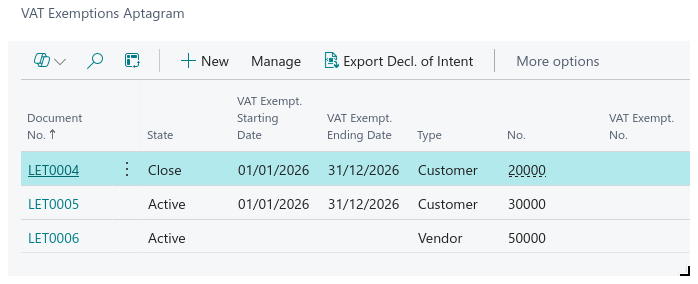
State tells you at a glance which letters are in service — only an Active one is ever offered on a document line (see section 5).
The card opens on three groups. In General, identify the letter:
- Type — Customer for a letter a customer sent you, Vendor for one you issue to a supplier.
- No. — the customer or vendor. Name fills in by itself.
- Document No. — the internal number, from the series configured in section 1.
- VAT Exempt. Starting Date and VAT Exempt. Ending Date — the validity period. Both dates must fall inside Year, and the end date cannot precede the start date.
- VAT Exempt. No. and VAT Exempt. Date — the number and date of the declaration itself. On a vendor letter the number is filled automatically from the starting date.
- VAT Exempt. Int. Registry Date, VAT Exempt. Office, Consecutive VAT Exempt. No. — the remaining registry data.
- State — read-only, driven by the buttons described in section 5.
In Additional, record the paperwork and the posting rules:
- Send Protocol 1 and Send Protocol 2 — the two parts of the protocol number the tax authority returns for the original filing.
- Supplementary Sending Protocol 1 and Supplementary Sending Protocol 2 — the same, for a supplementary filing.
- Reception Date — when the declaration reached you.
- VAT Prod. Posting Group — the exempt group from section 1. This is mandatory to activate the letter, because it is what the app writes on the document lines.
- Year, Declaration Type, Plafold Type.
- Import / Export, VAT Return Filed, Intra-Community Transfers, San Marino Transfers, Assimilated Operations, Extraordinary Operations — the boxes of the official form. Only one of Import and Export is shown, depending on whether the letter is for a vendor or a customer.
Two rules the app enforces while you type:
- the same customer or vendor cannot have two letters whose validity periods overlap;
- a second letter cannot start while an active letter for that partner is still running.
4. Declare the amount
Page: VAT Exemption → Amounts
Action: type the amount of the declaration into Declared Amount.
What happens: the app records it as a Declared entry and, on a vendor letter, checks it against the year's ceiling (see section 2). Total Declared Amount follows.
Once Send Protocol 1 and Send Protocol 2 are both filled, the original filing is closed: Declared Amount becomes read-only and Supplementary Declared Amount takes over. Use it to record the extra amount of a supplementary declaration; it adds to Total Declared Amount in the same way.
The rest of the group is the live balance of the letter:
| Field | What it shows |
|---|---|
| Used Amount (External) | Amount consumed outside Business Central — you type it |
| Used Amount (Internal) | Amount consumed by posted invoices and credit memos — calculated |
| Used Amount (Total) | The two above, together |
| Remaining Amount | Declared, less everything used |
| Outstanding Amount (Forecast) | Committed by open order lines, not yet shipped or invoiced |
| Evaded Amount (Forecast) | Shipped or received, not yet invoiced |
Used Amount (Internal), Used Amount (Total), Outstanding Amount and Evaded Amount drill down: click the value to see exactly which documents make it up.
On the letter below, 10.000,00 was declared, 2.143,50 has already been used by posted invoices, and 3.763,21 is committed by orders that are still open:
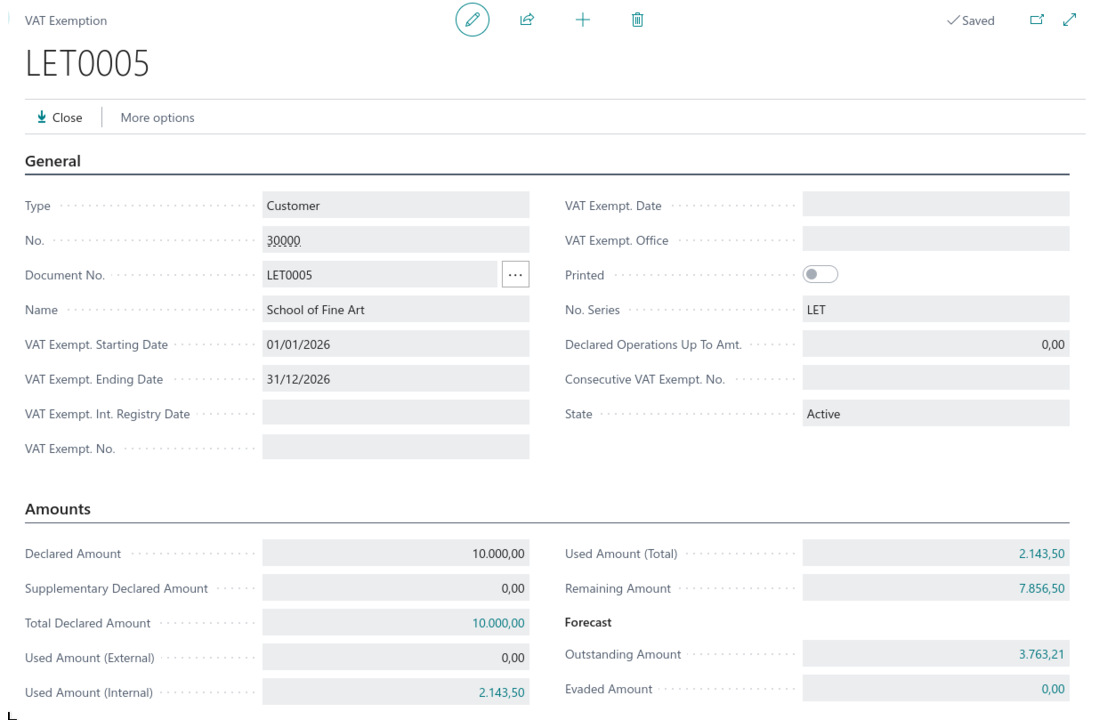
Remaining Amount reads 7.856,50 — the declared amount less what has been used.
The two Forecast amounts are deliberately kept out of Remaining Amount. Remaining tells you what you may still commit; Outstanding and Evaded tell you how much of it is already spoken for.
5. Activate, close and reopen
A letter has three states, and the buttons on the ribbon move it between them.
Action: Activate.
What happens: the state becomes Active and the whole card is locked for editing. VAT Prod. Posting Group must be filled or the action refuses. Only an active letter can be selected on a document line — this is the switch that puts the letter into service.
Action: Close. The letter stops being offered on new document lines. Use it when the declaration is exhausted or its period is over.
Action: Reopen. The state goes back to blank and the card becomes editable again. Use it to correct a letter you activated too early.
6. Sales and purchase documents
Page: Sales Order / Sales Invoice / Purchase Order / Purchase Invoice → the lines
Action: enter a line as you normally would.
What happens: as the line is inserted or changed, the app looks for an active letter of intent for that customer or vendor, valid on the document date, with enough remaining amount to cover the line. If it finds one, it writes its number into Letter of Intent No. on the line and replaces the line's VAT Prod. Posting Group with the exempt one from the letter. Nothing else about the line changes.
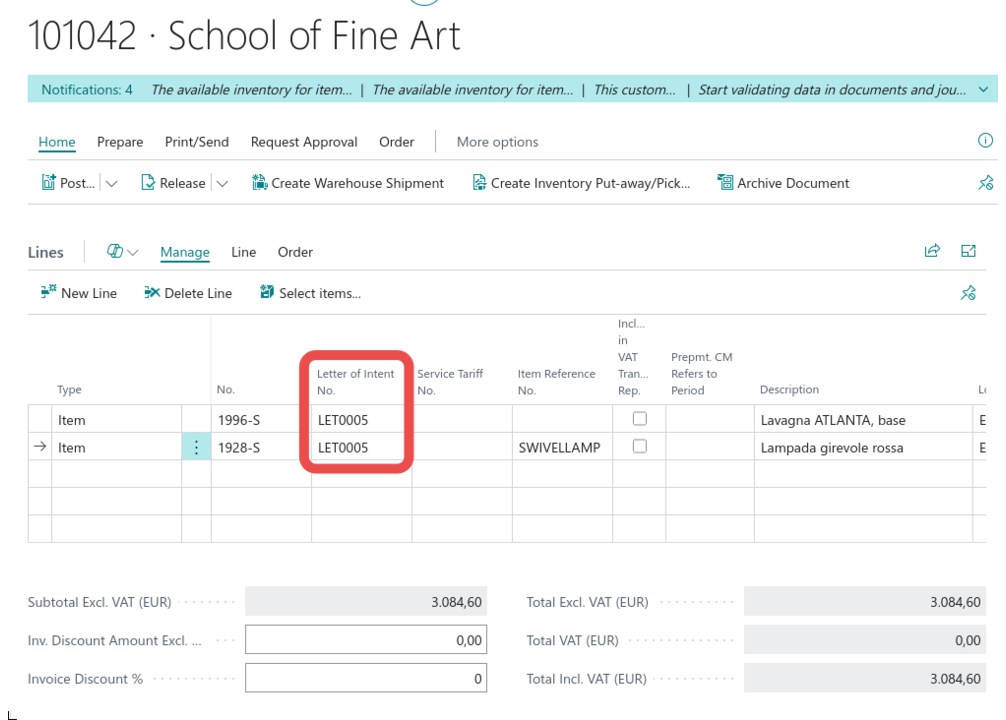
Both lines above picked up letter LET0005 on their own. Letter of Intent No. sits among the ordinary line columns, which is also where you change it by hand.
When more than one letter qualifies, the app takes the one with the largest remaining amount, so the smaller declarations are left intact for later.
If no letter qualifies — none active, none covering the date, or none with enough left — the line is simply left alone, with its normal VAT posting group. The app never blocks you from entering the line; it only declines to make it exempt.
You can also drive it by hand. Letter of Intent No. is a normal editable field on the line, and it only offers active letters belonging to that customer or vendor:
- pick a different letter and the line moves to it, provided the letter has room;
- clear the field and the line goes back to the default VAT product posting group of its item, account or resource.
Quotes and blanket orders are ignored, and a line is only reconsidered while its document is still Open. Once a document is released, its letter assignments stand.
The field is shown on the posted documents too — Posted Sales Invoice, Posted Sales Shipment, Posted Sales Credit Memo, Posted Purchase Invoice, Posted Purchase Receipt and Posted Purchase Credit Memo — so you can always tell which declaration paid for a line.
7. Follow the amounts
Page: PTG VAT Exemption Entries
Every amount on the card comes from this table, and every row of it points back at a document. One row per document line, per stage:
| Entry Type | Written when | Feeds |
|---|---|---|
| Outstanding | an order line is open | Outstanding Amount |
| To Invoice | goods are shipped or received but not yet invoiced | Evaded Amount |
| Posted | an invoice or credit memo is posted | Used Amount (Internal), Used Amount (Total), Remaining Amount |
| Declared | you fill Declared Amount or Supplementary Declared Amount | Total Declared Amount, Remaining Amount |
| External | you fill Used Amount (External) | Used Amount (Total), Remaining Amount |
Alongside the type, each row carries Document Date, Letter of Intent No., Document No., Document Line No., Document Type, VAT Prod. Posting Group and Base — the taxable amount, which is what the ceiling is measured in. Credit memos are recorded with the opposite sign, so a reversal gives the letter its credit back.
The Document Date is not always the document's own date. For an invoice raised from a shipment or a receipt, the app uses the posting date of that shipment or receipt, because that is when the operation happened for VAT purposes — and that is the date the ceiling year is counted from.
8. Produce the declaration of intent
These two actions are for vendor letters — the declarations you issue to your suppliers.
Page: VAT Exemption → Export Decl. of Intent
The Declaration of Intent Export page opens with Amount To Declare already filled from the letter. Complete the rest:
- Description Of Goods — a short description of what the declaration covers.
- Signing Company Officials — the officer who signs. Required.
- Ceiling Type, and the six boxes under Plafond Operations: Annual VAT Decl. Submitted, Exports, Intra-Community Disposals, Disposals to San Marino, Assimilated Operations and Extraordinary Operations. These start empty, whatever you ticked on the letter itself — set them here for the filing you are producing.
- Under Supplementary, tick Supplementary Return if this replaces an earlier filing, then fill Tax Authority Receipts No. and Tax Authority Doc. No. with the protocol of the original one.
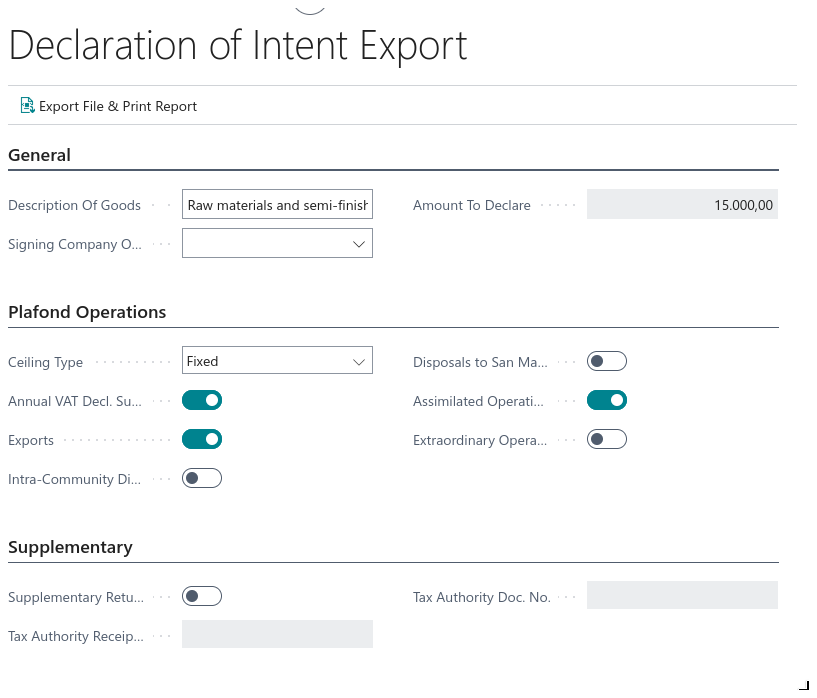
Amount To Declare has come across from the letter. Signing Company Officials is still empty here — choose it before running the export, or the export stops.
Action: Export File & Print Report.
What happens: the app builds the telematic file, named after the vendor number and the VAT exemption number with an .ivi extension, prints the declaration form, and adds the amount just declared to Declared Operations Up To Amt. on the letter. Send the file to the tax authority through your usual channel; when the protocol comes back, record it in Send Protocol 1 and Send Protocol 2.
Before it produces anything, the export checks that Amount To Declare is filled, that a signing officer is chosen, and that both Company Information and the vendor carry a Fiscal Code or a VAT Registration No. Missing data stops the export with a message naming the field.
Page: VAT Exemption → Print Decl. of Intent
The same printed form, without producing a file and without touching the letter. Use it for a copy to send to the supplier, or to check the form before filing.
9. Rebuild missing entries
Page: VAT Exemption → Scan for missing Exemption Entries
Action: press it and confirm.
What happens: the app goes back over the posted sales invoices of that customer whose shipment date falls inside the letter's validity period, finds the lines that already carry this letter's number, and creates the Posted entries that are missing. Amounts that had been lost — because entries were removed, or because documents were posted before the app was installed — reappear on the card.
Use it after a data migration, or whenever the amounts on a customer letter look lower than the documents you can see. It only adds what is missing; running it twice changes nothing.
Good to know
- Active is the switch. A letter that is not activated is invisible to documents — no line will ever pick it up, however correct its dates and amounts are. Check the state first when a line stays taxable.
- Only the fixed ceiling and the by-amount declaration are processed. Mobile under Plafold Type and Transaction under Declaration Type can be chosen, and they are printed on the form, but the app calculates the same way for all of them.
- Amounts are taxable amounts, never VAT. The ceiling, the entries and every total on the card are measured on the taxable base, which is what the Italian rules count.
- A letter with entries cannot be deleted, and once documents are linked to it, Type and No. are frozen. Close it instead of trying to remove it.
- Copying a document does not copy the exemption blindly. The letter number survives a copy only from a posted invoice to a credit memo and from a posted shipment to an invoice — the two cases where the operation really is the same one. In every other copy the field is cleared and worked out again from scratch, so an old declaration is never reused by accident.
- Clearing the field restores the standard group. Emptying Letter of Intent No. on a line puts back the default VAT product posting group of the item, G/L account, resource, item charge or fixed asset — you never have to remember what it was.
- The plafond is checked on purchases only, and only at the moment you declare an amount. Posting an exempt document does not re-check the ceiling.
- Scan for missing Exemption Entries covers posted sales invoices. Vendor letters and the other document types are not rescanned by it; correct those from the documents themselves.
- FIXEntries is not a daily-use action. It is an internal maintenance action that removes stray declared and external entries. Leave it to your partner unless you have been told to run it.