Multi Order Receipts — User Guide
Multi Order Receipts lets one delivery from a vendor produce one receipt document. Business Central normally posts a separate receipt for every purchase order; with this app the lines of several orders end up on the same posted receipt — the one that matches the delivery note in the driver's hand.
Use it to:
- receive a van that brings three orders from the same vendor as one document;
- reconcile a posted receipt against the vendor's delivery note line by line;
- append a late order to a receipt you have already posted today;
- receive several transfer orders from the same location on one document.
The field and button names below are those shown when the English language is active.
1. Set it up once
Page: Warehouse Setup → General section
Action: turn on Combine Receipts.
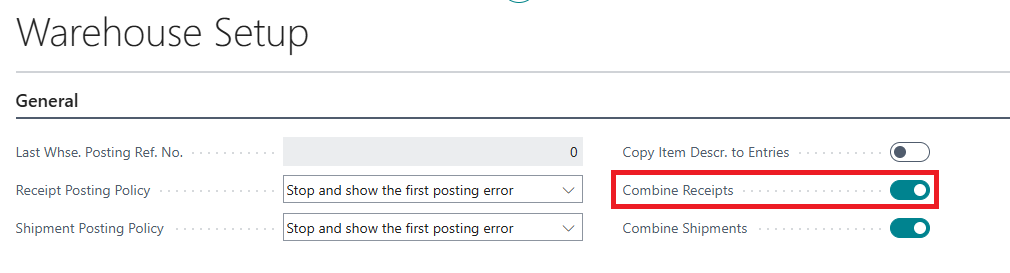
What happens: every warehouse receipt created from now on starts with combining switched on. The setting is only the default — each warehouse receipt carries its own Combine Receipt toggle that you can turn off for that document alone (see section 2).
Existing warehouse receipts are not touched: they keep the value they were created with. (The Combine Shipments toggle beside it belongs to a different app, Multi Order Shipments, and does the same job on the outbound side.)
If you never receive through warehouse receipts, you can leave this off and work order by order instead (see section 3).
2. Combine orders from a warehouse receipt
This is the automatic route: you register the delivery as usual, and the receipt document decides on its own that everything on it arrived together.
Page: Warehouse Receipt
Action: build the receipt as you always do — Get Source Documents… to pull in the lines of as many purchase orders as the delivery covers — check that Combine Receipt is on, then post it.
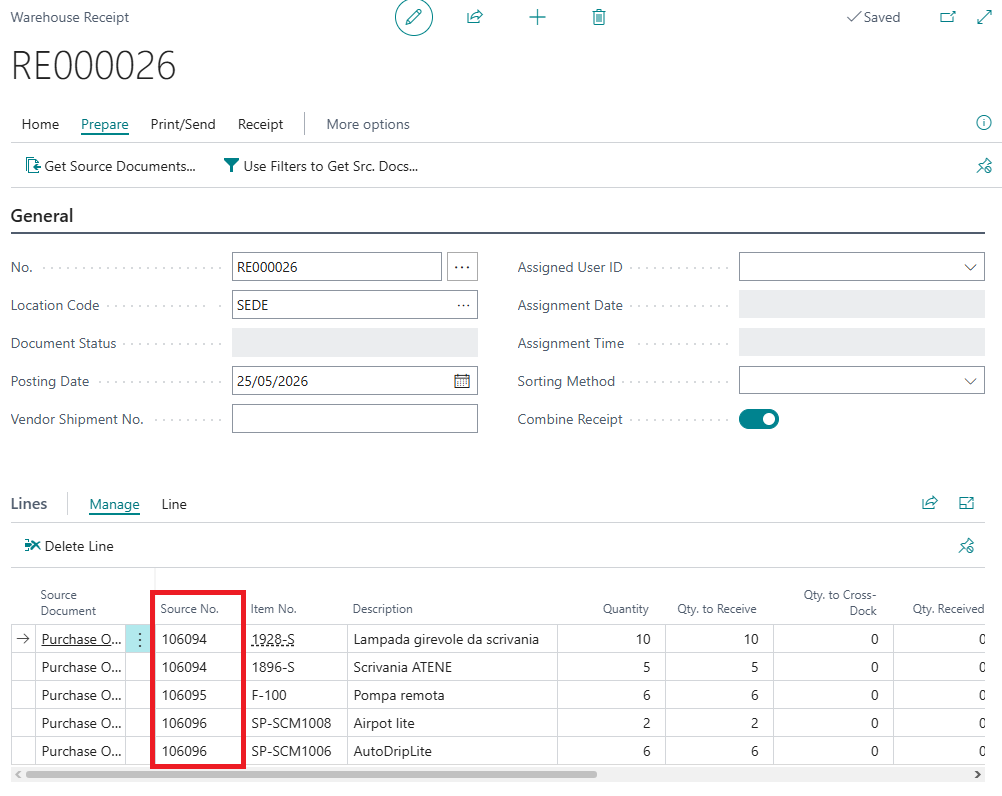
In the picture, receipt RE000026 carries lines from orders 106094, 106095 and 106096, and Combine Receipt is on.
What happens: all the orders on the document are posted onto a single posted purchase receipt instead of one each. Everything else — quantities, item ledger entries, the orders themselves — behaves exactly as it always has.
2.1 When the orders are not combined
The app steps back and lets Business Central post normally when:
- Combine Receipt is off on that warehouse receipt;
- the document does not consist only of purchase order lines — if it also holds inbound transfer lines or lines from other sources, nothing is combined.
2.2 The orders must belong together
Before posting, the app checks that all the orders on the document agree on four things:
- Buy-from Vendor No.
- Pay-to Vendor No.
- Ship-to Code
- Receiving No. Series
If one of them differs, posting stops with the usual "must be equal to…" message naming the field, and nothing is posted. Take the odd order off the warehouse receipt and post it on its own.
3. Append one order to an existing receipt
This is the manual route, order by order — useful when goods turn up against a delivery you have already posted.
Page: Purchase Order → Shipping and Payment section
Action: in Append-To Rcpt. No., pick the posted receipt the order should join, then post the order with Receive.
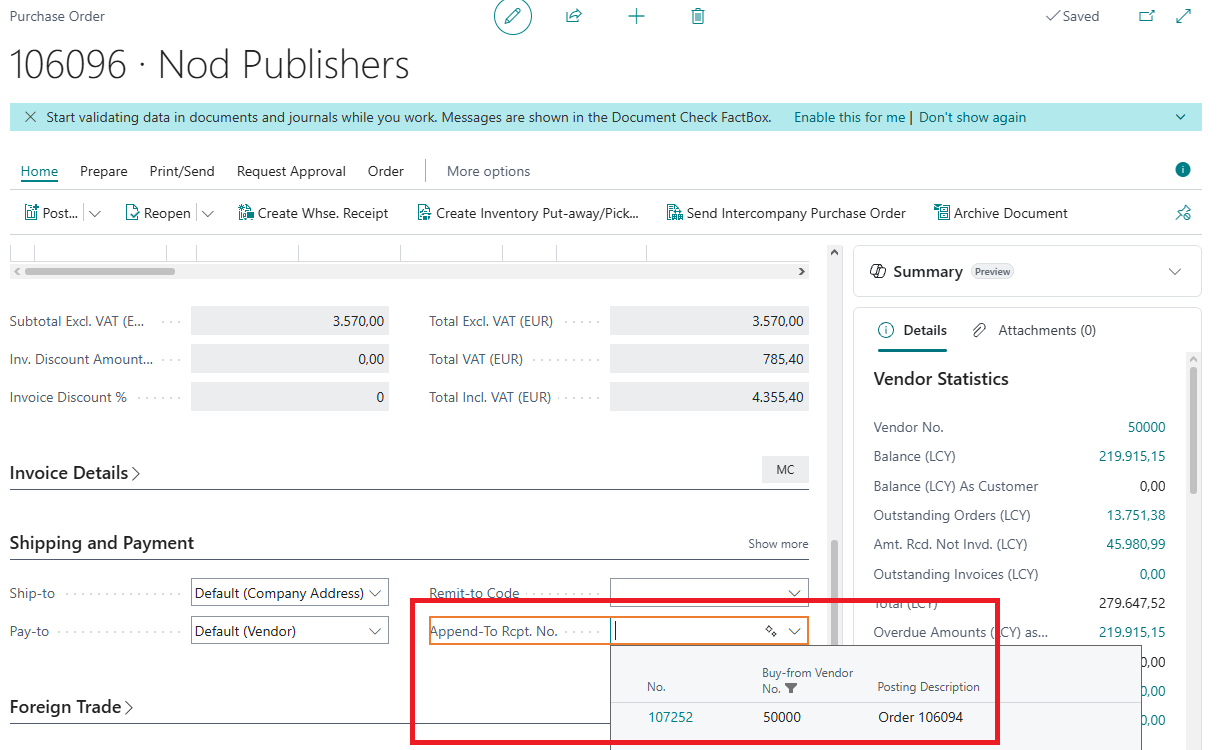
What happens: the order's lines are added to that posted receipt instead of creating a new one, and Append-To Rcpt. No. is emptied automatically once the order is posted — so the field never fires twice.
The lookup only offers receipts the order can actually join: same buy-from vendor, same pay-to vendor, same receiving number series, and the same posting date as the order. If the list is empty, one of those four is different — most often the date.
4. What the posted receipt looks like
Page: Posted Purchase Receipt
One document now holds the lines of every order that was combined into it.
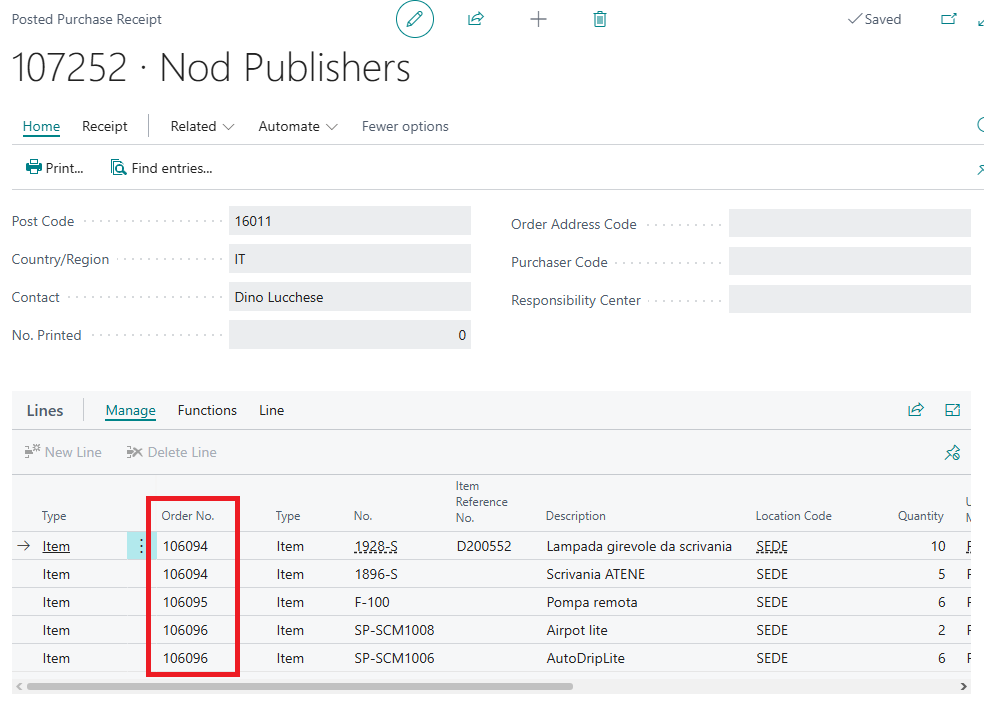
Two things are worth knowing when you read it:
- Each line keeps its own Order No., so you can always see which order a line came from. That is the column to read when you check the document against the vendor's delivery note.
- The Order No. in the header is empty. It is filled in only while the receipt belongs to a single order; as soon as a second order joins, it is cleared because there is no longer one right answer.
Invoicing is untouched: invoice each order the usual way, or pull the lines of the combined receipt into one invoice with Get Receipt Lines.
5. Transfer orders
Inbound transfers work the same way, and with no setting to turn on.
Page: Warehouse Receipt made only of inbound transfer lines
Action: post it as usual.
What happens: all the transfer orders on the document are posted onto a single posted transfer receipt. Here the app checks that the orders share:
- Transfer-from Code
- Transfer-to Code
- Posting Date
As with purchase orders, posting stops if one of them differs. Note that for transfers the combining does not depend on Combine Receipts in Warehouse Setup, and there is no field on the transfer order for choosing a receipt by hand: a warehouse receipt made only of inbound transfer lines is always combined.
Good to know
- The toggle is a default, not a switch you must keep. Warehouse Setup decides what new warehouse receipts start with; the document's own Combine Receipt field is what actually counts at posting.
- Only whole documents are combined. A warehouse receipt mixing purchase order lines with anything else is posted the standard way, with no error and no message.
- The posting date is part of the match. With a warehouse receipt it comes for free — everything on it posts on the same date. With Append-To Rcpt. No. it is the usual reason a receipt you expected is missing from the lookup.
- Appended lines never collide. Lines joining an existing receipt are renumbered after the ones already there, which is why they appear at the bottom of the document.
- Combined transfer receipts take their number from the posted transfer receipt number series in Inventory Setup — or, in the Italian localization, from the series on the transfer order's transport reason code when it has one of its own.
- Posting several orders at once takes a little longer than posting them separately: the whole group succeeds or fails together, so nothing is written until every check has passed.
- Nothing is combined retroactively. Receipts already posted stay as they are; the app only affects what you post from now on.
- Order No. on the header of a combined receipt stays empty for good. If a report or an integration of yours reads that field, point it at the line-level Order No. instead.