Sales Order Log — User Guide
Sales Order Log keeps a history of every change made to a sales order line — both the Unit Price and the Quantity. It also records the moment the line was first created, so each line has a complete history from the very beginning.
Use it to:
- see who changed what and when on an order, without digging through change log setup;
- compare the price or quantity originally agreed with the one on the order today;
- answer "but the order said 30,00" questions with a dated record.
The field and button names below are those shown when the English language is active.
1. Set it up once
Page: Sales & Receivables Setup → Archiving section
Action: turn on Create Sales Doc. Logs.
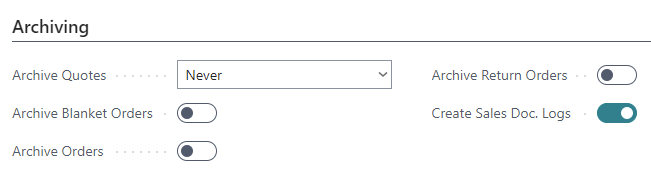
What happens: from that moment on, every insertion or change of Unit Price or Quantity on a sales order line is recorded in the Sales Order Log page. Nothing else in the order changes, and existing orders are not touched retroactively — logging starts from the lines created or modified after the flag is on.
2. The Sales Order Log page
Page: search for Sales Order Log with Tell Me (the magnifying glass)
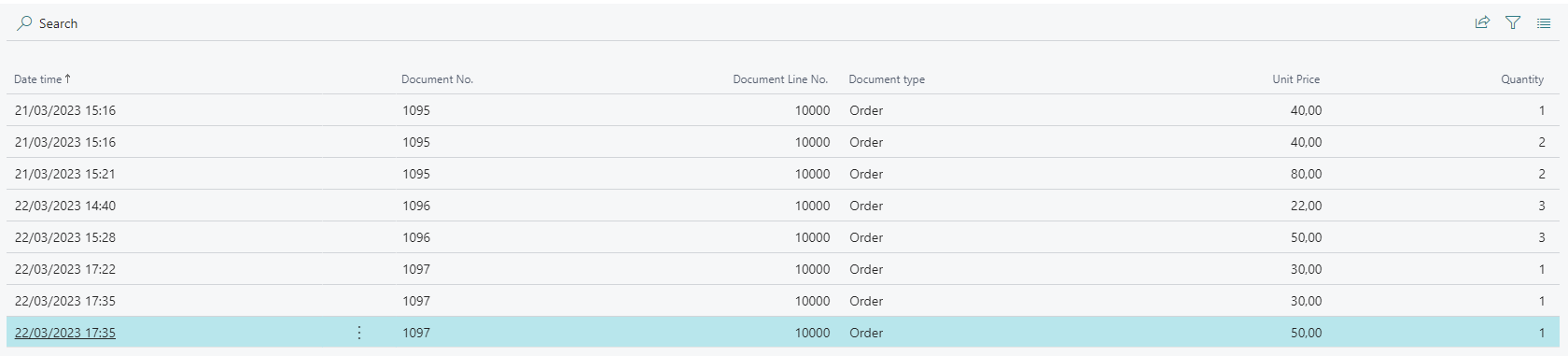
Each row is one recorded event, with six columns.
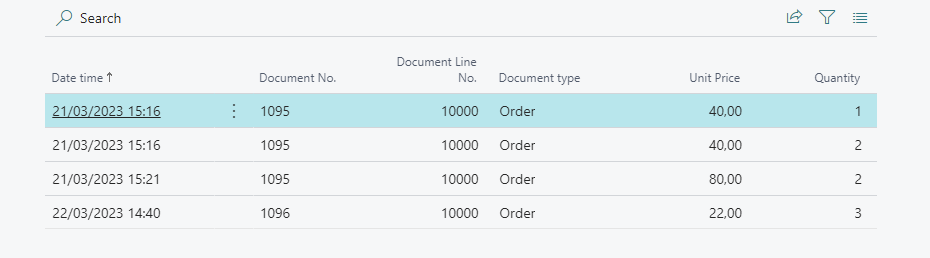
- Date time — when the line was inserted or modified. The page is sorted by this value in ascending order, so reading it top to bottom gives the history of the line over time.
- Document No. — the number of the document where the insertion or change was made.
- Document Line No. — the number of the line where the insertion or change was made. Together with Document No. it lets you filter the page down to a single order line and read only its history.
- Document type — the type of document the row refers to. Only Order is tracked at the moment.
- Unit Price — the unit price the line has after being inserted or modified.
- Quantity — the quantity the line has after being inserted or modified.
3. A step-by-step example
The example below assumes Create Sales Doc. Logs is already on (see section 1).
3.1 The line is created
Create a new sales order and add a line to it. Here order 1097 was created with one item at a unit price of 30,00.
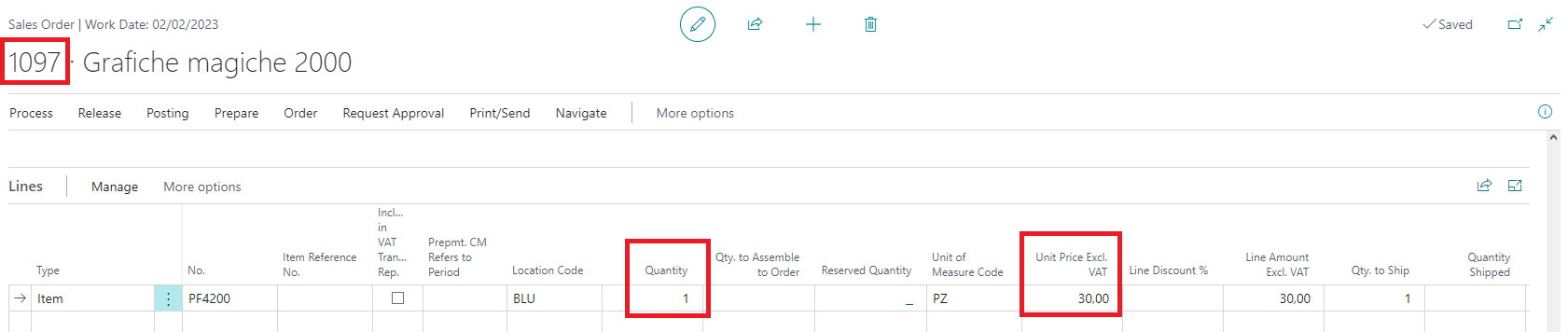
Opening the Sales Order Log page shows the highlighted row below: the line was recorded on creation, with its initial values.

3.2 The unit price changes
Back on the order, change the unit price of that line to 50,00.
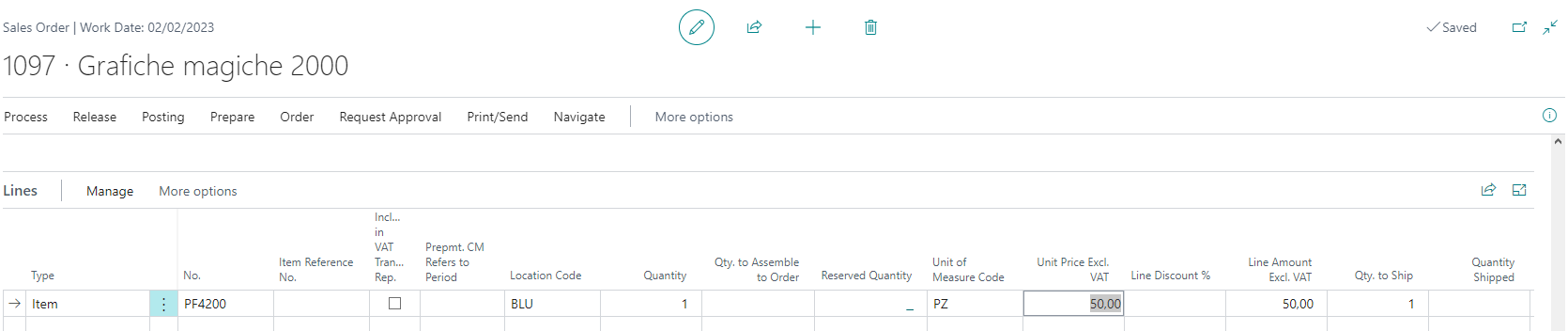
A new row is added to the Sales Order Log page with the new price. Compared with the row just above it, the change is immediately visible.
3.3 The quantity changes
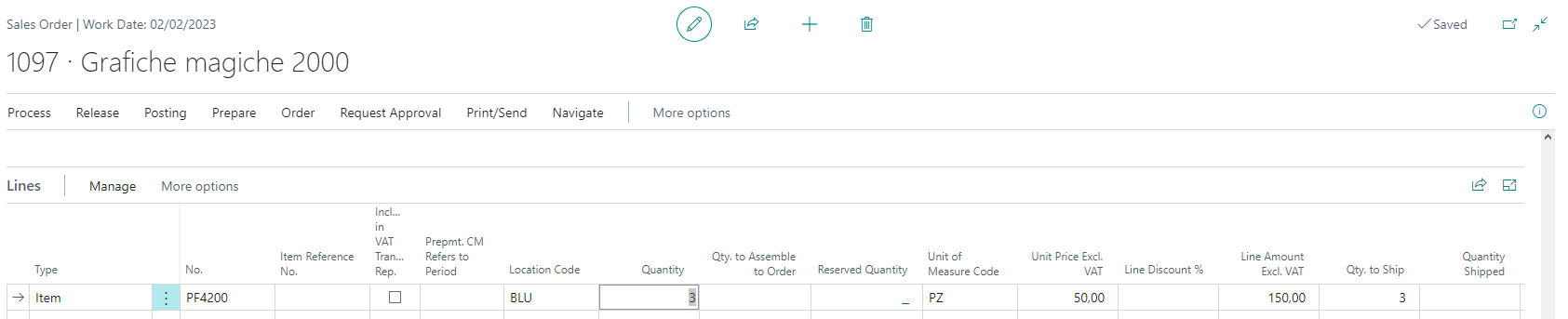
Now change the quantity of the same line to 3.
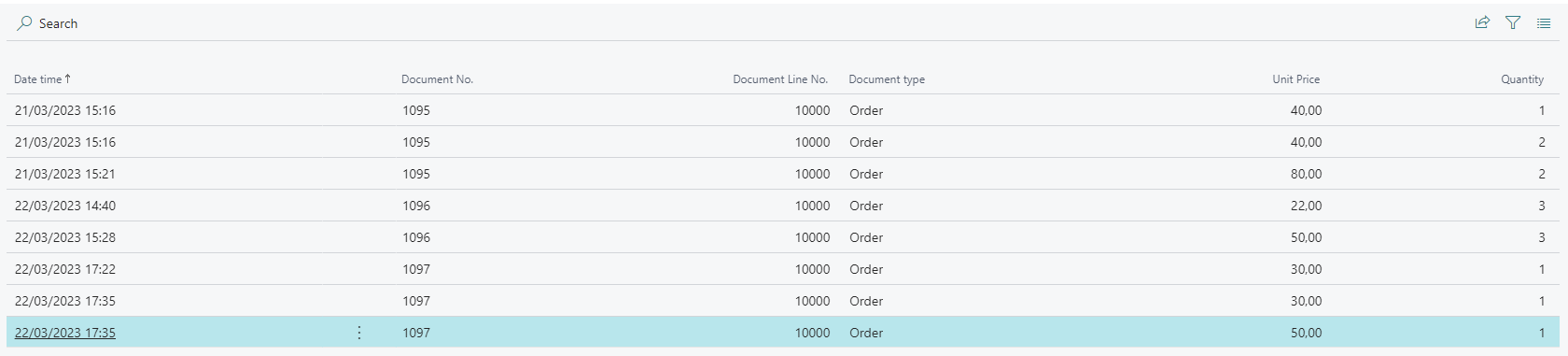
Again, the change is tracked and reported in the Sales Order Log page.
Good to know
- Every row is a snapshot, not a delta: the Unit Price and Quantity columns hold the values the line has after the event, so the change is read by comparing a row with the one above it.
- Creation is logged too, so the first row of a line is always its original price and quantity.
- Only orders are tracked for now — quotes, invoices and credit memos produce no rows.
- Only Unit Price and Quantity trigger a row. Changing other fields on the line does not create a log entry.
- Nothing is ever deleted by the app: the log keeps growing as an audit trail.