WMS Interface — User Guide
WMS Interface connects Business Central to the warehouse system or scanning terminals your team already uses. A shipment, a receipt, a bin movement, a stock count or a production output leaves Business Central as a WMS Task; the warehouse works it on the terminal; what was actually picked, received, moved or counted comes back and is posted, with its lots, serials and bins.
Use it to:
- send a warehouse shipment or receipt to the floor with one click, from the document you are already working on;
- see from the office what the warehouse is working on right now, and what is already finished;
- post picked quantities with their lot, serial and bin exactly as they were read, without retyping anything;
- count stock against the quantities Business Central holds and post the adjustment.
The field and button names below are those shown when the English language is active.
1. Set it up once
Page: WMS Setup
Action: fill in the four groups of the page.
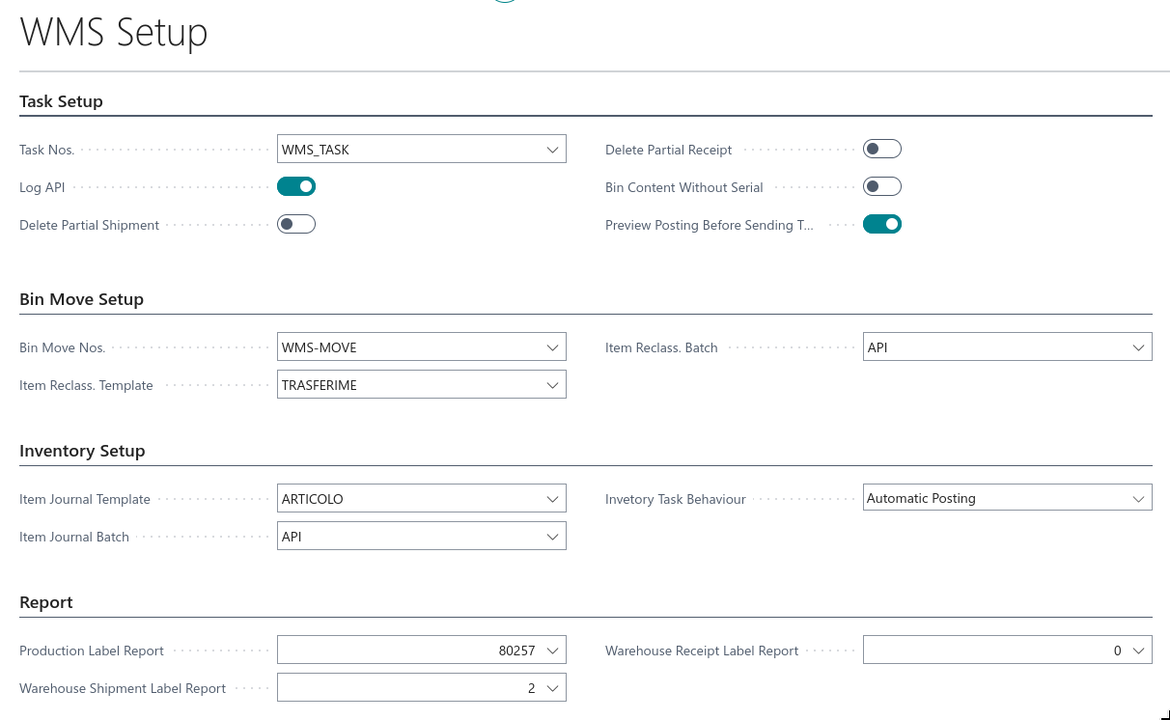
| Group | Fields | What they are for |
|---|---|---|
| Task Setup | Task Nos. | the number series the WMS tasks are numbered from — required |
| Log API | records every exchange with the warehouse system, so you can always see what was sent and when | |
| Delete Partial Shipment / Delete Partial Receipt | when the warehouse ships or receives only part of a document, the leftover lines are deleted instead of staying open. Leave both off unless you know you want it — what is left is lost | |
| Bin Content Without Serial | for warehouses whose terminals do not read serial numbers off the shelf | |
| Preview Posting Before Sending To WMS | checks the document against a simulated posting before it leaves for the warehouse, so blocking errors surface while you can still fix them | |
| Bin Move Setup | Bin Move Nos., Item Reclass. Template, Item Reclass. Batch | the number series and the reclassification journal used to post bin movements |
| Inventory Setup | Item Journal Template, Item Journal Batch | the journal used to post the differences found by a stock count |
| Invetory Task Behaviour | what happens when a count comes back — see section 5 | |
| Report | Production Label Report, Warehouse Receipt Label Report, Warehouse Shipment Label Report | the label reports the terminal can trigger from the floor |
What happens: with the number series and the journals filled in, Business Central can create tasks and post what comes back from them. The journals must exist beforehand — the app posts into them, it does not create them.
1.1 Say which locations and items are handled by the warehouse system
Three flags decide what the warehouse system gets to see.
- Page: Location Card → Aptagram section → turn on WMS. Only these locations are handed to the warehouse system, and once a location is flagged, its documents can no longer be posted by hand (see section 7).
- Page: Item Card → Warehouse section → turn on WMS Item. Only these items are sent to the terminals. To flag them all at once, use Init WMS Item on the Items list: it clears the flag everywhere and sets it again on every inventoriable item, ignoring your current filter. Items that are not inventoriable cannot be WMS items.
- Page: Item Tracking Code Card → turn on Use Lot WMS and Use Serial WMS. These tell the terminal which items it must read a lot or a serial for. They are separate from Business Central's own tracking flags on purpose: the warehouse may need to read a serial that Business Central does not track by bin.
1.2 Operators and reason codes
Page: PTG WMS Users
The people who work on the terminals. Each has a Code, a Name and an E-Mail. The list fills itself as the warehouse system announces its operators, so normally you only look at it — the operator on a task is the one who did the work.
Page: WMS Reason Codes
The reasons the warehouse can give for a movement. Each has a Code, a Description, a Type (the kind of task it applies to), a Default flag, the Consumption and Production flags for production movements, and a BC Reason Code — the standard Business Central reason code the movement is posted with.
2. Send the work to the warehouse
Page: Warehouse Shipment / Warehouse Receipt → Send to WMS
Action: release the document as usual, then choose Send to WMS.
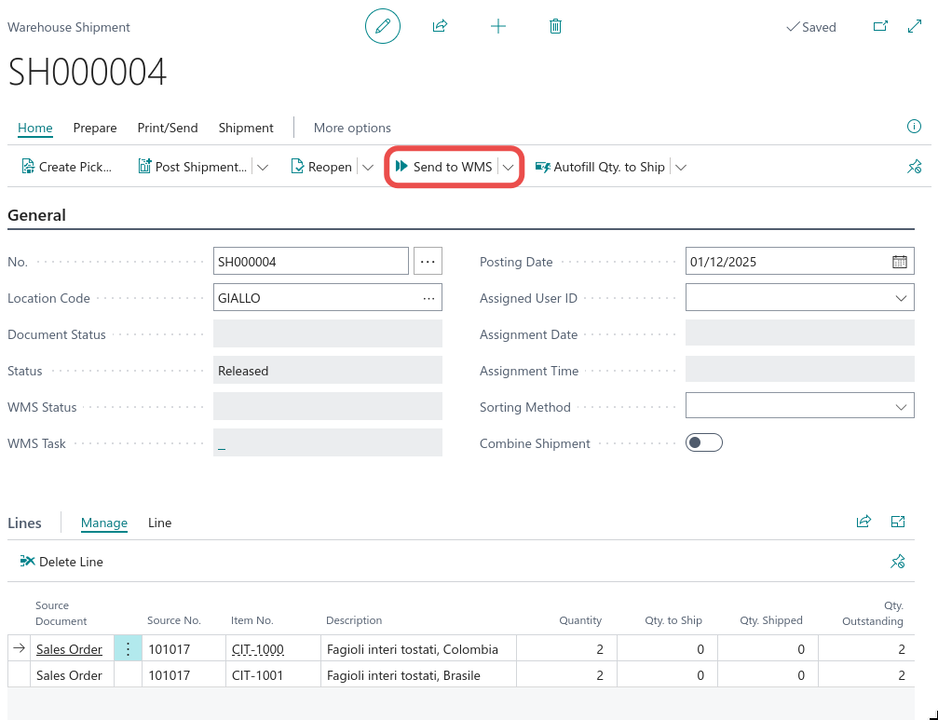
What happens: a WMS task is created from the document and handed to the warehouse system. Two fields on the document tell you where it stands:
- WMS Status — the same status you see on the task (section 3);
- WMS Task — the number of the task that was created. Click it to open the task.
On the lines, Requested Quantity is what the warehouse is asked to pick or receive, and Read Quantity is what it reports back. Once a document has been sent, its Requested Quantity can no longer be changed — reset the task first (section 6).
Production works the same way: on a Released Production Order choose Send to WMS, and use Show Related Tasks to see everything the warehouse has done against that order. Bin movements and stock counts do not start from a document — they are created by the warehouse system itself and simply appear in the task list.
3. Follow the work from the office
Page: WMS Task List
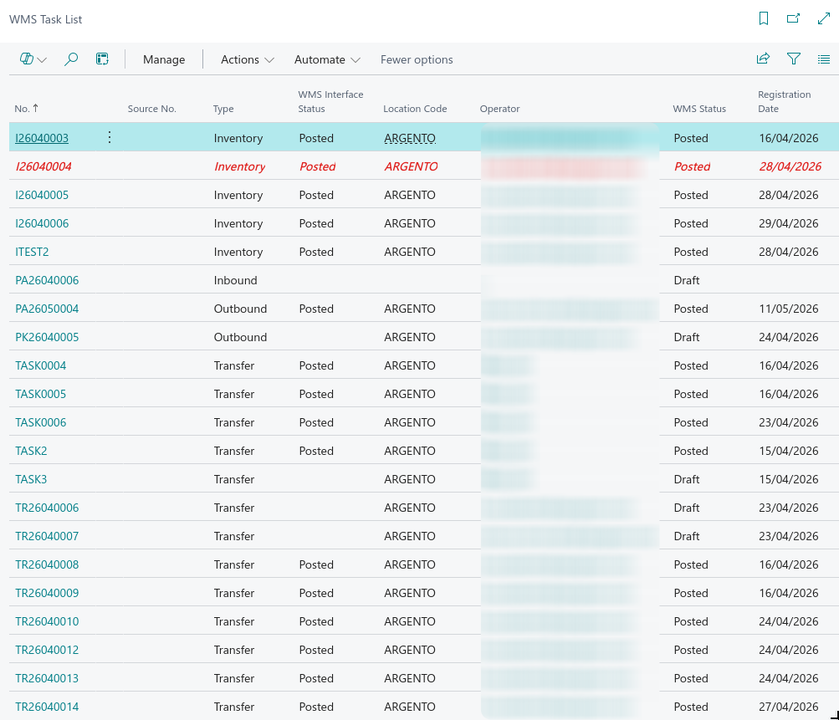
Every task the warehouse has, is working on, or has finished is in this list. Two columns say where each one stands, and they answer different questions.
WMS Interface Status — how far the exchange with the warehouse system has got:
| Status | Meaning |
|---|---|
| (empty) | created in Business Central, not handed over yet |
| Sent | handed to the warehouse system, not picked up yet |
| Received | the warehouse system has taken it |
| Posted | the work came back and was posted in Business Central |
WMS Status — what the warehouse has actually done:
| Status | Meaning |
|---|---|
| Draft | created, nobody is on it |
| Assigned | assigned to an operator |
| Started | being worked on the floor |
| Finished | worked and sent back, waiting to be posted |
| Partially Posted | part of it was posted; the rest is still open |
| Posted | fully posted in Business Central |
| Cancelled | dropped; what it reserved was released |
The other columns tell you what the task is (Type: Inbound, Outbound, Transfer, Inventory, Production), where it happens (Location Code), who did it (Operator), and which document it came from (Source No.). A task shown in red hit an error while posting — open it and read section 6.
4. Read a task and post it
Page: WMS Task Card
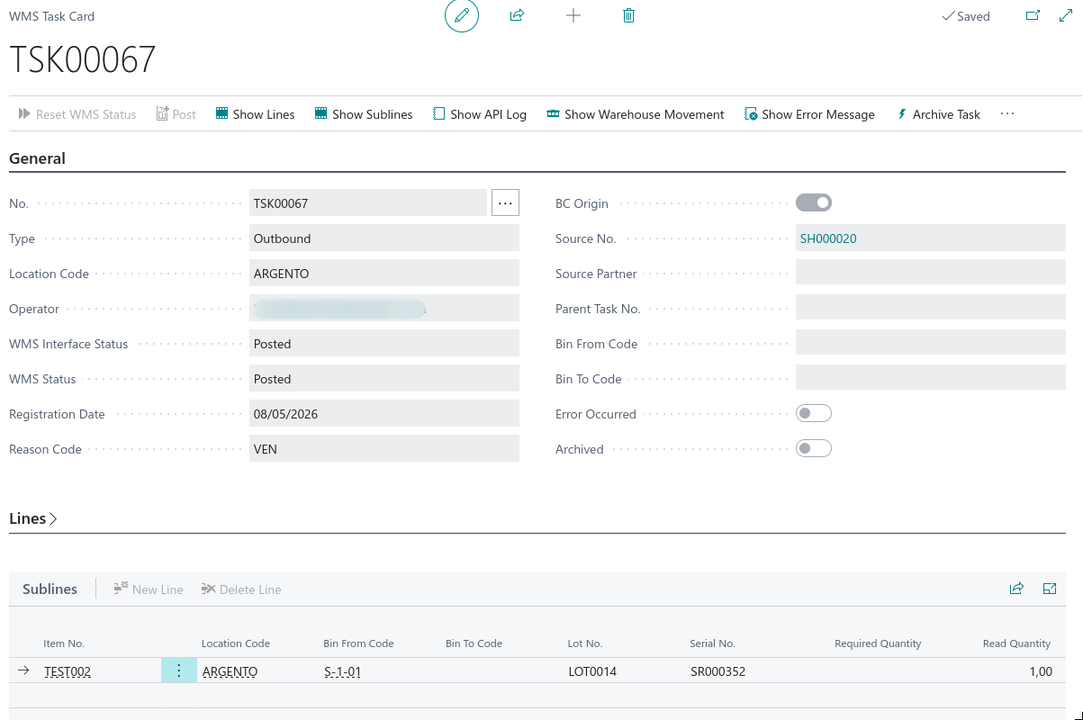
The General part repeats what the list shows, plus BC Origin (on when the task was created from a Business Central document, off when the warehouse system created it), Source No. (the document it came from), Parent Task No. (the task it was split from), and the Bin From Code / Bin To Code of a movement.
Below it, the work itself, on two levels:
- Lines — one per item: Requested Quantity against Read Quantity;
- Sublines — one per lot, serial and bin actually handled. The screenshot above shows a picked unit coming back with its Lot No., its Serial No. and the Bin From Code it was taken from.
The sublines are what makes the posting exact: Business Central posts the lots, serials and bins the warehouse really touched, not an assumption made in the office.
Action: choose Post.
What happens: the task is posted — the shipment or receipt is registered, the movement or the count is written to the journal — and both the task and its source document go to Posted. Tasks normally post themselves as soon as the warehouse marks them finished; you only use Post when a task was left to be posted by hand.
The rest of the actions look at what a task did or is doing: Show Lines and Show Sublines open the two levels as a full list, Show Warehouse Movement shows the warehouse entries the task generated, and Show API Log shows every exchange with the warehouse system for that task. Archive Task puts a finished task out of the way; it is reserved for WMS administrators, as is deleting a task, which is only possible while it is not posted, cancelled or archived.
5. Stock counts
An Inventory task is a count: the warehouse reads the bins, and Business Central compares what was read with what it holds.
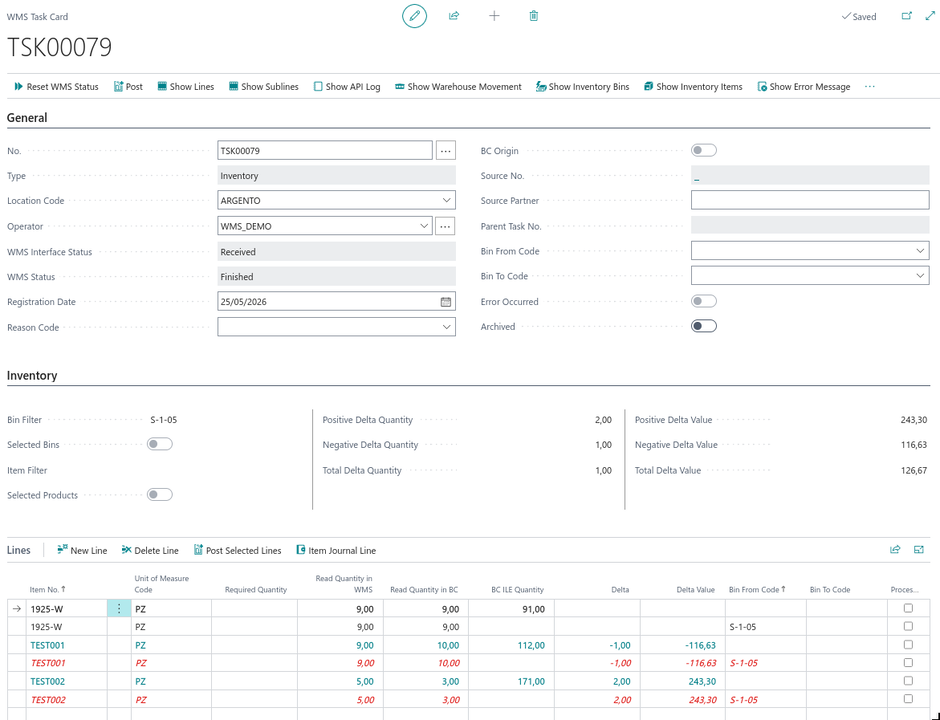
The Inventory part of the card says what was counted and what it is worth:
- Bin Filter / Selected Bins — the bins the count covers, as a filter or as an explicit list;
- Item Filter / Selected Products — the same for items, when the count is limited to some of them;
- Positive Delta Quantity, Negative Delta Quantity, Total Delta Quantity — how much was found in excess, how much was missing, and the net;
- Positive Delta Value, Negative Delta Value, Total Delta Value — the same three figures in money.
On the lines, the comparison is read across four columns: Read Quantity in WMS (what the terminal counted), Read Quantity in BC (what Business Central holds in that bin), BC ILE Quantity (the item's total stock), and Delta with its Delta Value (the difference and what it costs). Lines that differ stand out in red. Bin From Code says which bin the line belongs to, and Processed ticks the lines that have already been posted, so a count can be posted bin by bin as the warehouse works through the aisles.
Two actions post the count: Post Selected Lines posts only the lines you ticked, and Item Journal Line opens the journal entries behind them. What happens when the count comes back is decided once, by Invetory Task Behaviour in WMS Setup:
| Setting | What happens when the count returns |
|---|---|
| Import As Finished | the task stops at Finished — nothing is posted, the differences are there to be looked at |
| Manual Posting | somebody in the office posts it, all at once or line by line |
| Automatic Posting | the differences are posted as soon as the warehouse marks the count done |
6. When something goes wrong
A task that could not be posted comes back with Error Occurred ticked and shows in red in the list. Show Error Message on the card tells you why — a lot that is no longer available, a bin that was emptied in the meantime, a document somebody changed while the warehouse was working on it.
Fix the cause, then post the task again with Post. If the task itself has to go back to the warehouse, a WMS administrator can use Reset WMS Status: the task returns to not sent yet, and the source document is unlocked with it, so quantities can be corrected and the document sent again.
Show API Log lists every exchange with the warehouse system for that task, most recent first, with what was sent and what came back; the API Logs page shows the same thing for the whole company. The log is filled only when Log API is on in WMS Setup. From a log entry, Retry runs the same exchange again — useful when a call failed on something that has since been fixed.
7. Good to know
- A WMS location cannot be posted by hand. Posting a shipment, a receipt or a production journal on a location flagged WMS answers Manual posting for WMS-managed locations is not allowed. The work belongs to the warehouse system; post it through its task.
- A document that is out with the warehouse cannot be deleted. While its task is Sent or Received, the terminal may be holding it — reset the task first. Deleting a document that was never sent deletes its task with it.
- Requested Quantity is frozen once the document is sent. It cannot be raised above the outstanding quantity, cannot be negative, and cannot be changed at all after the document has gone to the warehouse.
- Deleting partial documents loses the rest. With Delete Partial Shipment or Delete Partial Receipt on, the lines the warehouse did not complete disappear when the task is posted; the outstanding quantity has to be picked up on a new document.
- A count is posted bin by bin. The warehouse sends each bin as it finishes it, so a large count moves to Partially Posted and gets there in steps. A bin Business Central already posted keeps its result even if the terminal sends it again.
- Delta values are indicative. They are the quantity difference at the item's unit cost, shown so you can judge the size of a discrepancy before posting it — the value actually posted is the one the item journal calculates.
- The task and its document stay in step. Changing the status on one moves the other, so the WMS Status on a shipment or receipt is always the status of its task.