Repair Jobs — User Guide
A Repair Job tracks the reparation of a broken tool. While a tool is under repair, its scheduled maintenances are suspended: the pending ones are removed and no new ones are generated until the repair is closed.
1. Start a repair
Page: Administration → Tools → open the tool
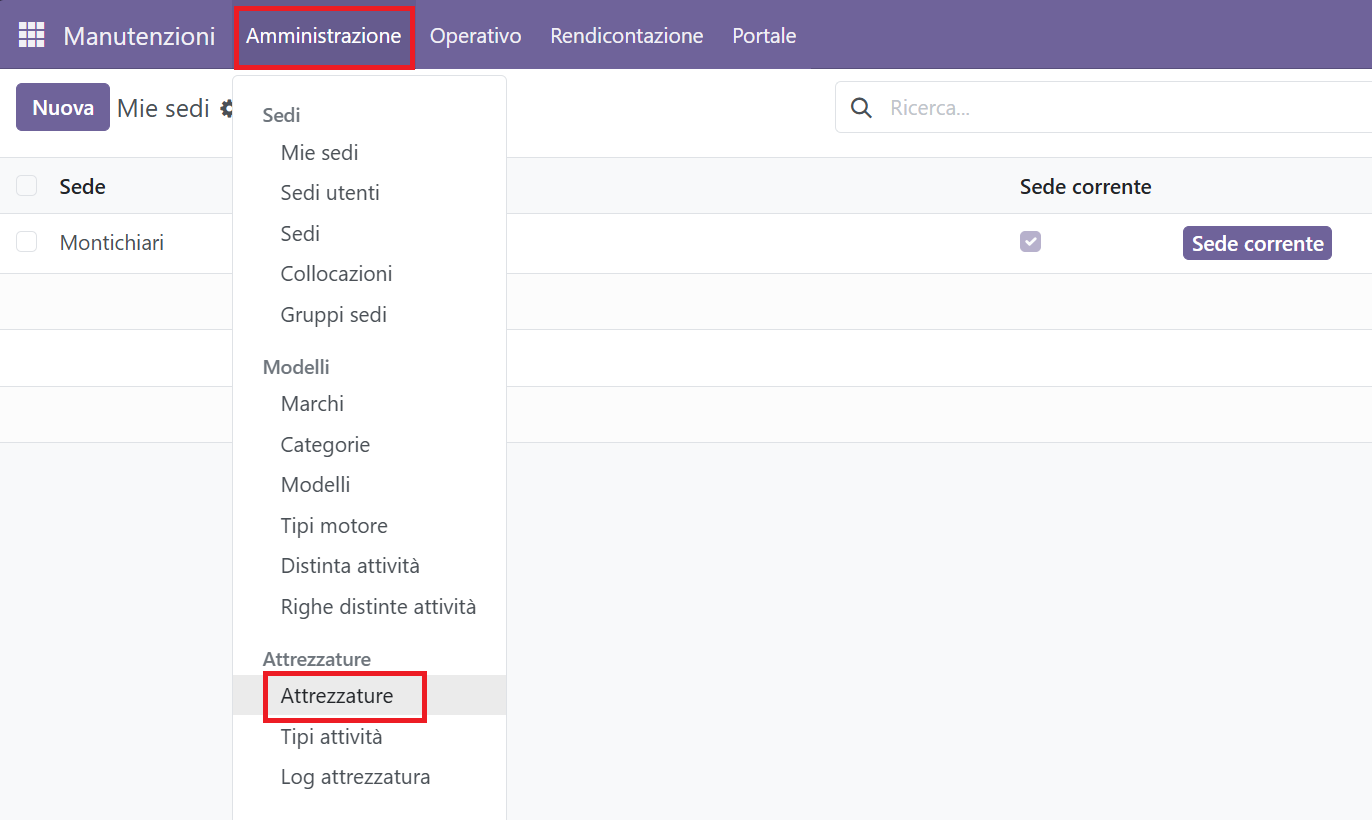
Action: press Start Repair and confirm.
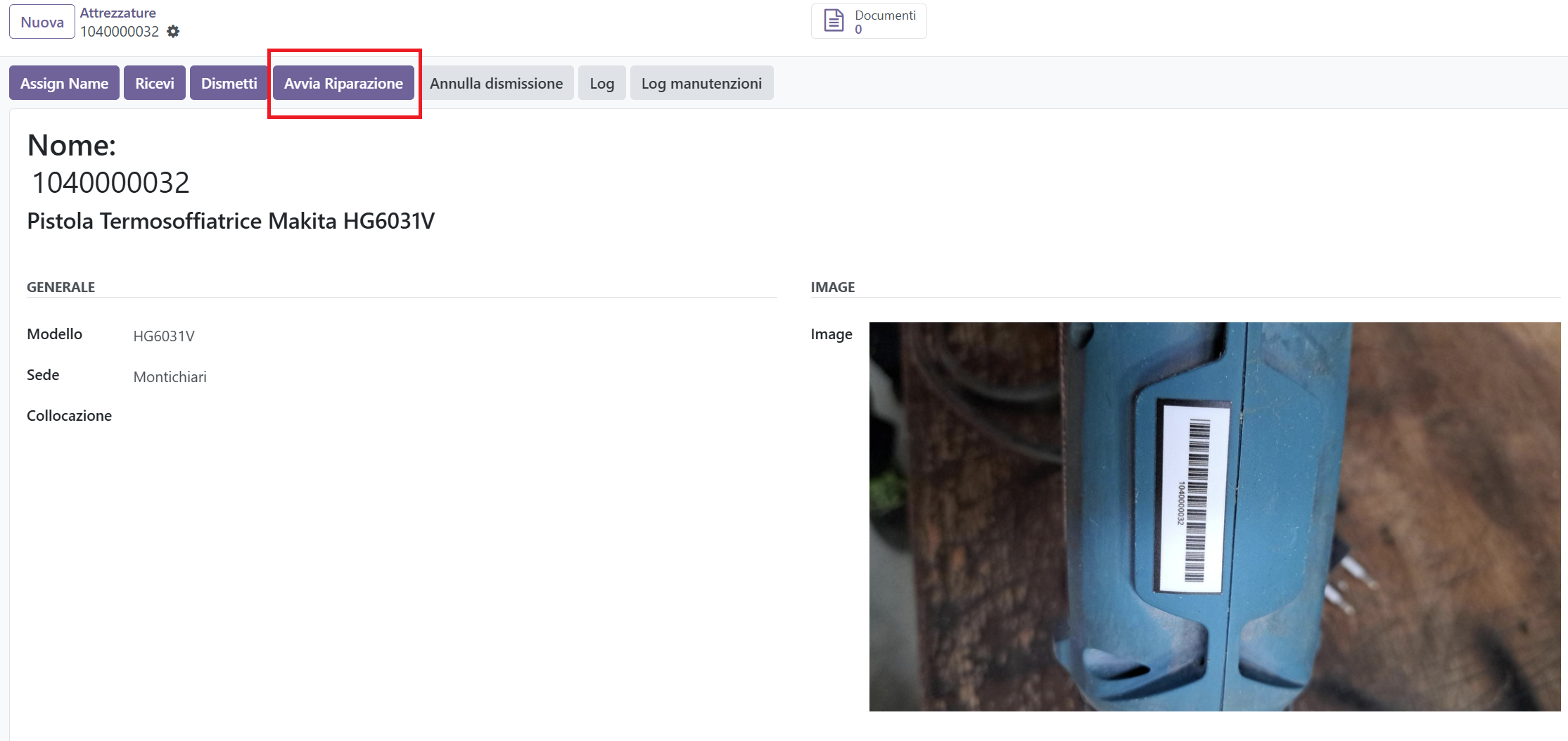
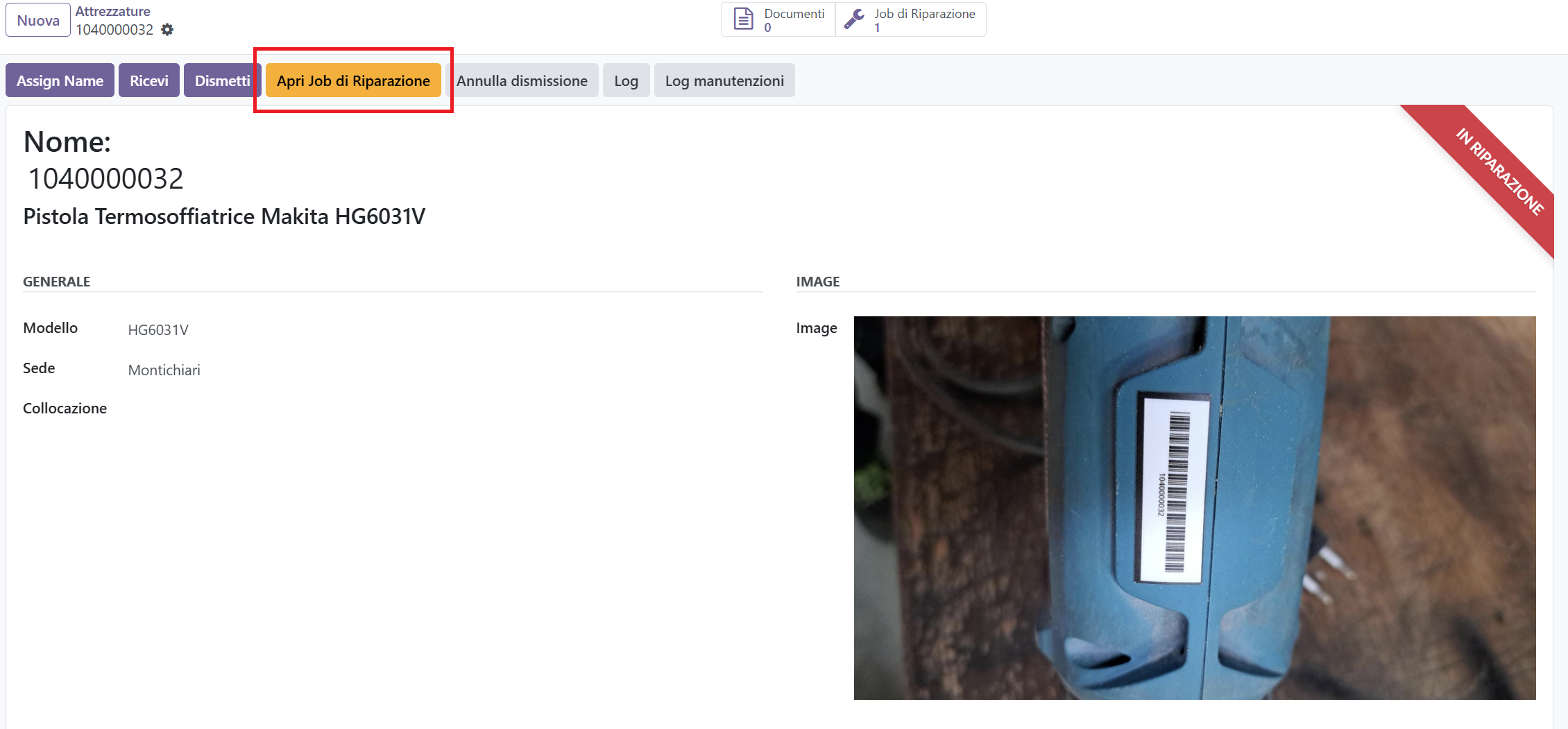
What happens: - the tool is marked Repairing (red ribbon);
- all its pending maintenance lines are removed;
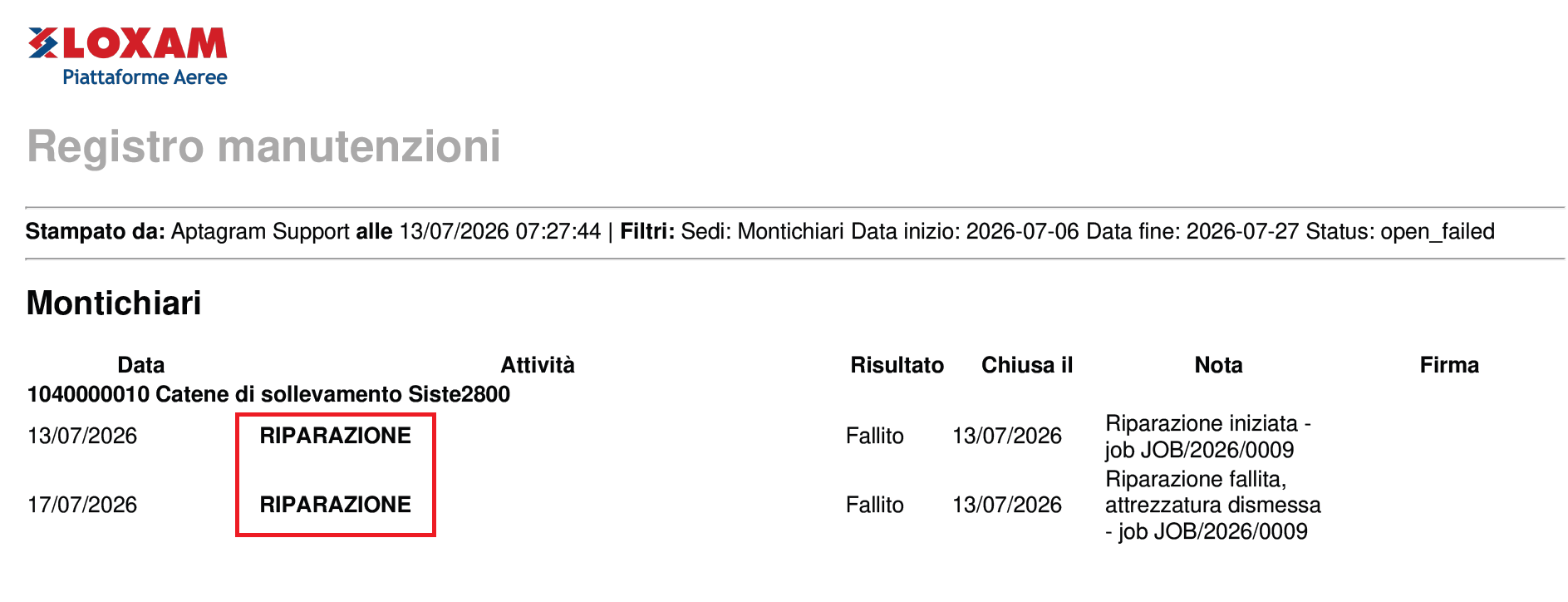
- a "Repair started" line is added to the maintenance history, so the situation is visible in the Tool Maintenance Report;
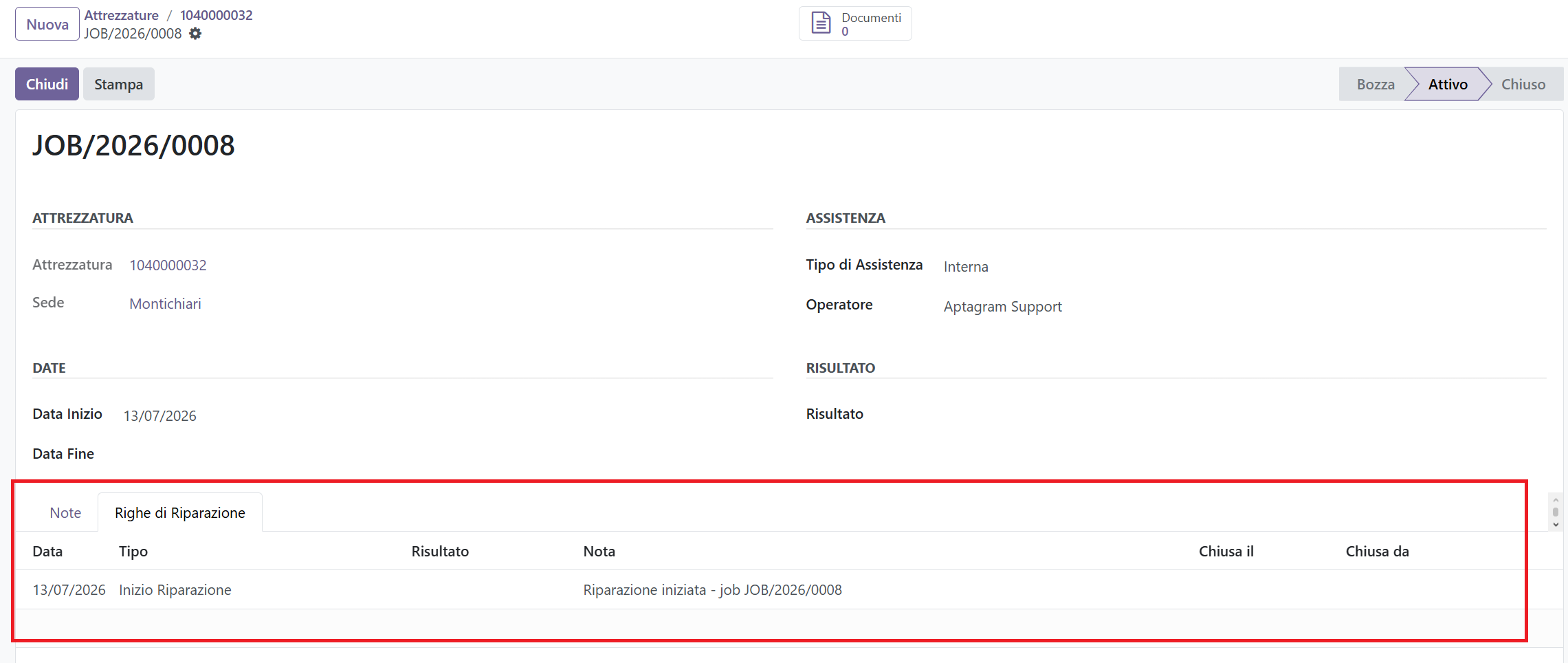
- an active Repair Job opens on screen.
The button is available only for received tools that are not dismissed and not already under repair. If a job already exists for the tool, the button becomes Open Repair Job and takes you straight to it.
2. Work on the job
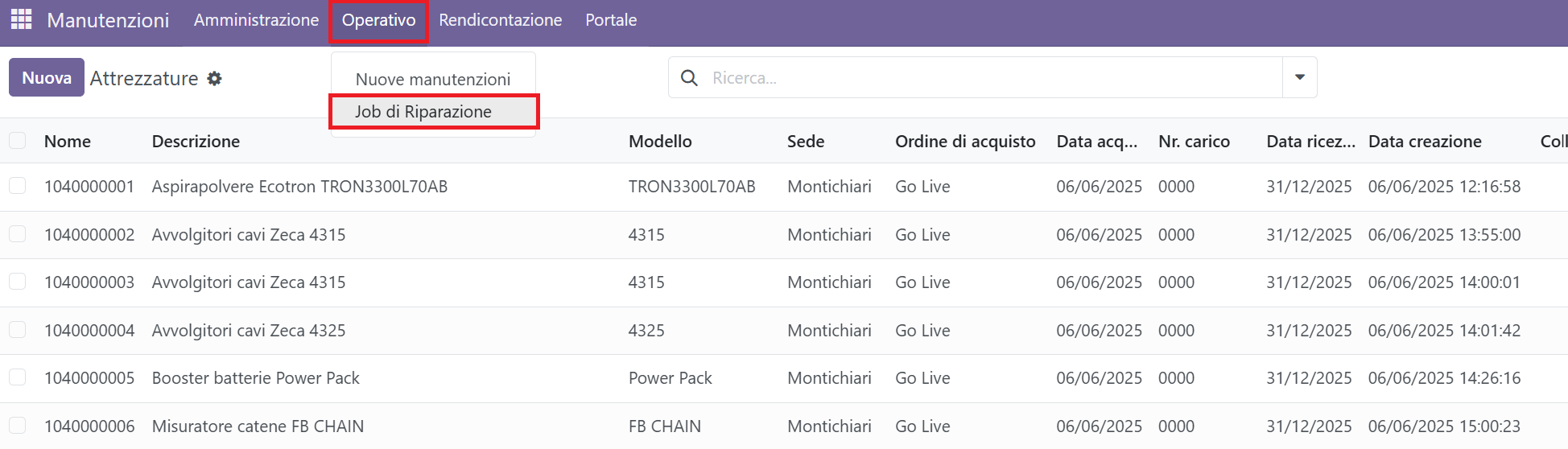
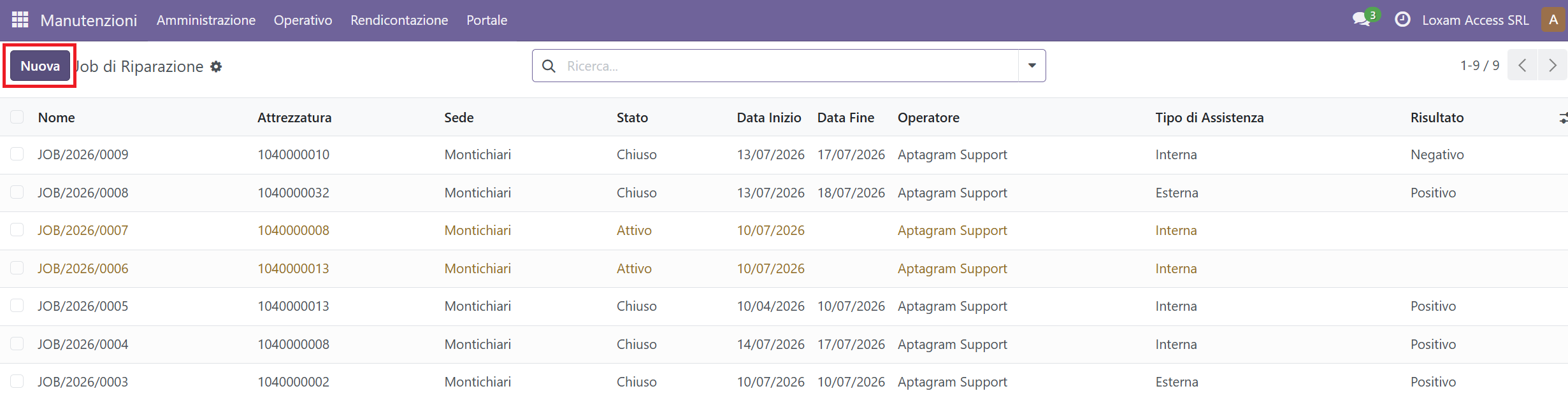
Page: the Repair Job form (also reachable from Operation → Maintenance Jobs, or from the Repair Jobs counter on the tool).
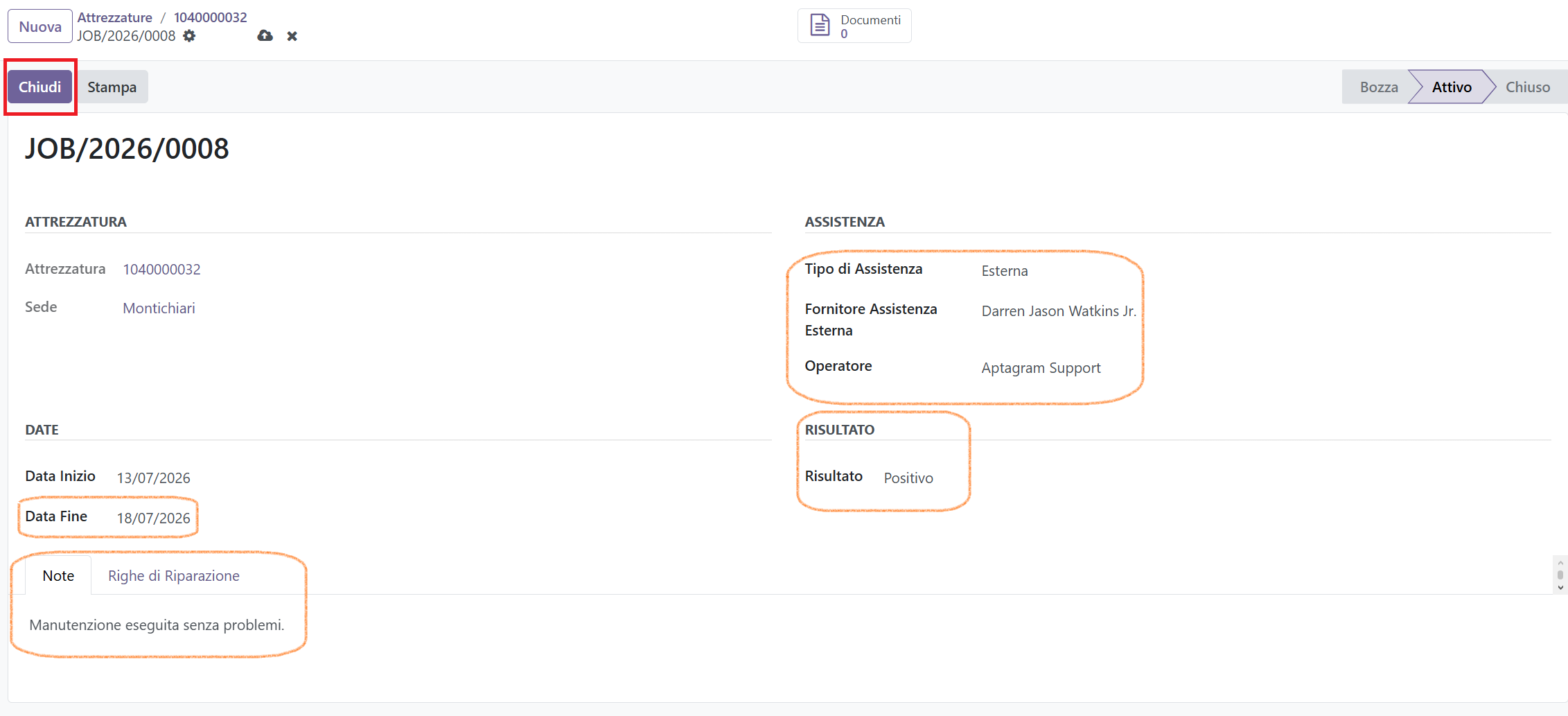
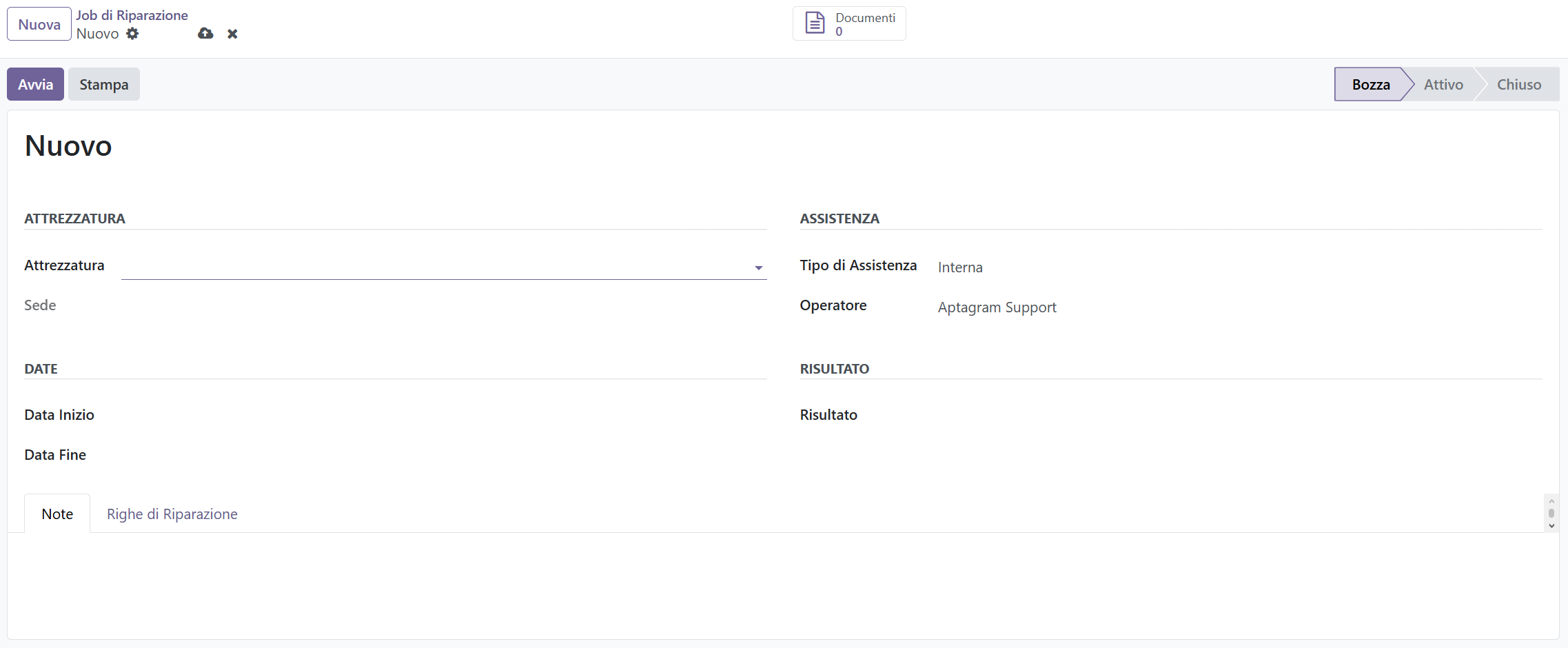
Actions: - write what is being done in the Notes area; - set the Starting / Ending Date and the Operator; - choose the Assistance Type: Internal or External — if External, select the External Assistance Supplier; - attach photos and documents with the Documents button; - when the work is finished, set the Result: Positive or Negative.
3. Close the job
Action: press Close on the job (a Result is mandatory; the supplier too, if the assistance is external).
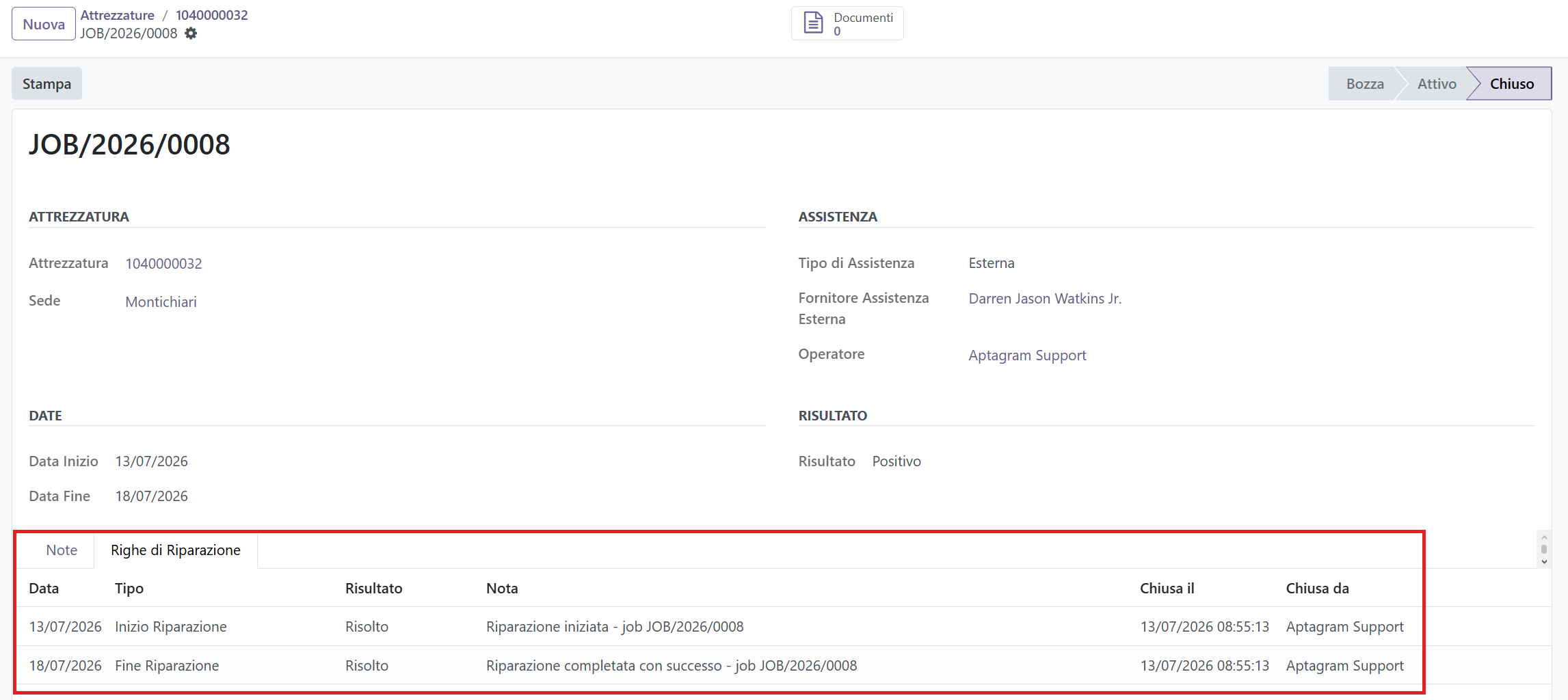
If the result is Positive: - a "Repair completed successfully" line is added to the maintenance history; - the tool exits the Repairing state; - the future maintenances are recreated, scheduled from the closure date.
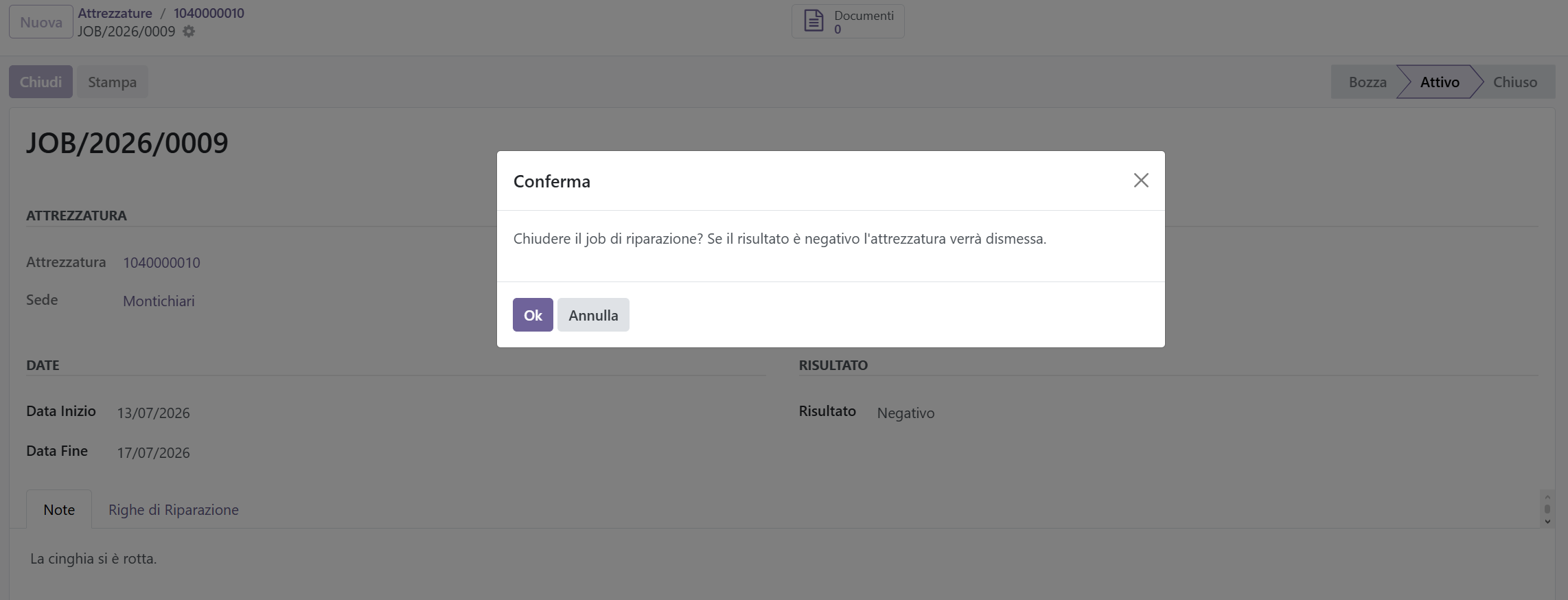
If the result is Negative: - a "Repair failed" line is added to the maintenance history; - the tool is dismissed (the job reference is recorded as the dismissal reason).
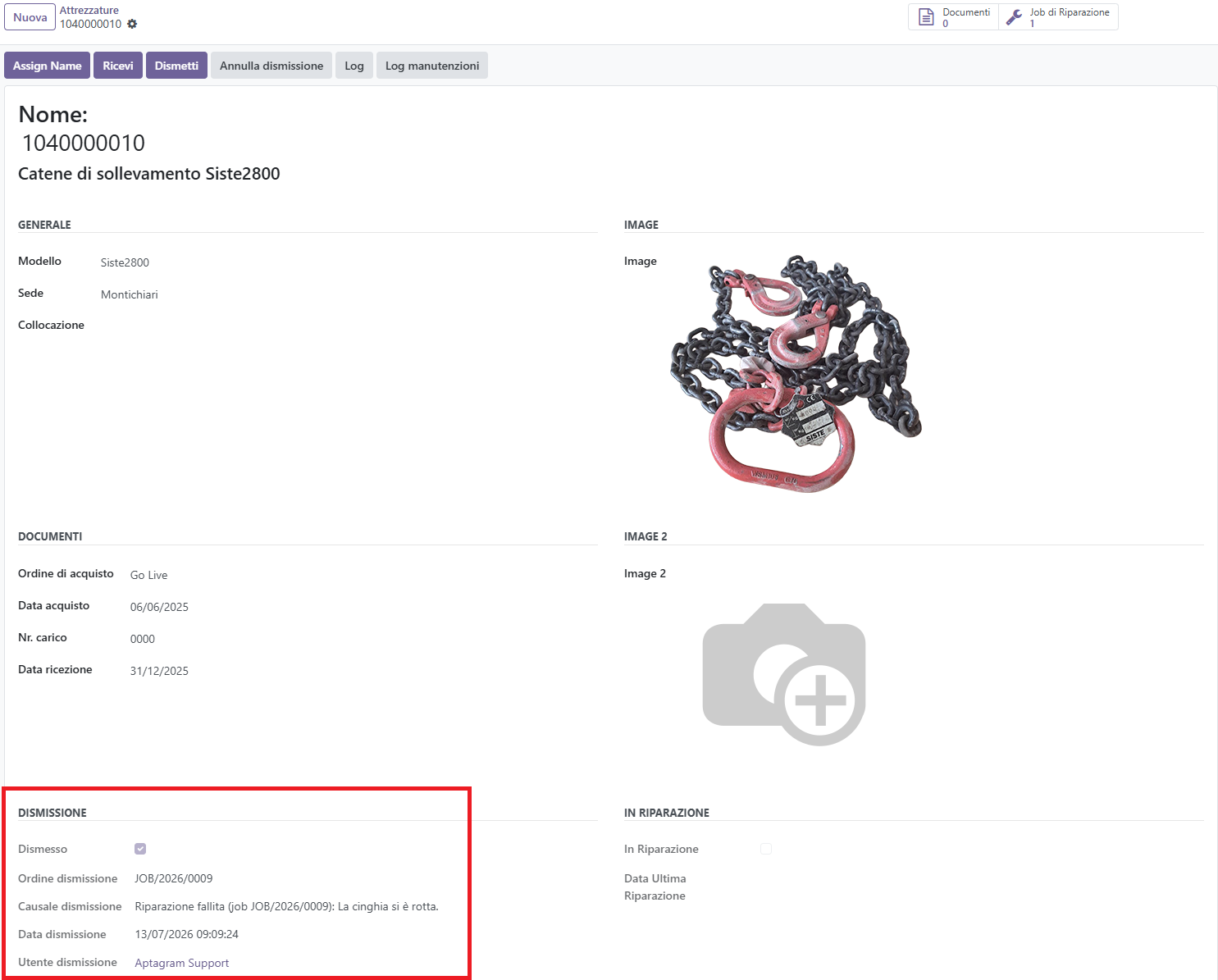
A closed job can no longer be modified.
4. Print the repair report
Page: the Repair Job form.
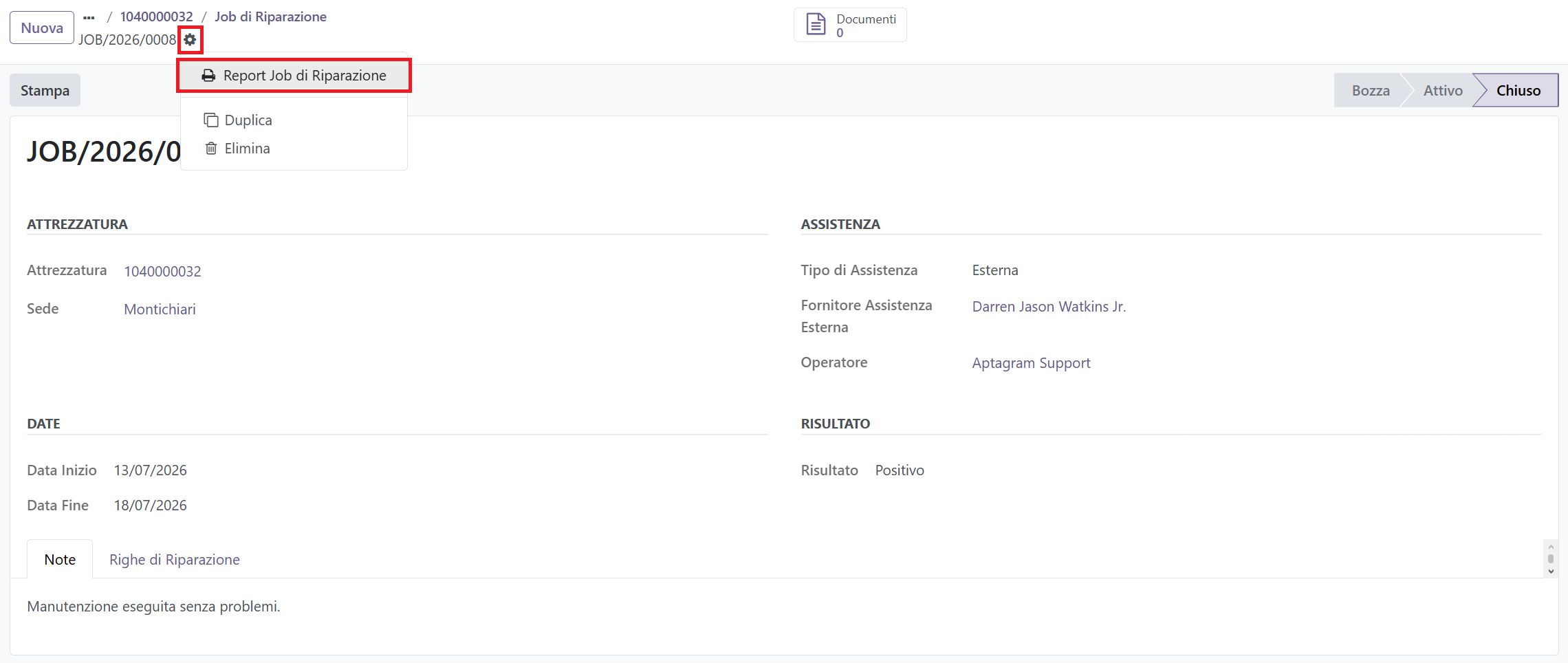
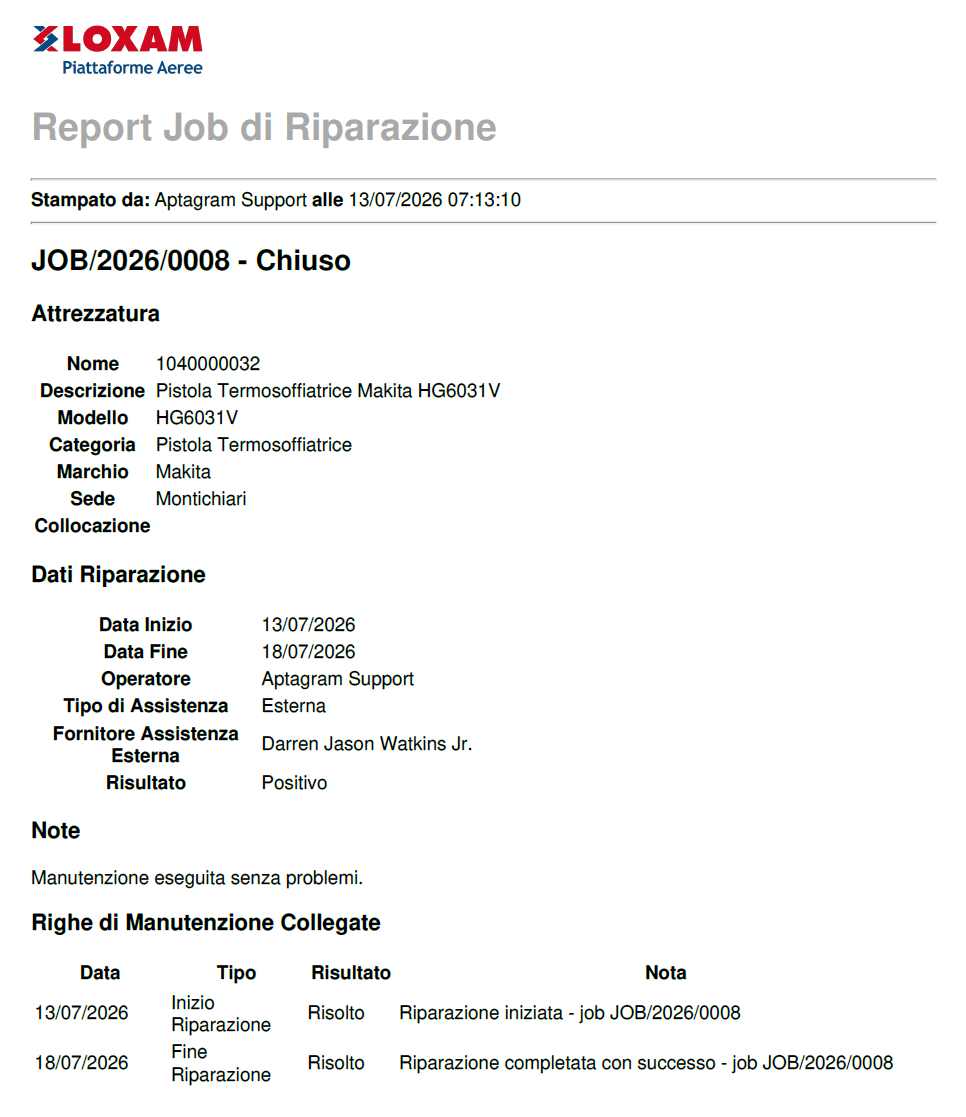
Action: press Print to get a PDF with the tool data, dates, operator, assistance type and supplier, result and the notes — useful as a record of the reparation activity.
Good to know
- Only one open job per tool is allowed.
- Jobs can also be created manually from Operation → Maintenance Jobs: they start in Draft and suspend the maintenances only when you press Start.
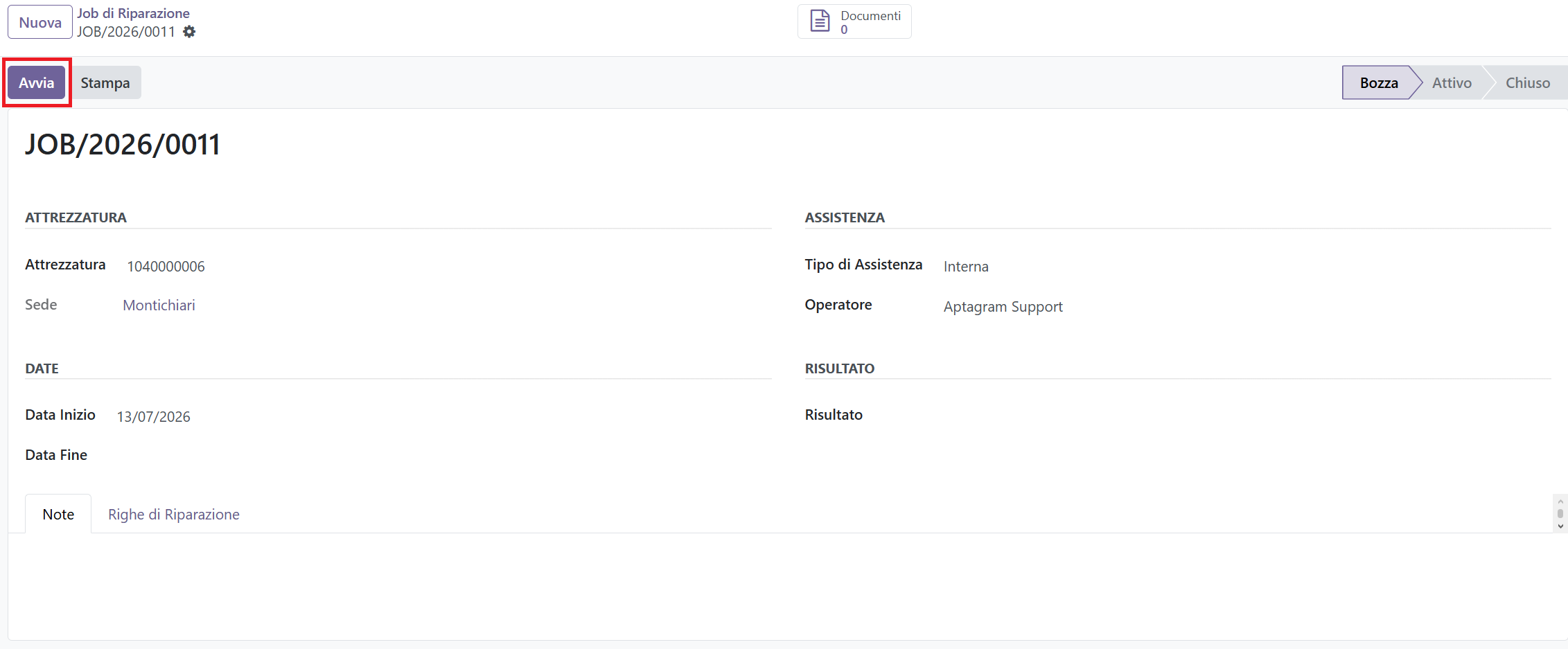
- If a tool shows the yellow warning "A repair job has been created but not started yet", open it with Open Repair Job and either start it or close it.

- Repair lines are marked REPAIR in the Tool Maintenance Report.