Customer Portal: How to Make Purchases and Online Orders
The Odoo customer portal is not just a consultation tool; it transforms into a fully personalized B2B/B2C purchasing channel.
This guide explains, step-by-step, how your registered customers can place orders directly from their reserved area, benefiting from dedicated pricelists, advanced customization features, and a simplified checkout.
1. Access and Catalog Navigation
Once the portal activation is complete (as described in the previous guide), the customer can log in using their credentials.
- The customer logs into the portal.
- Clicks on the Shop / Catalog section.
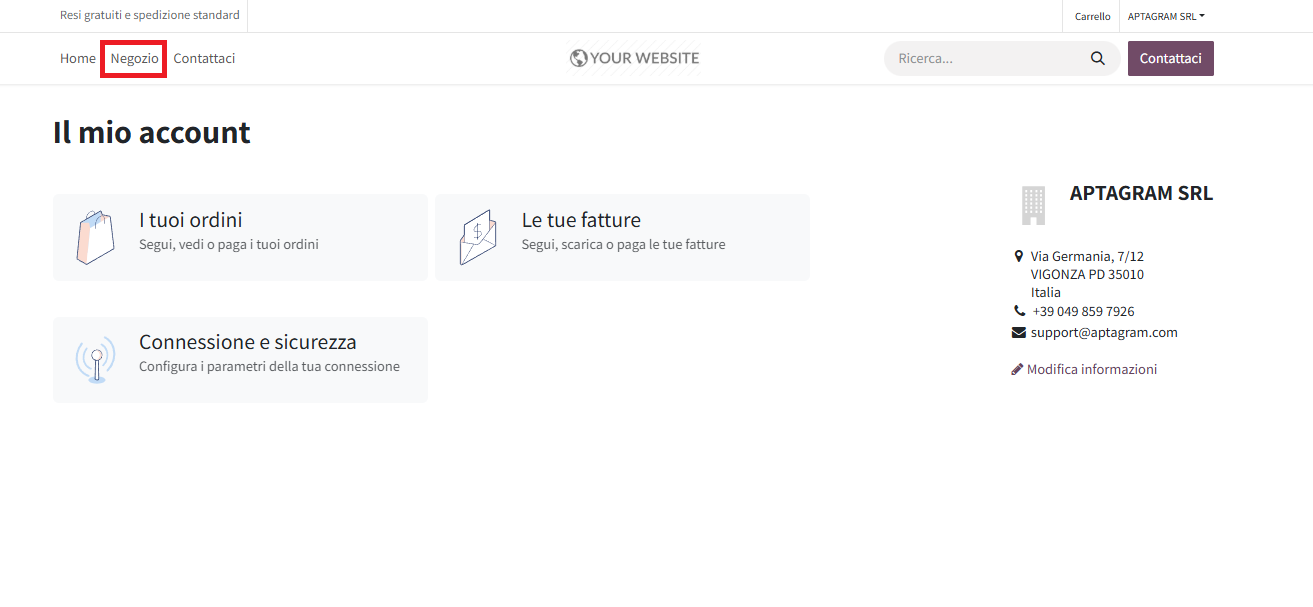
- They will see the catalog of products available for online purchase.
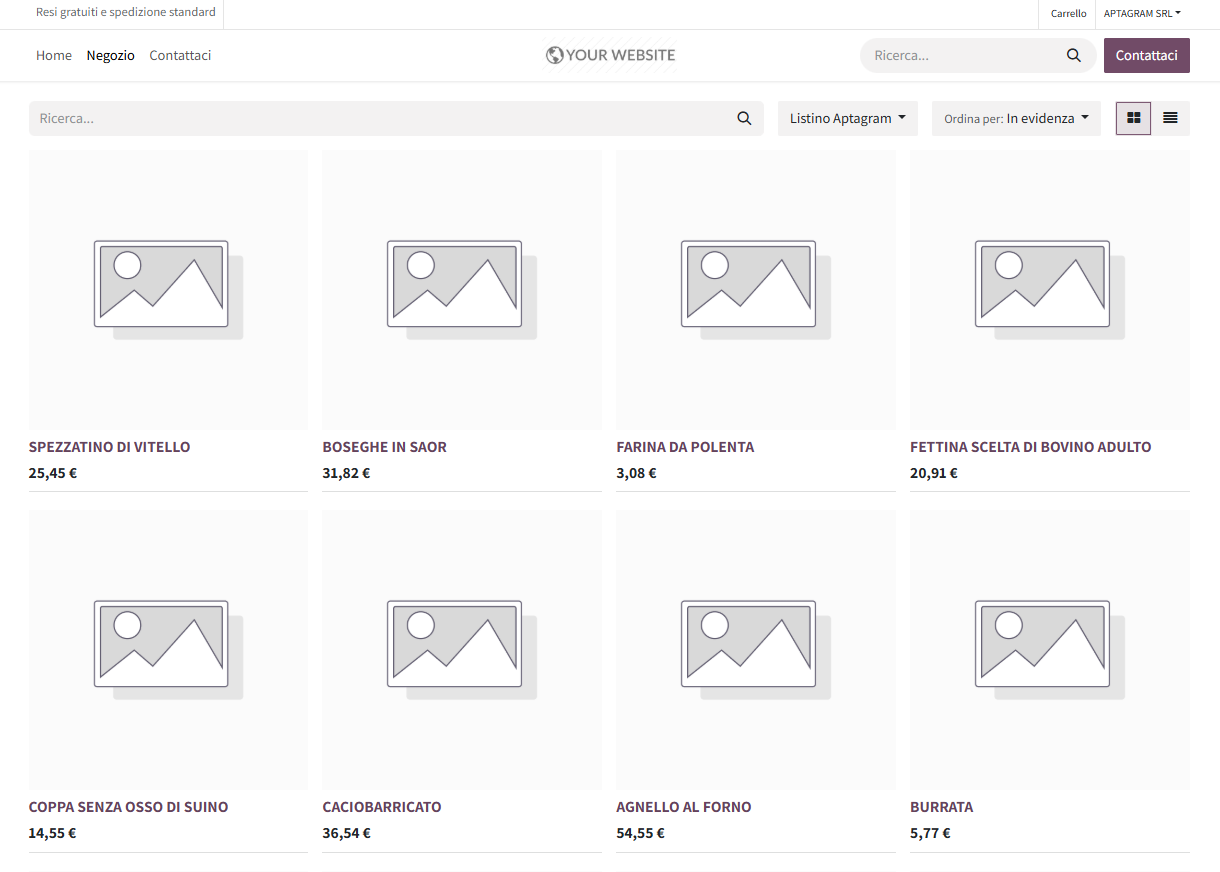
2. Tailored Prices: The Impact of the Personalized Pricelist
The Odoo portal instantly recognizes the logged-in user. This provides a massive commercial advantage:
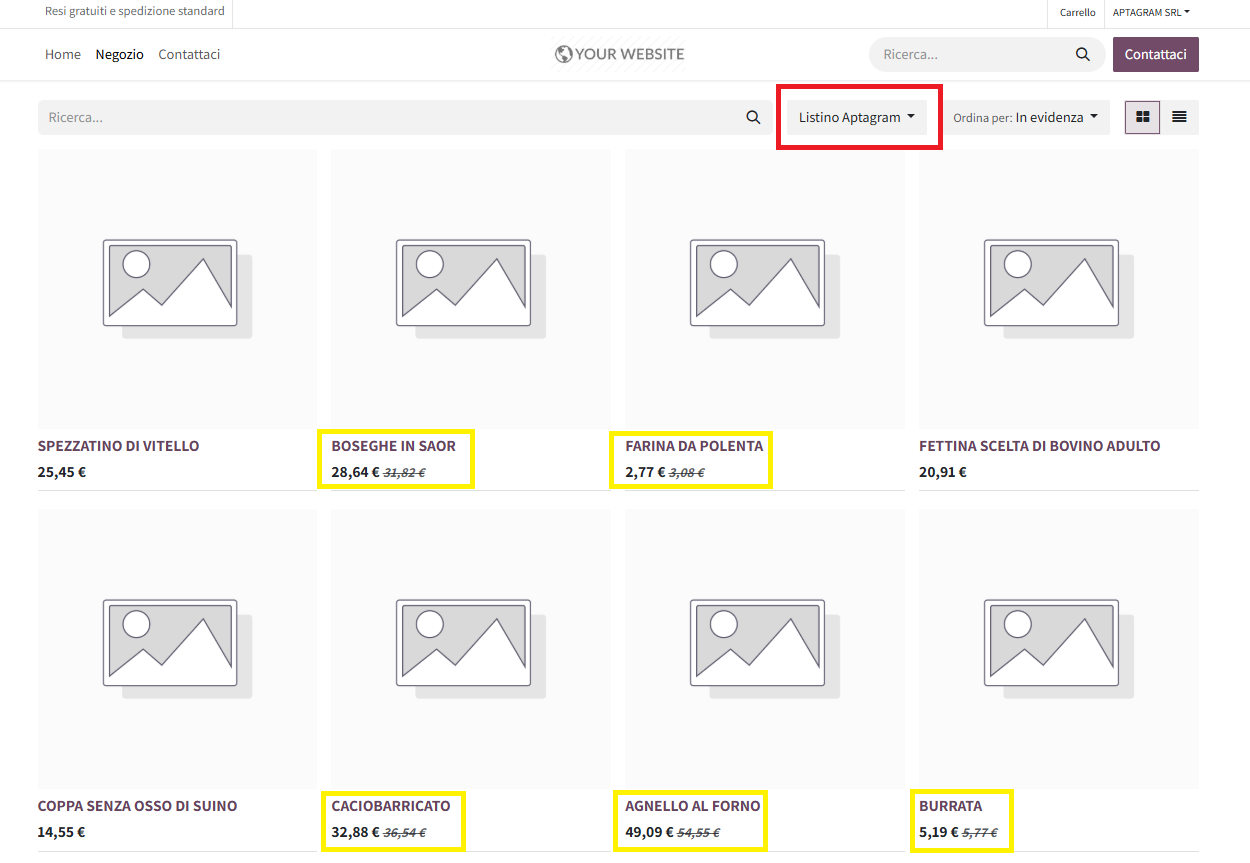
- Automatic Assignment: Odoo detects the pricelist associated with the contact's master record (for example, the Reseller Pricelist or specific discounts for categories like Butchery, Gastronomy, or Fruit & Vegetables).
- Dynamic Prices: In the catalog, the user will not see the standard public price, but will directly see the prices reserved for them.
- Discount Transparency: If the pricelist rule specifies a percentage reduction (e.g., a 10% discount on the Gastronomy category), the item will show the original price crossed out and the new discounted price calculated in real-time, highlighting the savings.
3. Order Customization: Line Notes and Order Notes
To satisfy specific operational needs, we have introduced annotation fields to allow precise communication during the ordering phase:
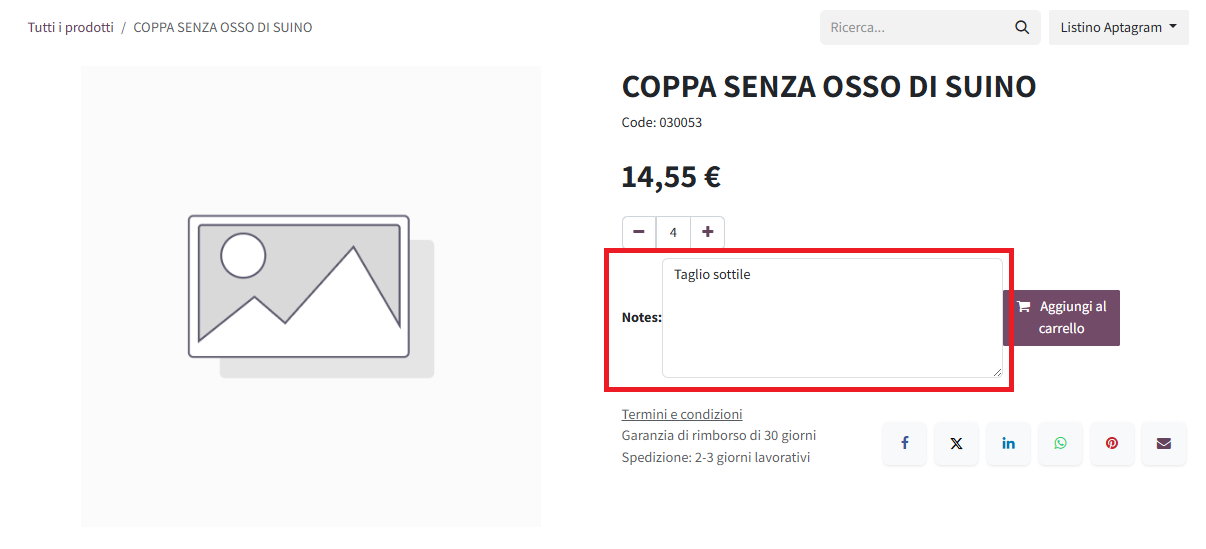
A. Line Notes (On Single Products)
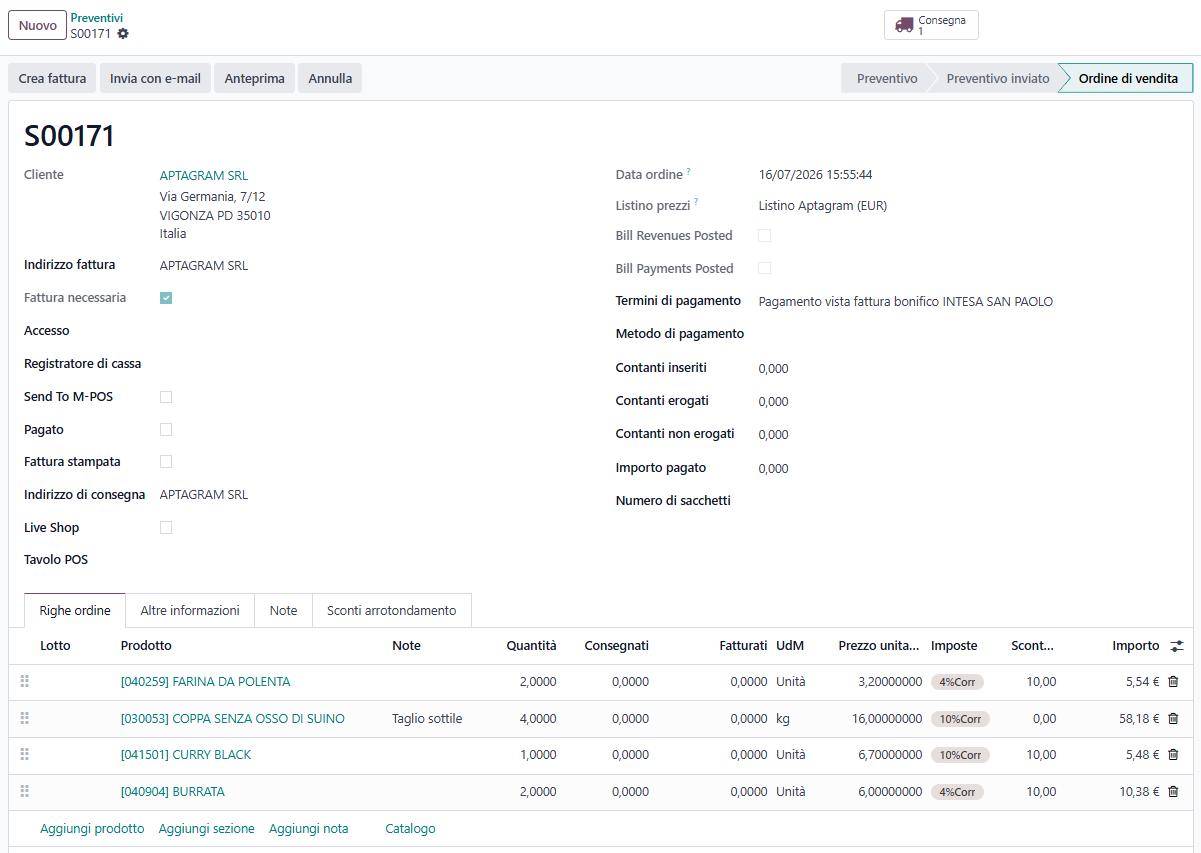
Within the shopping cart, next to each added item, the user has a Line note field. * What it is for: It allows adding specific instructions for a single product (e.g., "Thin cut" for a Butchery item, or "Separate packaging").
B. Order Notes (Details and Delivery Request)
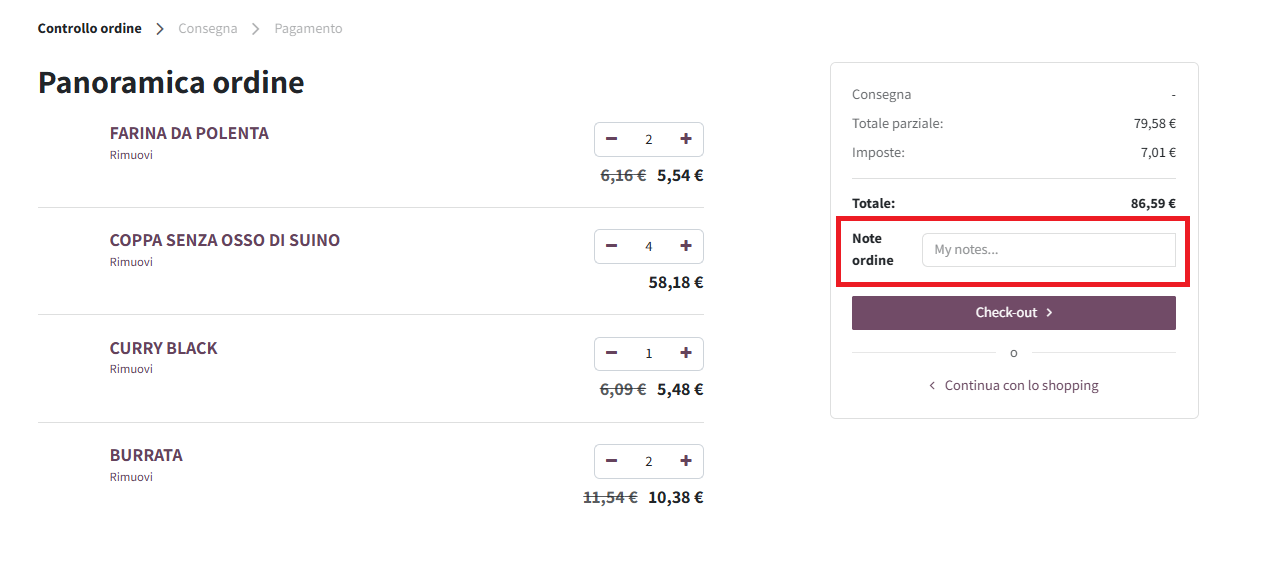
Before proceeding to checkout, in the right sidebar of the shopping cart (under the total summary), there is a single text field labeled Note ordine (Order notes, with the placeholder "My notes...").
- What it is for: This is the dedicated space where the user can enter any general header information or instructions for the order.
- How to use it for delivery: Since there are no separate fields, the customer must specify the requested delivery date and time directly in this box (e.g., "Delivery requested on 18/07 at 10:00 AM"), along with any other logistics notes (e.g., "Deliver to the back ramp").
4. Simplified Checkout: Direct Order Generation
To speed up the purchasing process and eliminate transactional friction, the portal is configured with an optimization module that completely bypasses the online payment phase (credit card, PayPal, etc.).
- How it works: When the user proceeds to checkout and clicks on "Confirm Order", the system does not require any immediate financial transaction.
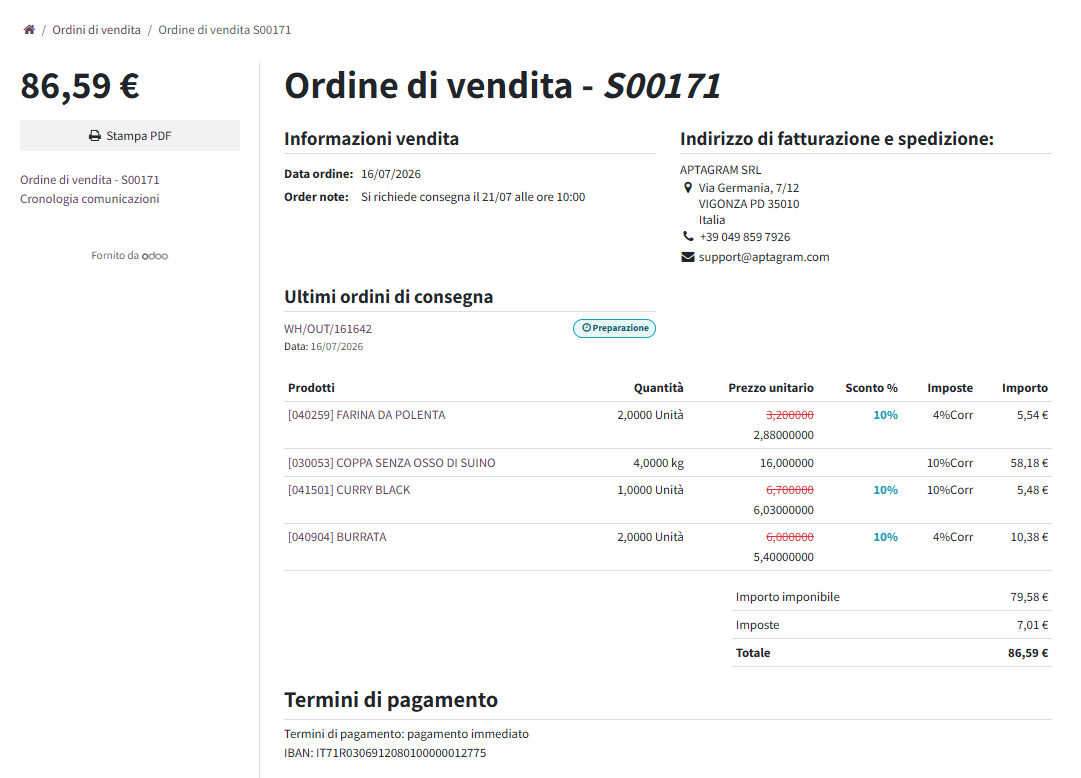
- The result: The system directly validates the cart and instantly creates a confirmed Sales Order within the company's Odoo database, ready to be scheduled, prepared, and invoiced according to standard agreed payment terms (e.g., deferred bank transfer, direct debit, etc.).
5. Order History and Quick Re-order
Customers making recurring purchases can save valuable time by duplicating past orders:
-
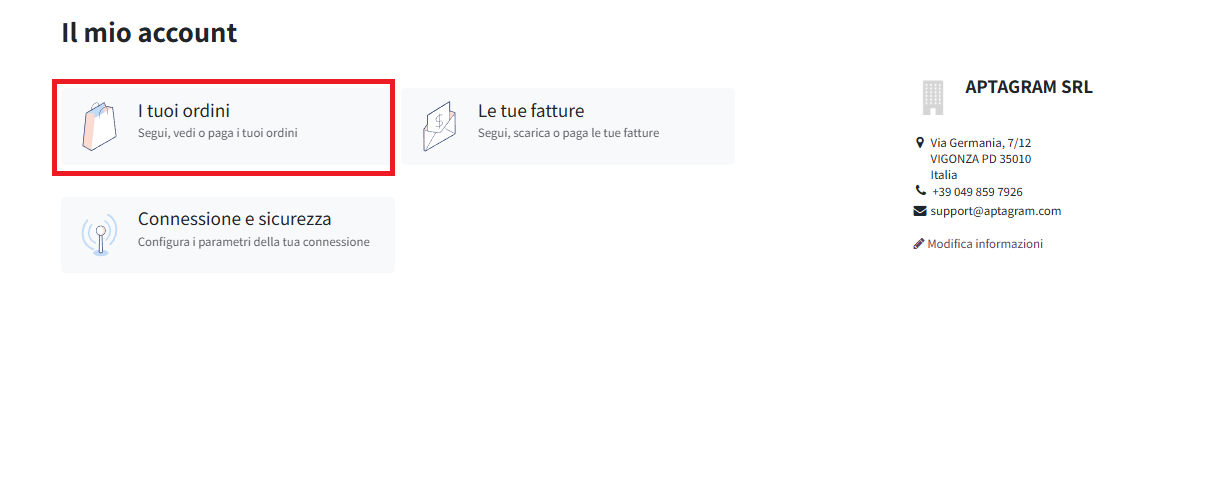
From the portal home page, the customer accesses the My Orders section.
-
Selects a previously submitted order to view its details.

- Inside the order page, they click the "Buy again" (or "Acquista di nuovo") button.
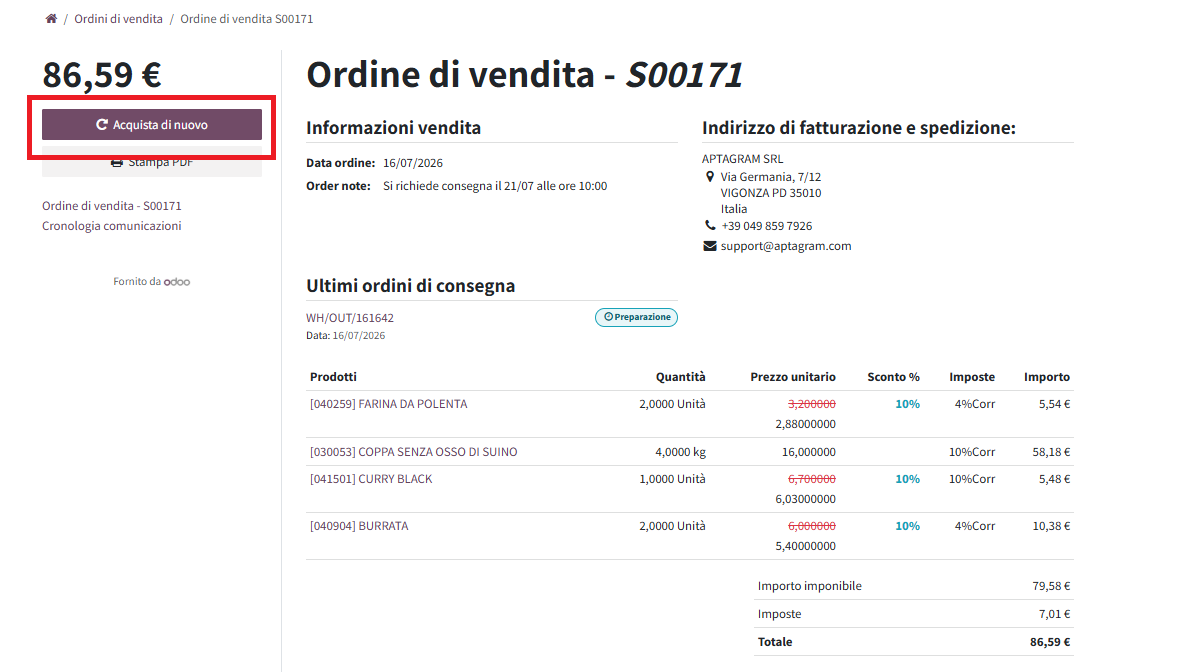
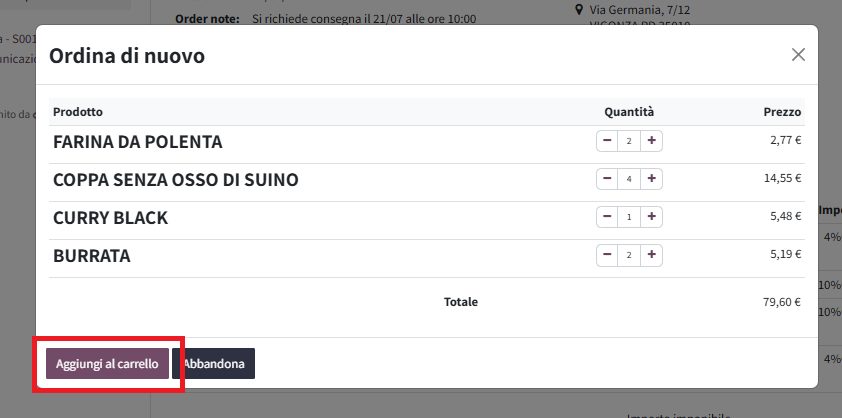
- At this point, an "Ordina di nuovo" (Order again) pop-up window will appear on the screen, showing a summary of the items from the past order. Within this pop-up, the user can:
* Review the products and their updated prices based on their currently active pricelist.
* Adjust the quantities of each item directly using the
+and-buttons. * Click "Aggiungi al carrello" (Add to cart) to confirm, or "Abbandona" (Discard) to cancel.
- After clicking "Aggiungi al carrello", if there are already other products in the active shopping cart, a second warning pop-up will appear: * The system will ask the user if they want to empty the cart before adding the items from the old order, or if they want to merge the products with the existing ones.
- Once the choice is made, the customer will be redirected to the cart where they can specify line notes, enter the delivery date in the order notes box, and quickly proceed to checkout.