Pricelists
Pricelist management in Odoo is one of the system's most powerful and flexible engines. It allows you to automate pricing based on customers, seasonality, purchased quantities, and, most importantly, based on specific products or entire categories.
This practical, step-by-step guide explains how to configure your pricelists in a professional yet highly straightforward manner.
1. Enabling Pricelists
Before starting, we must make sure Odoo is displaying all customization options (formulas and advanced rules).
- Go to Sales (or Invoicing/Accounting) > Configuration > Settings.
- Scroll down to the Pricing section.
- Check the box for Pricelists and select the option Advanced price rules (discounts, formulas).
- Save your changes.
2. Creating a New Pricelist
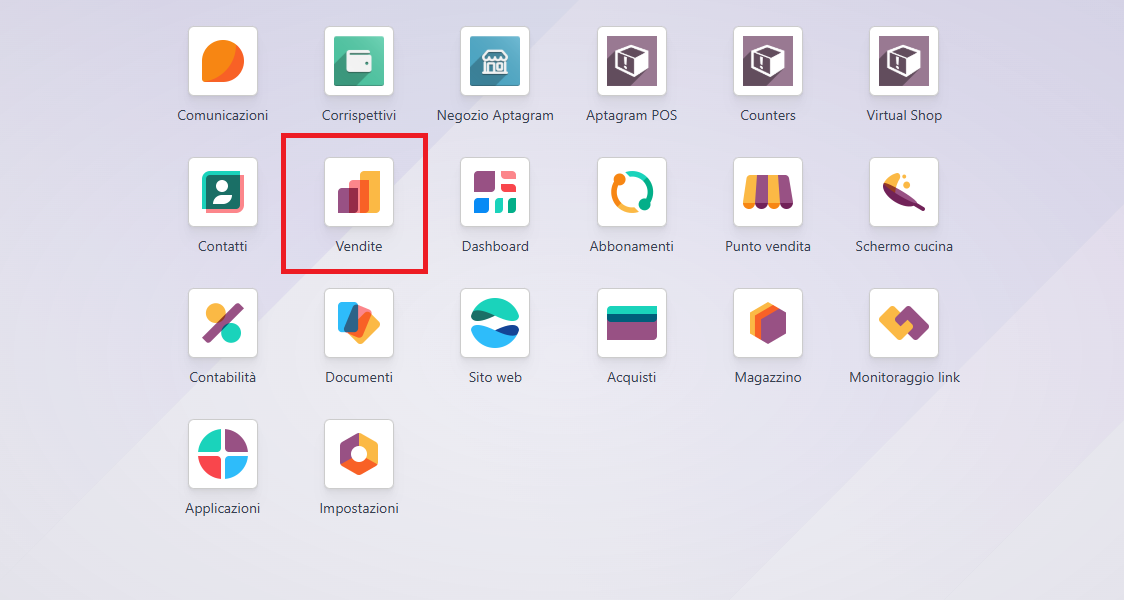
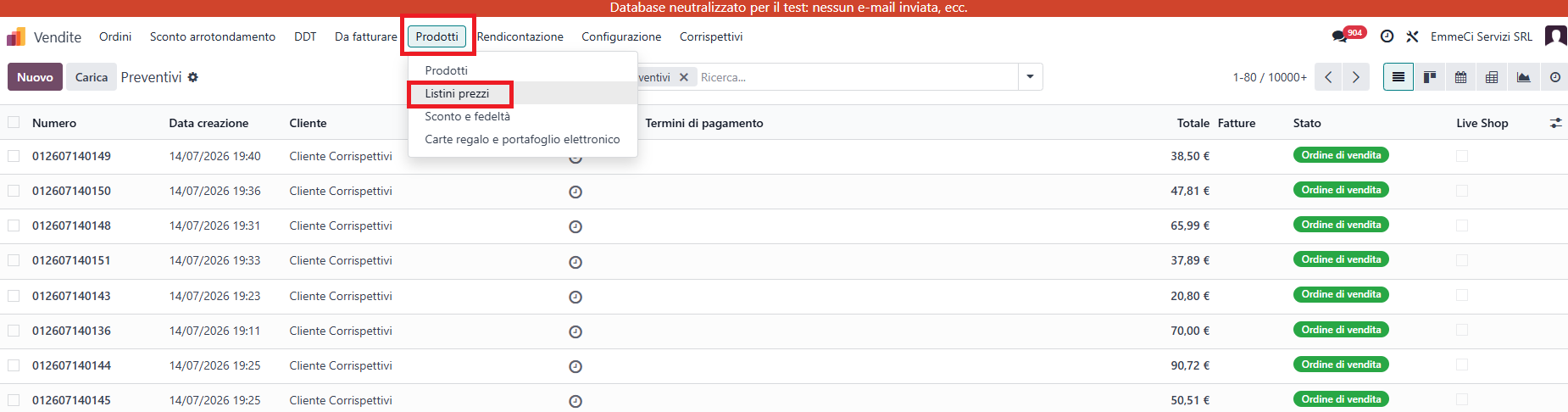
Once the option is activated: 1. Go to Sales > Products > Pricelists.
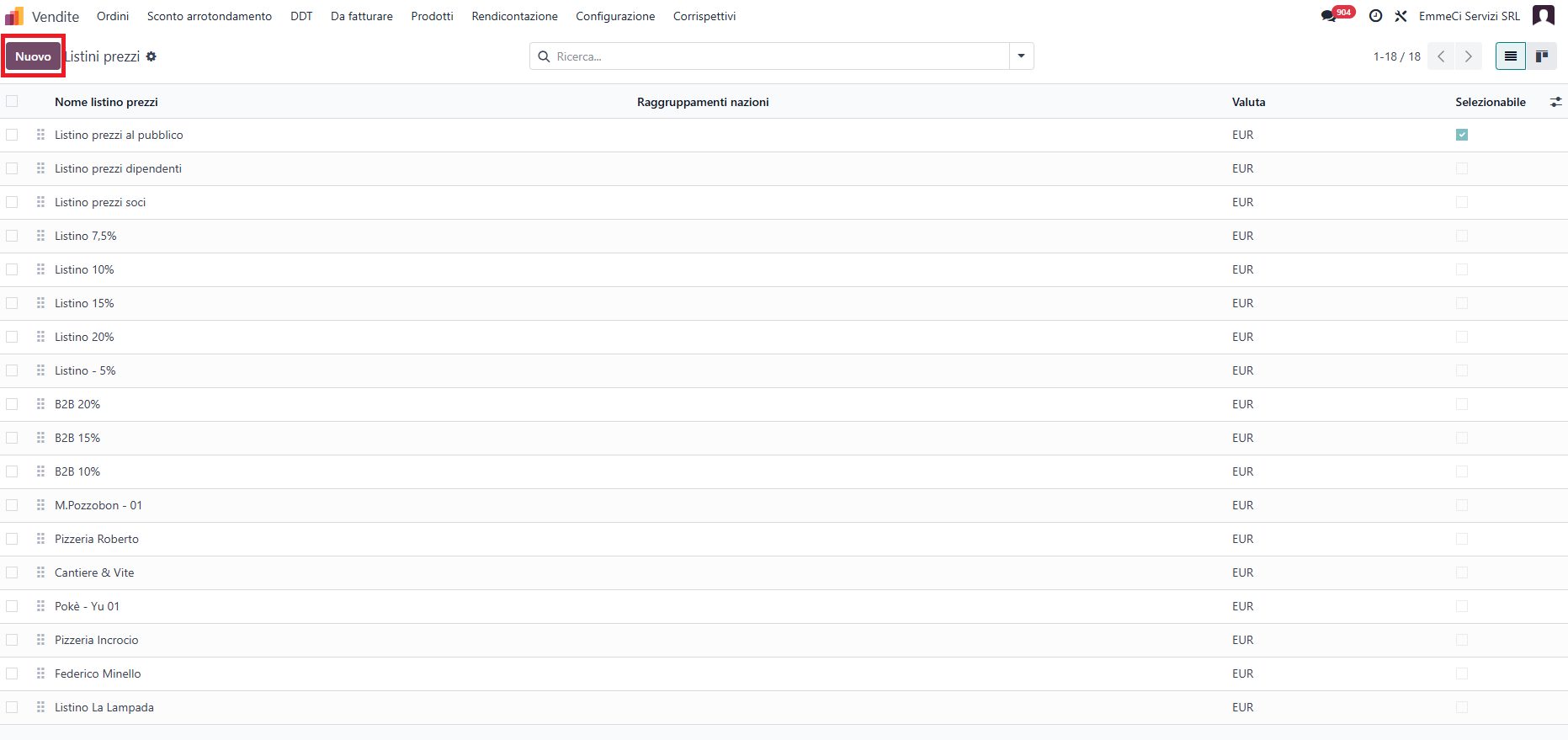
- Click New (or Crea).
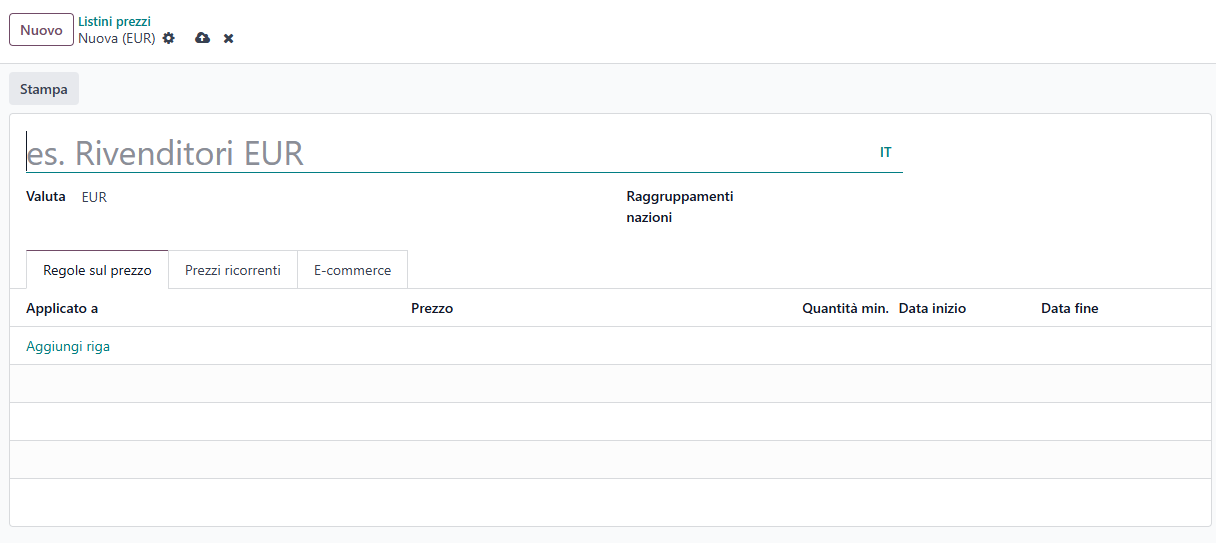
- Give the pricelist a Name (e.g., Aptagram Pricelist or Summer Discounts) and select the Currency.
3. Configuring Rules
Under the Price Rules tab, click Add a line. This opens a window where you decide what to apply the rule to and how to calculate the price.
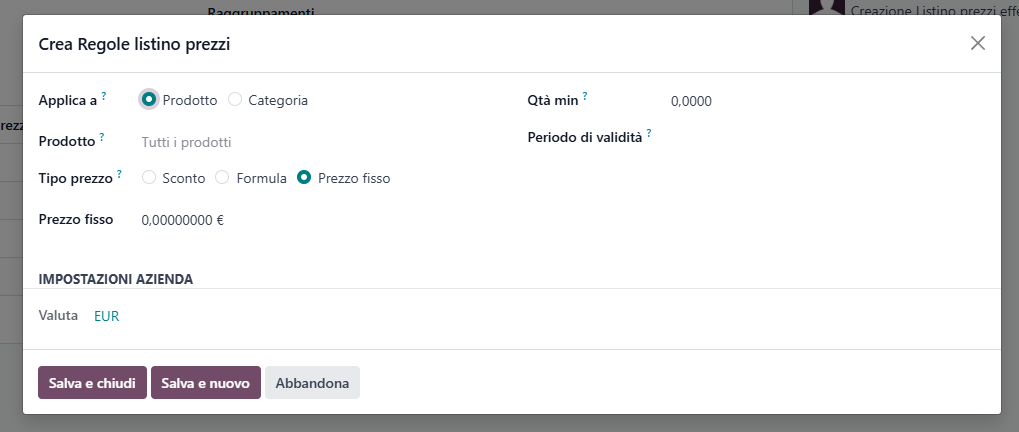
A. Defining Applicability (What does it apply to?)
Odoo allows you to define the target of your rule with surgical precision using three main levels of detail:
| Application Level | How it Works | Ideal for... |
|---|---|---|
| All products | The rule applies to the entire catalog. | General discounts (e.g., "10% off everything"). |
| Product Category | Applies only to products associated with a specific category (and its subcategories). | Promotions on specific product lines (e.g., "20% discount on the entire Butchery category"). |
| Product | The rule affects a single, specific product. | Special pricing for a flagship or discontinued item. |
B. Choosing the Calculation Method (How does the price change?)
Once you have chosen the target (e.g., the Fruit & Vegetables category), decide how Odoo should calculate the final price from three options:
- Fixed Price: Force a specific price for that product/category.
- Example: All products in the "Fruit & Vegetables" category cost exactly €5.00, regardless of their original list price.
- Discount: Apply a percentage reduction to the public price.
- Example: 15% discount on all products in the "Gastronomy" category.
- Formula (The most powerful): Allows you to calculate the price dynamically based on a foundation (Sales price, Cost, or another pricelist) and apply discounts, markups, and roundings.
- Example: Want a 30% markup over the production cost for the "Butchery" category? You can set:
Price based on Cost+Discount of -30%(entering a negative value applies a markup).
4. Extra Conditions to Refine the Rule
To make your rule even more effective, you can take advantage of the control filters at the bottom of the configuration tab:
- Minimum Quantity: The rule is only activated if the customer purchases at least X units of that product or products from that category. This is excellent for volume discounts (e.g., "If you buy at least 10 items from the Butchery category, you get a 15% discount").
- Validity Period (Start Date / End Date): Ideal for scheduling seasonal offers or flash sales that activate and deactivate automatically over time.
A Practical Configuration Example
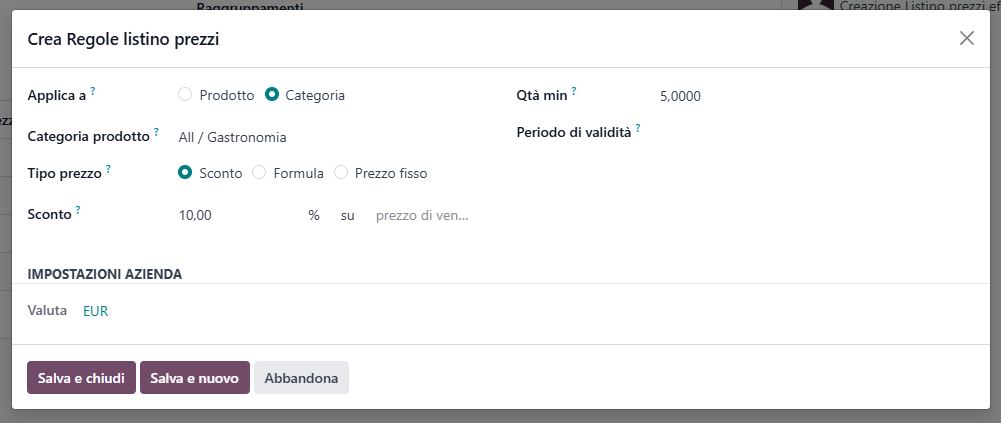
Suppose we want to create a rule where the "Gastronomy" category receives a 10% discount if the customer purchases at least 5 items:
- In the pricelist line, select Apply on: Product Category.
- In the Product Category field, select "Gastronomy".
- Under Minimum Quantity, enter 5.
- Under Calculation Method, select Discount.
- In the Discount field, enter 10.
- Click Save & Close.
From this moment, when you apply this pricelist to a customer on a quotation, Odoo will automatically check the cart: if it detects at least 5 items from the "Gastronomy" category, it will apply the 10% discount only to those items, leaving the others at full price.
5. How to Assign a Pricelist to a Customer
Once you have created and configured your pricelist, you can make Odoo apply it automatically every time you create a quotation or invoice for a specific customer.
Here is how to do it:
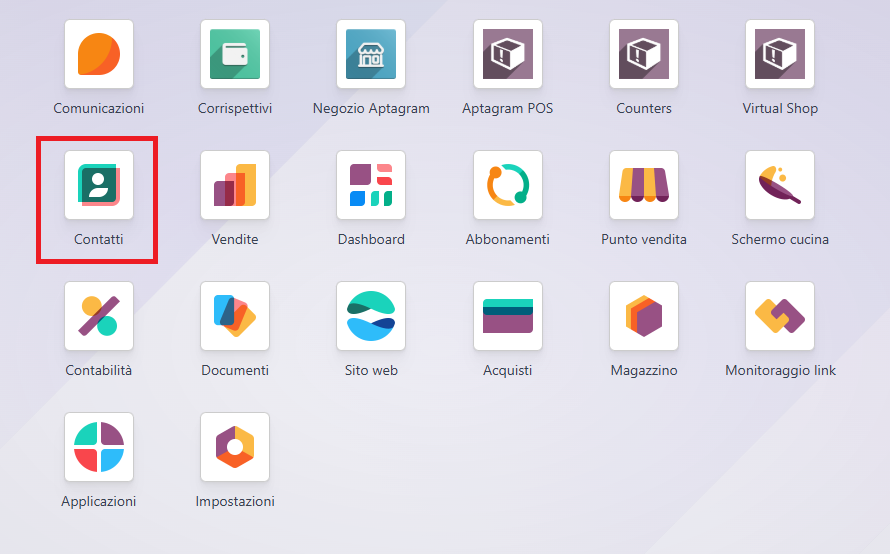
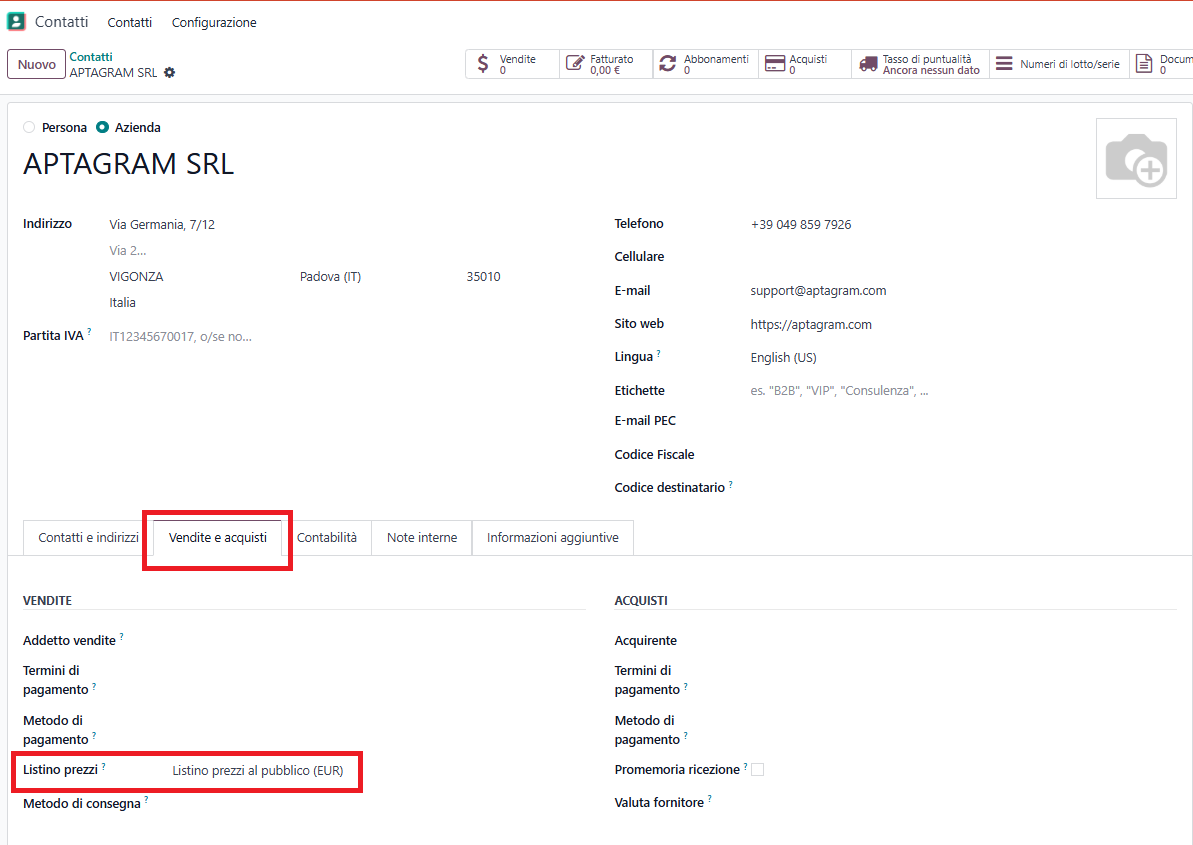
- Go to Contacts (or Sales > Customers).
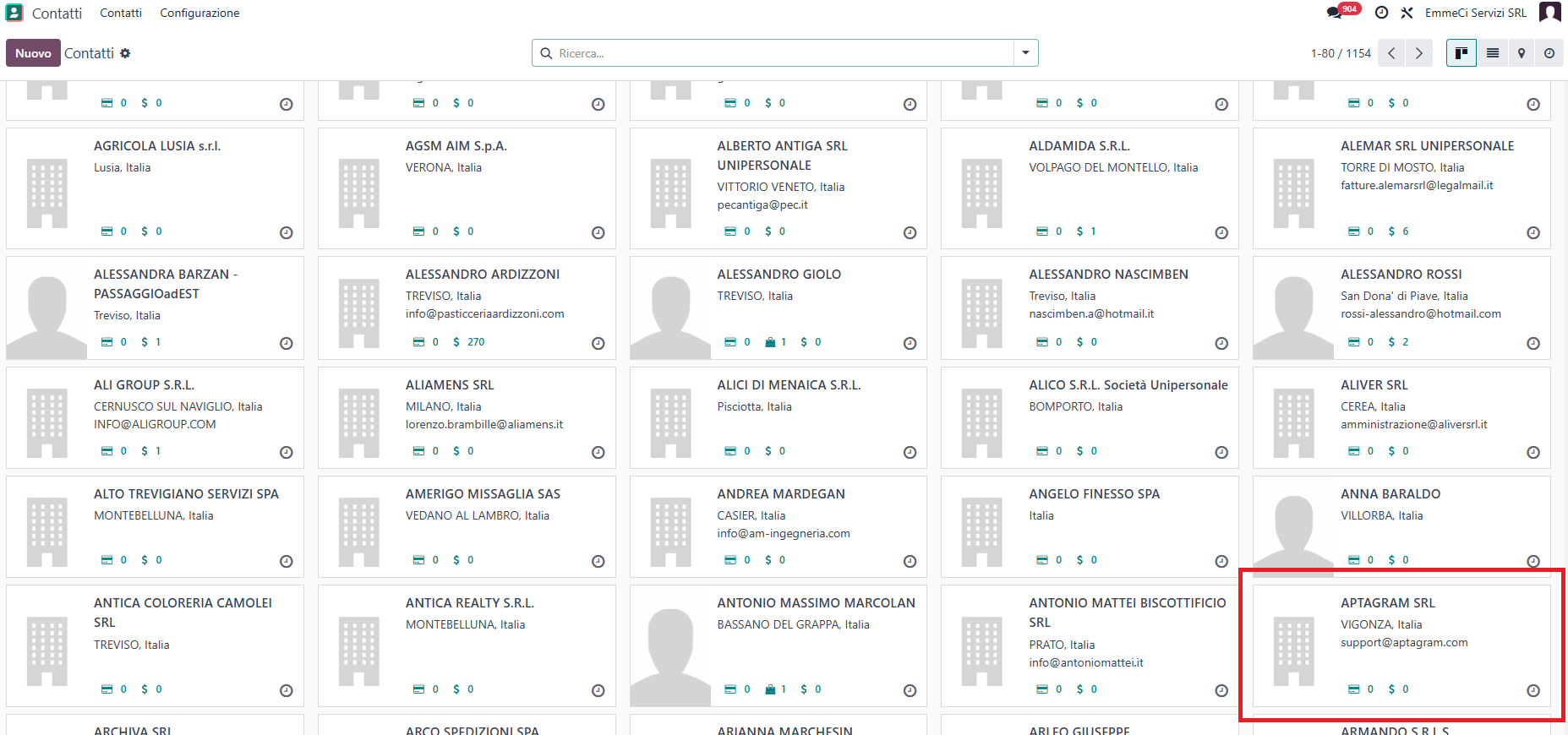
- Select the desired customer from the list and open their contact card.
- Move to the Sales & Purchase tab.
- Under the Sales section, find the Pricelist field.
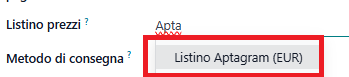
- Select the pricelist you created from the dropdown menu (e.g., Aptagram Pricelist).
- Click Save.
From now on, every time you create a new quotation for this customer, Odoo will automatically select this pricelist and instantly apply its pricing rules to all added items.