NFC Wristband — Counter Workflow
The NFC wristband goes with the counter operator while serving a customer: every product the customer picks is "read" by bringing the wristband close to the product's tag, and the list collected this way reaches the scale where the operator weighs. The Tracker is the application that collects the lists; Odoo keeps managing tickets, queues and bills as usual.
Use it to:
- know, for every ticket, which products (and which lots) the customer picked at the counter;
- find the list right on the scale, without having to remember it;
- close the lists automatically when the ticket goes to the till for that department.
The field and button names below are those shown when the English language is active.
1. The workflow at a glance
For every customer served at the counter the round is always the same:
- Ticket in the queue: the customer takes a ticket and appears in the department queue.
- Calling the ticket: from the scale, the operator sets the ticket to Serving.
- Check-in: the operator brings the wristband to the scale's tag; a collection list opens for that ticket.
- Collection: the operator brings the wristband to the tags of the products the customer picks.
- Check-out: the operator brings the wristband to the tag of the scale used for weighing; the list moves to weighing.
- Weighing: on the scale the operator sees the list and weighs the products (handled by the scale software).
- To the till: the department bill reaches Odoo, the ticket leaves the queue and the department's lists are closed.
In the Tracker every list goes through three states: Collecting (from check-in to check-out), Weighing (after check-out) and Completed (after the ticket goes to the till).
2. The customer takes a ticket
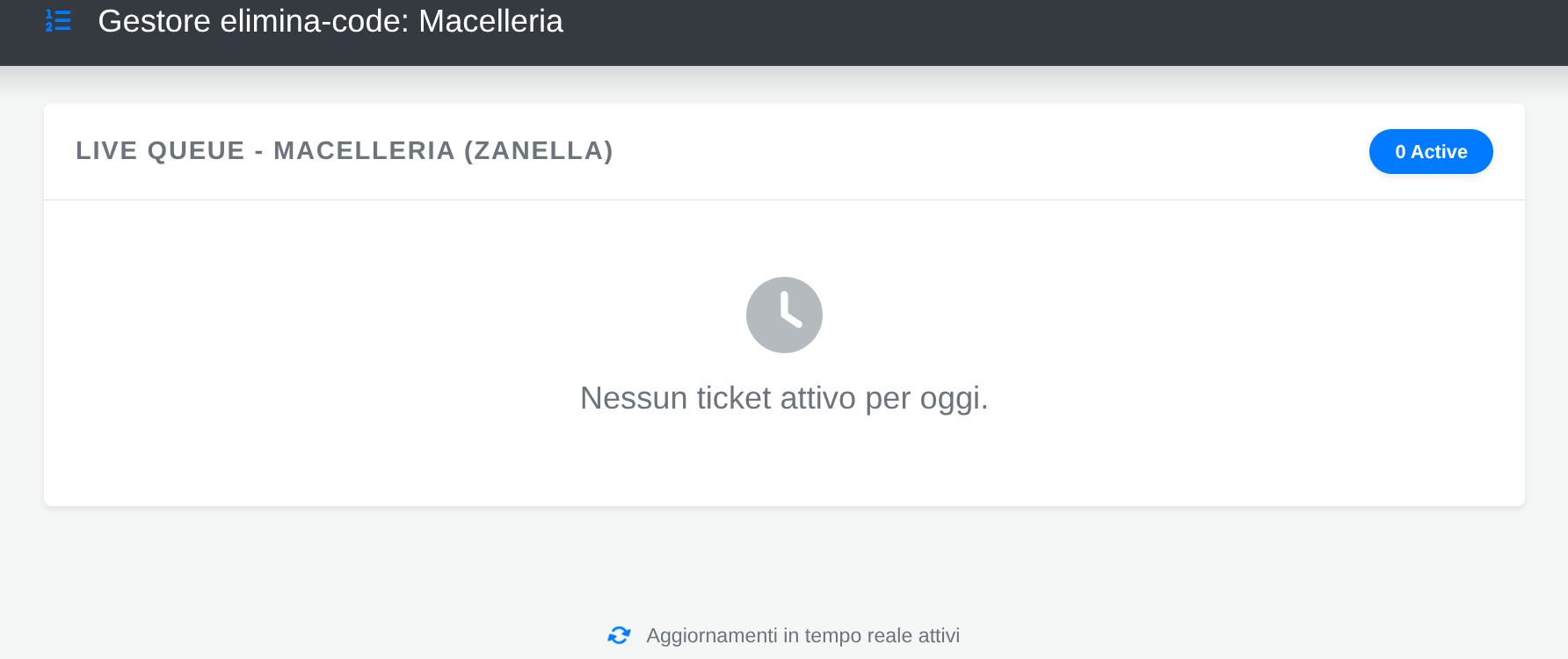
Page: the department's Queue Manager, open on the scale's screen
What happens: the customer's ticket appears in the department queue with its progressive number, its code (ID) and the customer, in the New state.
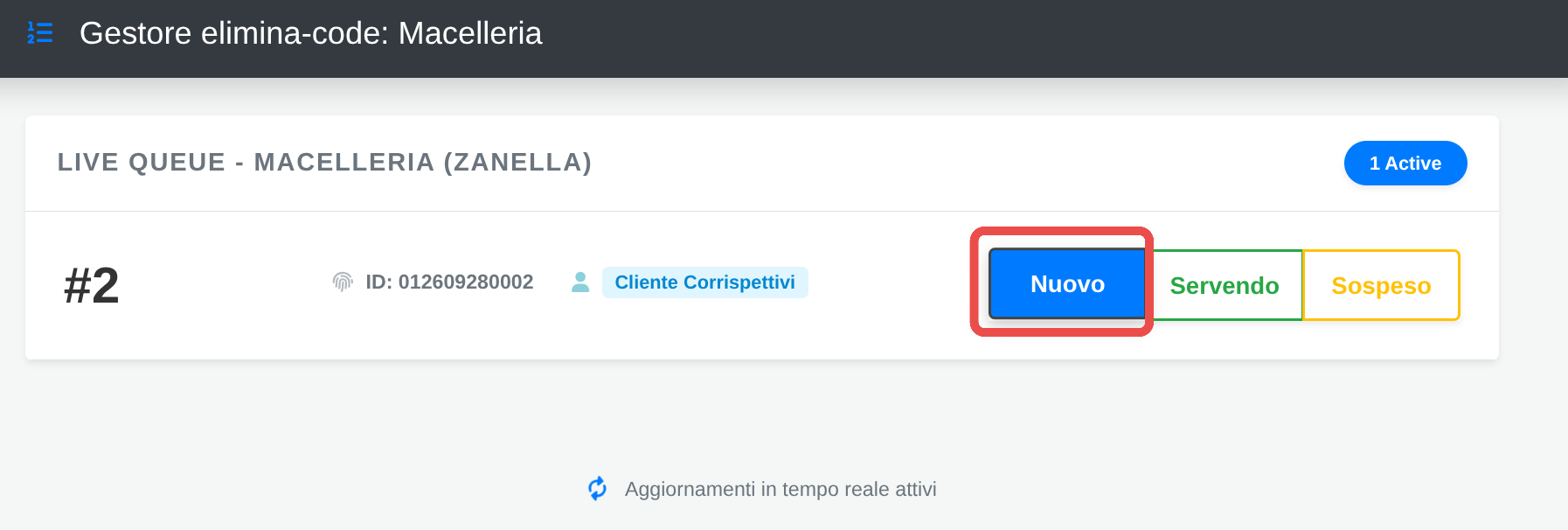
- The page refreshes by itself: no need to reload it.
- On the scale the page opens at an address dedicated to that scale, set up once by the scale vendor.
Example of the page address for scale 03:
https://marcavecio-staging-38046352.dev.odoo.com/shop_management/queue_manager?shop_id=3&building_id=1&scale=03&token=87q8p...
| Parameter | Meaning |
|---|---|
| shop_id | the department in Odoo (here the Butcher): the number shown in the address of the department's record |
| building_id | the store in Odoo, in the same way |
| scale | the scale code in the Tracker (here 03) |
| token | the scale's page token, generated in the Tracker from the scale's record with Generate Page Token |
- The page opens only if the token is the one of that scale and the page's department is the scale's department in the Tracker.
- Treat the token like a password: whoever knows the full address can call tickets on that scale. If it is regenerated, the address must be updated on the scale.
3. The operator calls the ticket
Page: the department's Queue Manager
Action: press Serving on the row of the ticket to serve.
What happens: the ticket is assigned to the scale you called it from, and a message asks you to bring the wristband to the scale.
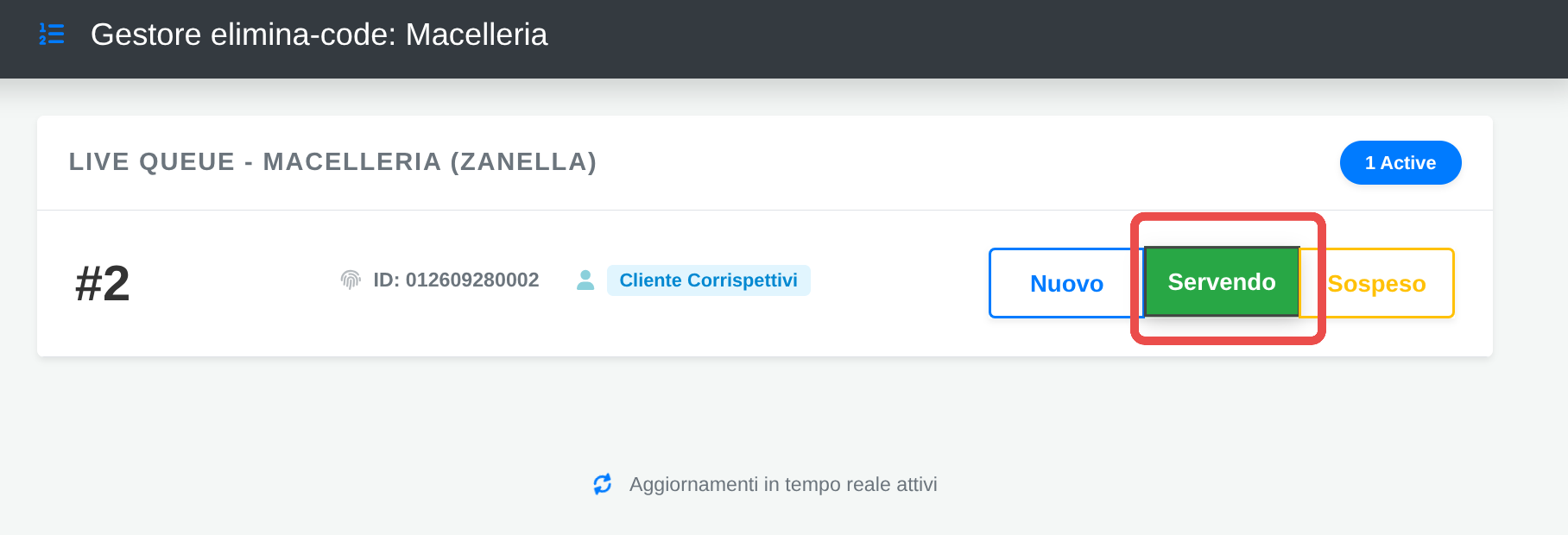
- From now on you have one minute to check in with the wristband (see section 4). If more time goes by, press Serving again.
- If the message reports an error, the ticket was not assigned: try again or tell the person in charge.
4. Check-in with the wristband
Action: bring the wristband to the tag of the scale where you pressed Serving.
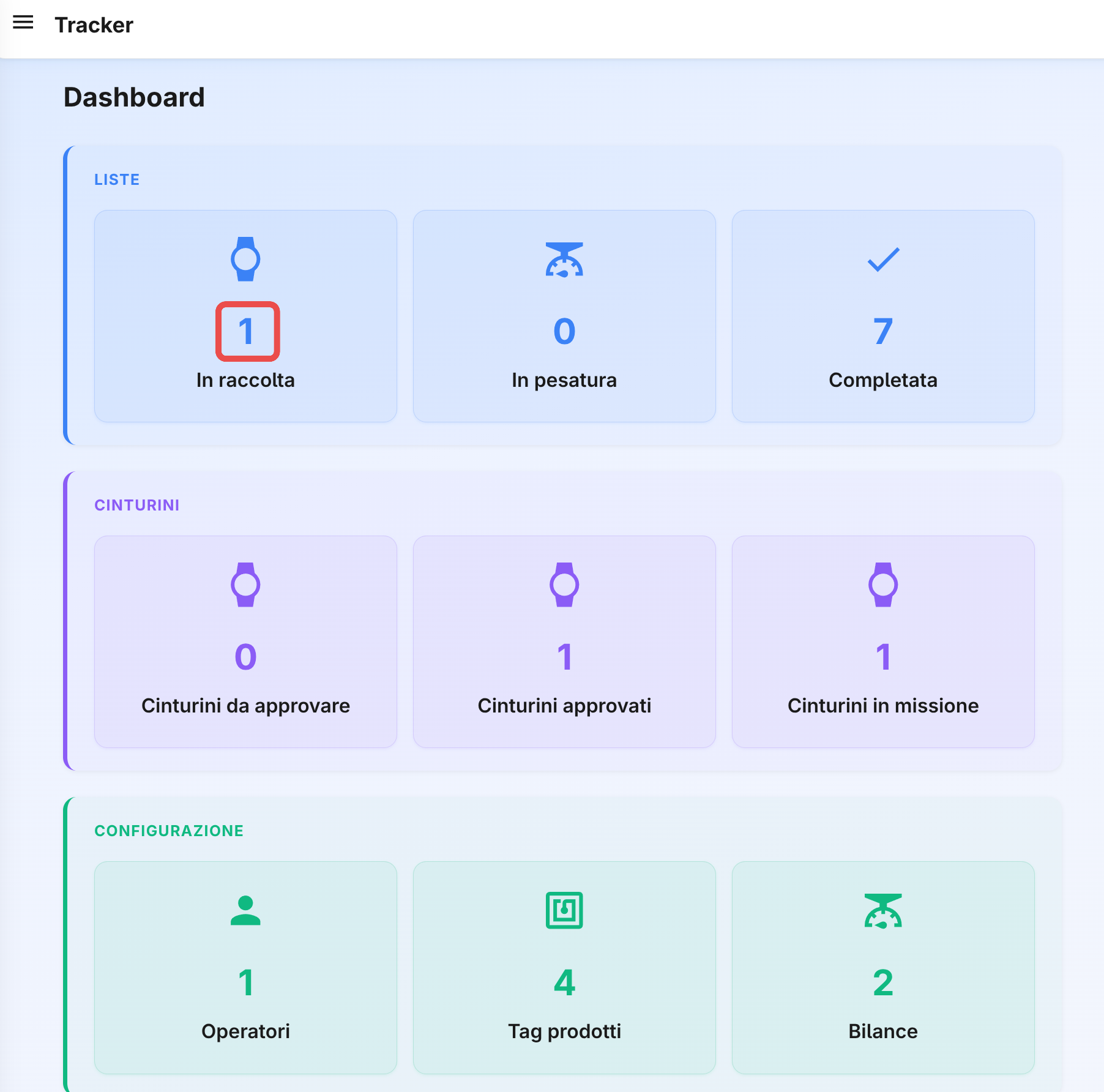
What happens: the wristband confirms the check-in and a new collection list opens in the Tracker for that ticket. On the Dashboard the Collecting counter goes up.
In the Collection Lists list, the new list shows under its number the customer's ticket, the mission, the operator and the check-in scale.
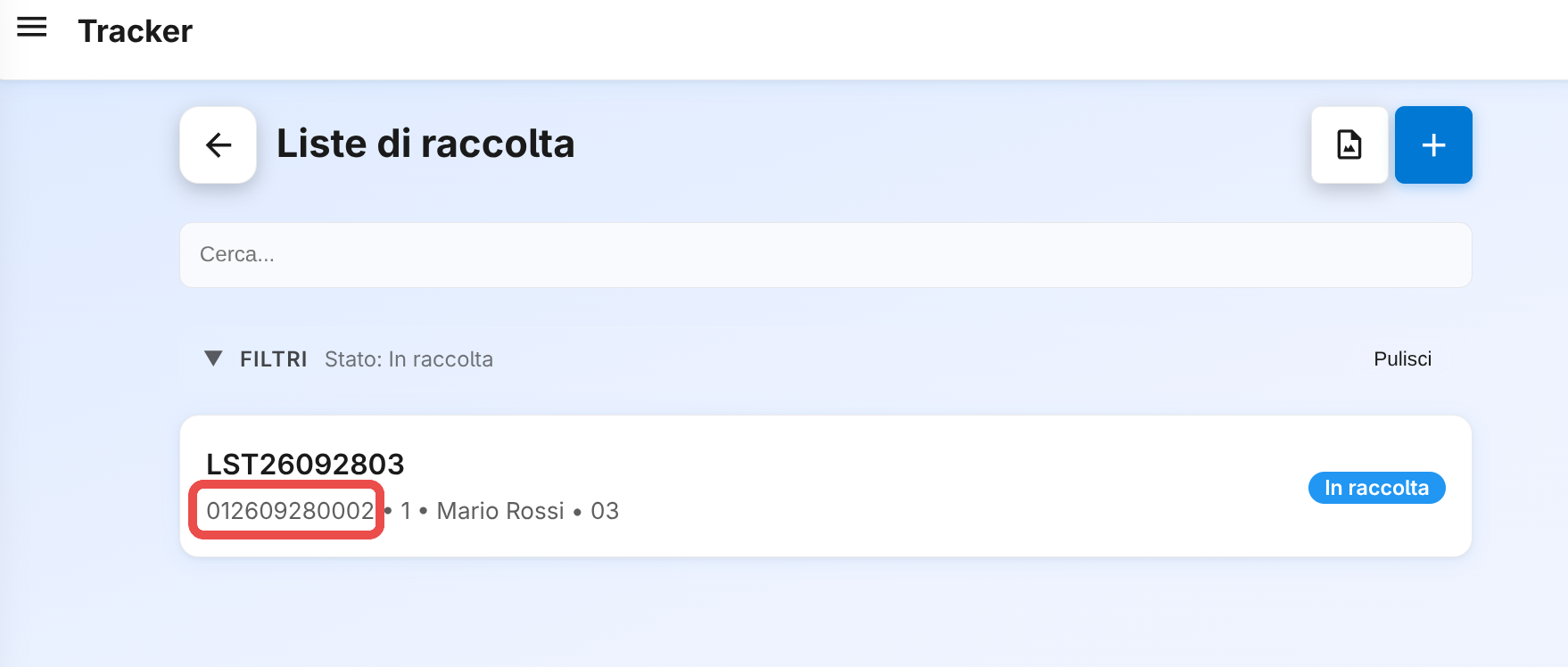
- Mission: if the same customer comes back to the counter with the same ticket, the new check-in opens a second list (mission 2, 3, …).
- If the wristband asks you to pick the ticket first, the ticket is not assigned to the scale or more than a minute has gone by: go back to section 3.
5. Collecting the products
Action: for every product the customer picks, bring the wristband to the product's tag (on the counter or in the display case).
What happens: the wristband adds the product to the list, one line per product. If you read the same tag again, the wristband reports that the product is already in the list and does not add it twice.
- Button B, short press: cancels the last product read.
- Button B, long press: cancels the whole list.
- While collecting, the wristband works without network: the list is sent to the Tracker at check-out.
6. Check-out on the weighing scale
Action: when the collection is over, bring the wristband to the tag of the scale where you weigh. It can be a different scale from the check-in one.
What happens: the list is sent to the Tracker with all the products read, moves to the Weighing state and stays linked to the check-out scale.
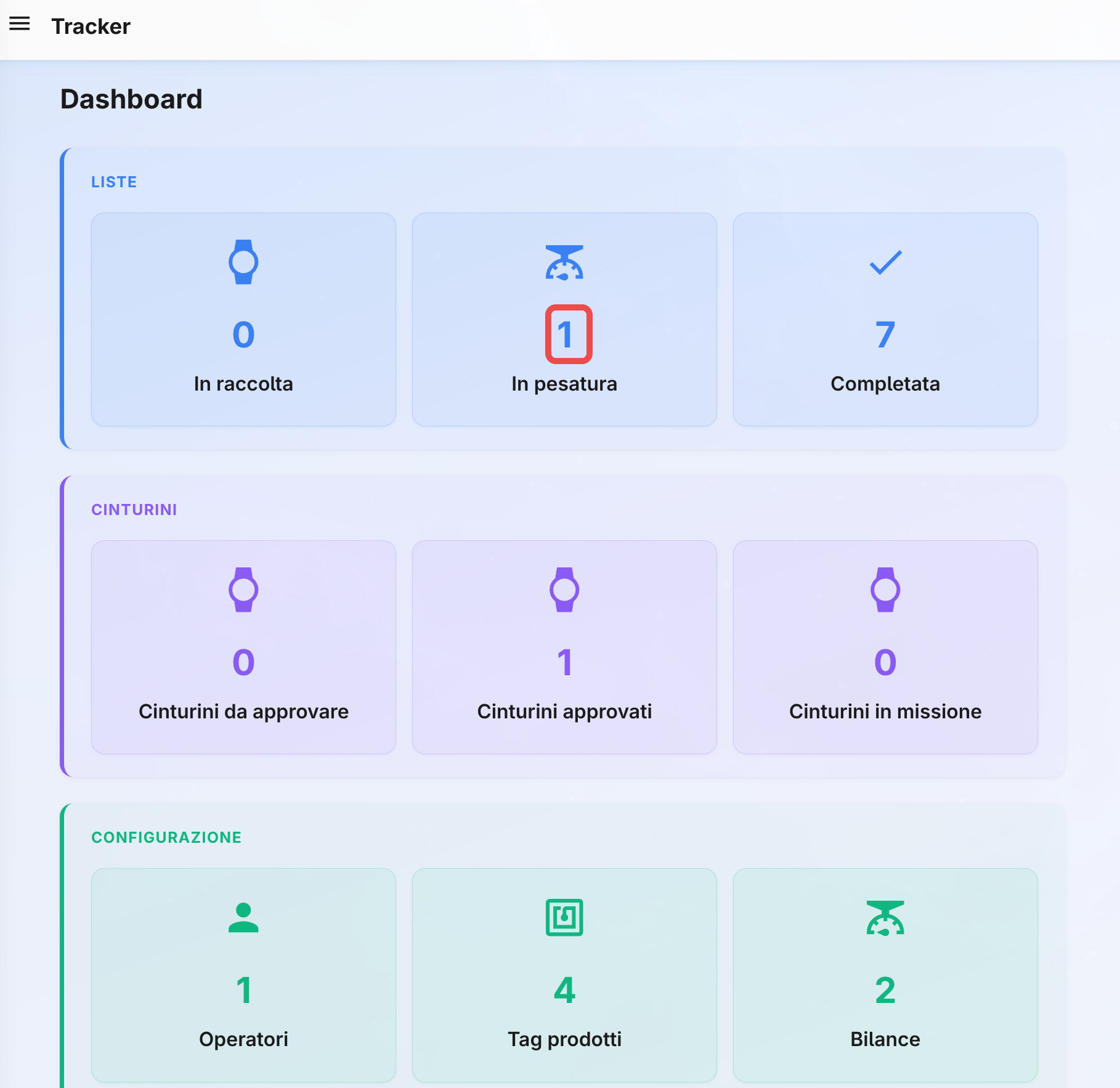
For every line the Tracker shows the code and name of the item linked to the tag and the lot on display at the time of the read.
7. Weighing on the scale
This step takes place entirely on the scale and is built by the scale vendor: the actual screens depend on its software. The scheme sums up what will be possible.
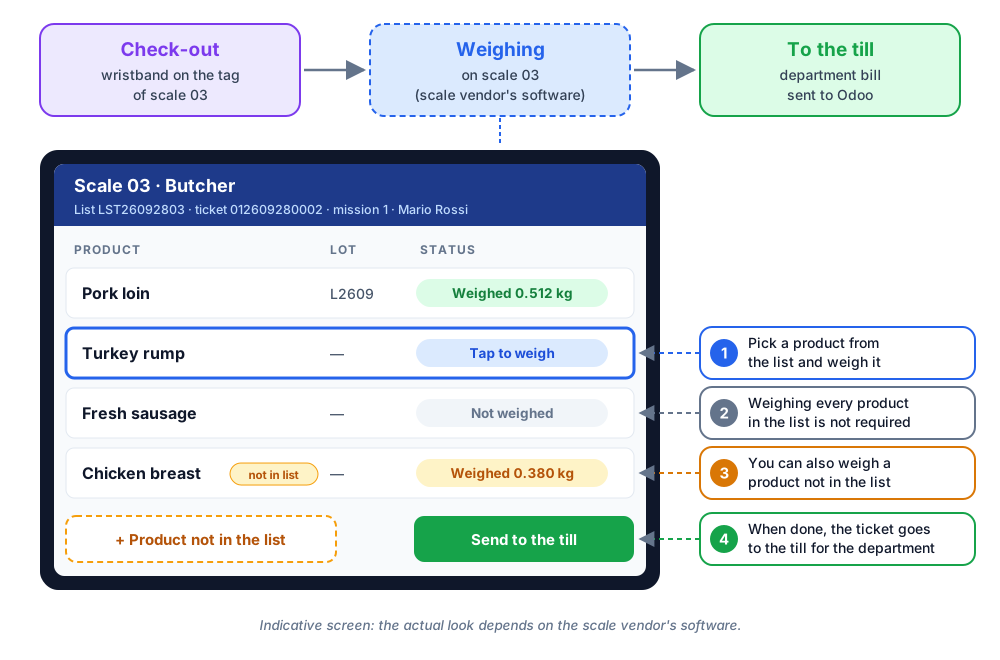
- The wristband's list: on the check-out scale the operator sees the list of products collected with the wristband that checked out on that scale, with ticket and mission.
- Pick and weigh: the operator picks a product from the list and weighs it, without searching for it among the items.
- No need to weigh everything: only the products the customer actually takes are weighed; products left in the list unweighed cause no problems.
- Products not in the list: a product that is not in the list can be weighed too, as today.
- End of weighing: the operator sends the ticket to the till for the department, as today.
8. To the till and closing the lists
What happens: when the ticket goes to the till, the department bill reaches Odoo from the scale and:
- it is recorded among the bills and its lines enter the ticket's sale order;
- the ticket leaves the department queue;
- in the Tracker, that ticket's lists for that department are closed.
In Odoo the bill is found in Aptagram Shop → AB Bills → Bill Headers, with the amount, the sale order (named after the ticket code) and the department number.

The Created by column shows the user the scales send the bills with (here Client API).

The served ticket no longer appears in the department queue.
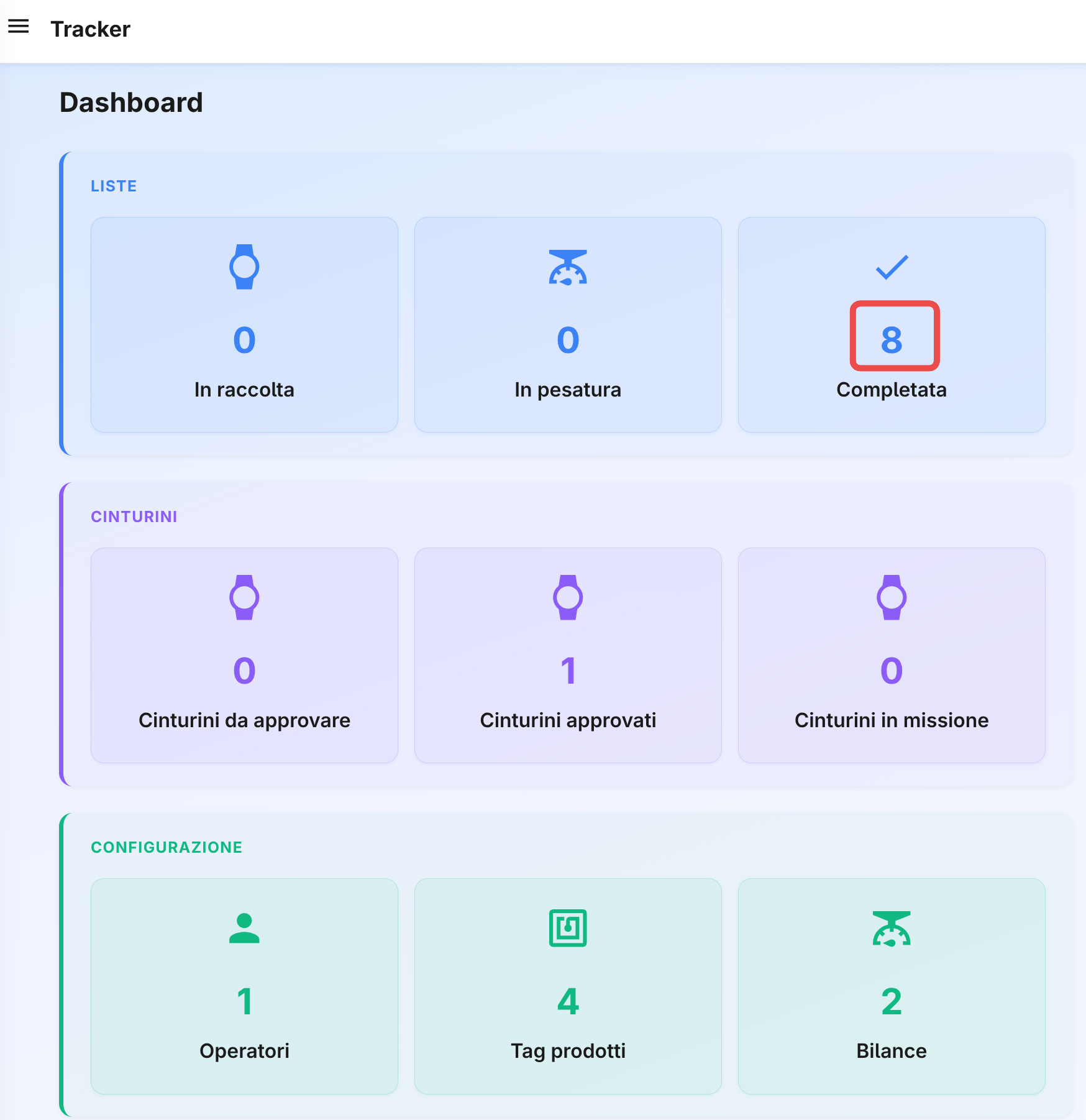
In the Tracker the list moves to Completed: the Weighing counter goes back to zero and Completed goes up.
Opening the completed list, all its lines are processed, with item, lot, tag read and time of the read.

- The ticket's lists being weighed for that department are completed.
- That department's lists still being collected (check-out never done) are cancelled with the note ticket chiuso in cassa (ticket closed at the till).
- Lists of other departments for the same ticket are not touched: they close when their own department goes to the till.
Good to know
- One minute to check in: after Serving the ticket stays assigned to the scale for one minute (the value can be changed in the Tracker settings). If no wristband checks in, press Serving again.
- Forgotten lists: a list left collecting for too long, without check-out, is cancelled automatically (after 60 minutes, the value can be changed in the Tracker settings).
- Bill not imported: if the bill import fails, nothing partial is left in Odoo, the lists are not closed and the scale can send the same bill again.
- Tracker unreachable: if the Tracker does not answer when the ticket goes to the till, Odoo retries closing the lists automatically in the following minutes.
- Wristband without network: collection works without WiFi too; the wristband needs the network only at check-in and check-out.